> ## Documentation Index
> Fetch the complete documentation index at: https://platform.minimax.io/docs/llms.txt
> Use this file to discover all available pages before exploring further.
# Token Plan MCP Guide
> Token Plan MCP provides two exclusive tools: **web_search** and **understand_image**, helping developers quickly access information and understand image content during coding.
We recommend using [MiniMax CLI](/token-plan/minimax-cli) instead of MCP for simpler setup and better experience.
## Tool Description
Performs web searches based on search queries, returning search results and related suggestions.
| Parameter | Type | Required | Description |
| :-------- | :----- | :------: | :----------- |
| query | string | ✓ | Search query |
Performs image understanding and analysis, supporting multiple image input methods.
| Parameter | Type | Required | Description |
| :--------- | :----- | :------: | :------------------------------------------------------- |
| prompt | string | ✓ | Question or analysis request for the image |
| image\_url | string | ✓ | Image source, supports HTTP/HTTPS URL or local file path |
**Supported formats**: JPEG, PNG, GIF, WebP (max 20MB)
## Prerequisites
Visit [Billing > Token Plan](https://platform.minimax.io/user-center/payment/token-plan) to view your Subscription Key. The key needs a Token Plan seat or purchased Credits access to use paid resources.
```bash theme={null}
curl -LsSf https://astral.sh/uv/install.sh | sh
```
```powershell theme={null}
powershell -ExecutionPolicy ByPass -c "irm https://astral.sh/uv/install.ps1 | iex"
```
For other installation methods, refer to the [uv repository](https://github.com/astral-sh/uv).
```bash theme={null}
which uvx
```
```powershell theme={null}
(Get-Command uvx).source
```
If installed correctly, a path will be shown (e.g., `/usr/local/bin/uvx`). If you get `spawn uvx ENOENT` error, you need to configure the absolute path.
## Use in Claude Code
Download and install Claude Code from [Claude Code official website](https://www.claude.com/product/claude-code)
Run the following command in terminal, replace `api_key` with your API Key:
```bash theme={null}
claude mcp add -s user MiniMax --env MINIMAX_API_KEY=api_key --env MINIMAX_API_HOST=https://api.minimax.io -- uvx minimax-coding-plan-mcp -y
```
Edit the config file `~/.claude.json`, add the following MCP configuration:
```json theme={null}
{
"mcpServers": {
"MiniMax": {
"command": "uvx",
"args": ["minimax-coding-plan-mcp", "-y"],
"env": {
"MINIMAX_API_KEY": "MINIMAX_API_KEY",
"MINIMAX_API_HOST": "https://api.minimax.io"
}
}
}
}
```
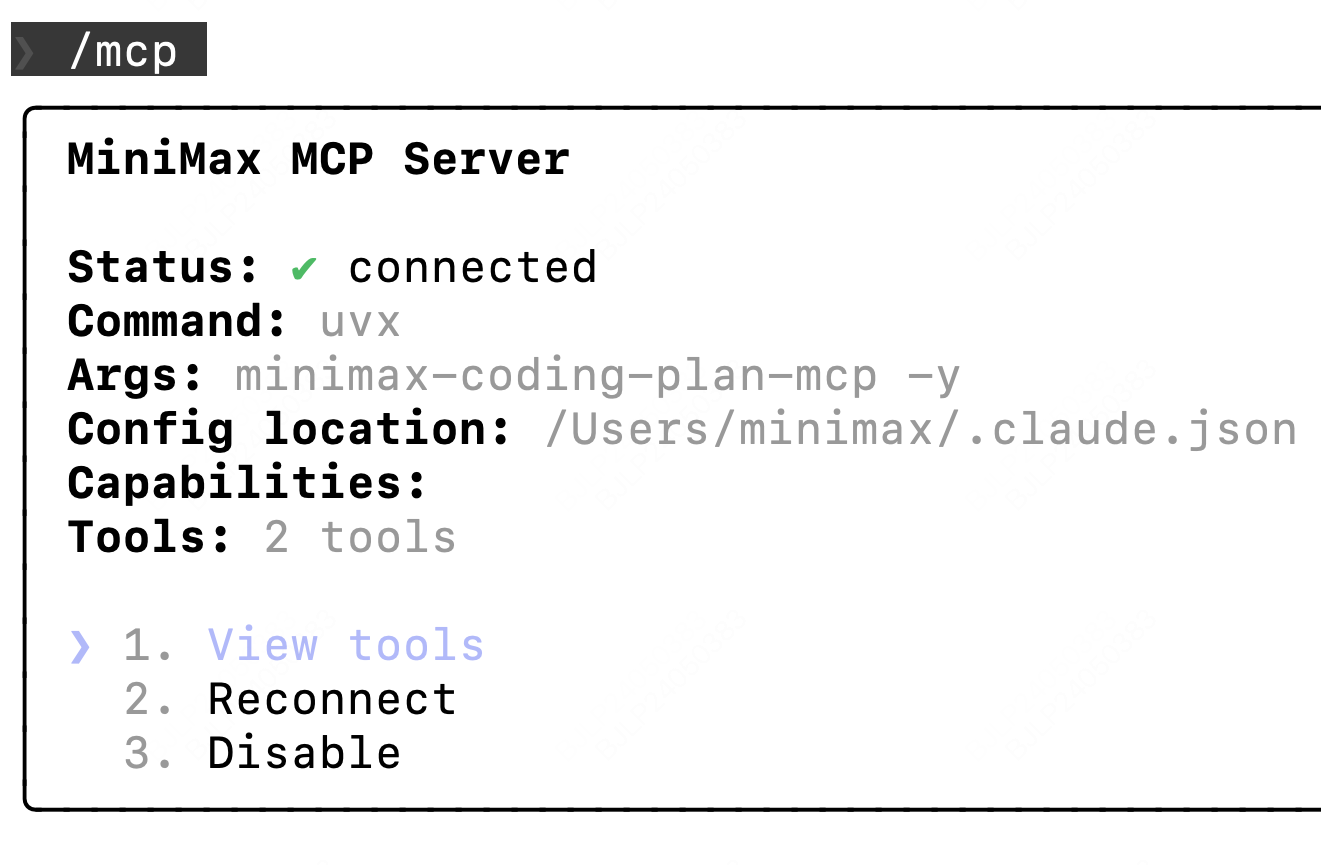
After entering Claude Code, type `/mcp`. If you can see `web_search` and `understand_image`, the configuration is successful.
 If you use MCP in an IDE (like TRAE), you also need to configure MCP in the corresponding IDE settings
## Use in Cursor
Download and install Cursor from [Cursor official website](https://cursor.com/)
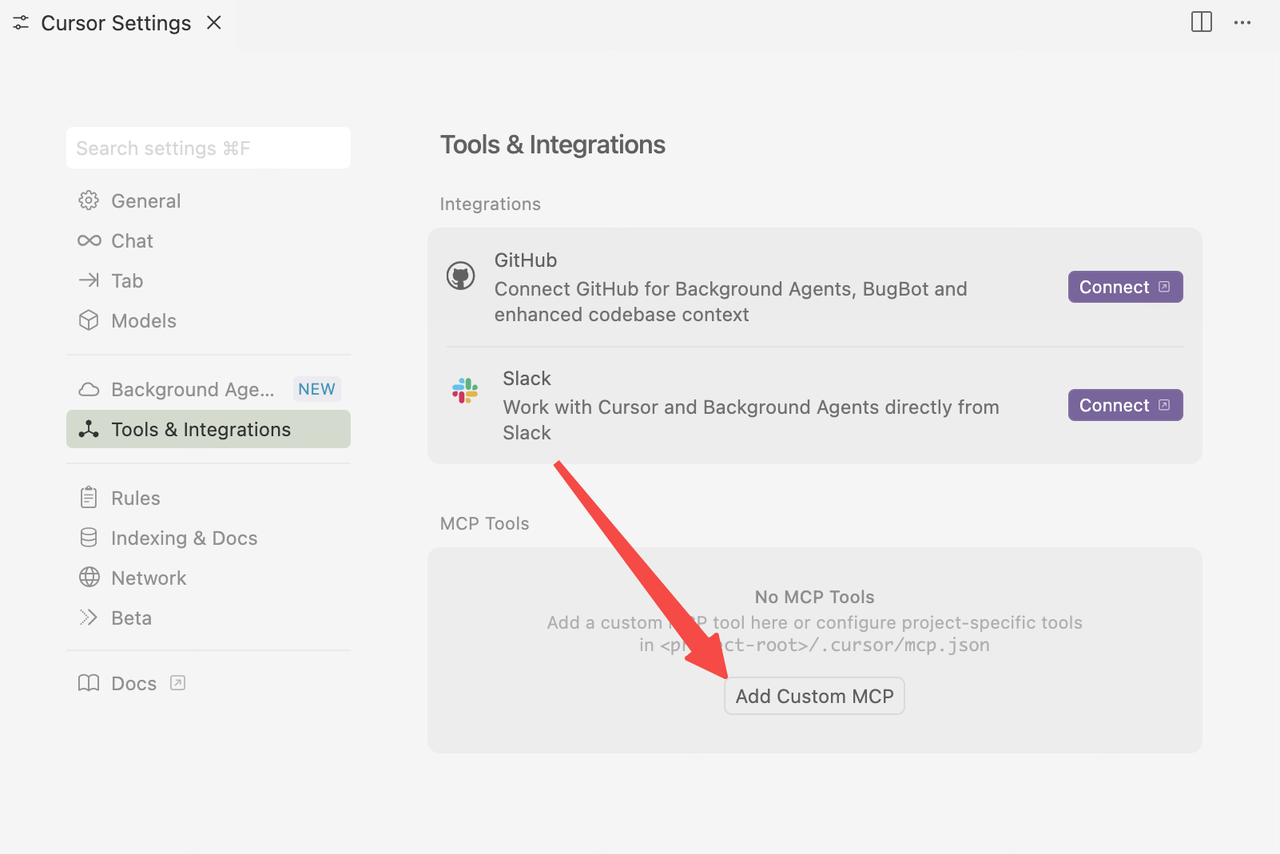
Go to `Cursor -> Preferences -> Cursor Settings -> Tools & Integrations -> MCP -> Add Custom MCP`
Add the following configuration to `mcp.json` file:
```json theme={null}
{
"mcpServers": {
"MiniMax": {
"command": "uvx",
"args": ["minimax-coding-plan-mcp"],
"env": {
"MINIMAX_API_KEY": "Enter your API Key",
"MINIMAX_MCP_BASE_PATH": "Local output directory path, ensure the path exists and is writable",
"MINIMAX_API_HOST": "https://api.minimax.io",
"MINIMAX_API_RESOURCE_MODE": "Optional. Resource delivery method: url or local, default url"
}
}
}
}
```
## Use in OpenCode
Download and install OpenCode from [OpenCode official website](https://opencode.ai/)
Edit the config file `~/.config/opencode/opencode.json`, add the following MCP configuration:
```json theme={null}
{
"$schema": "https://opencode.ai/config.json",
"mcp": {
"MiniMax": {
"type": "local",
"command": ["uvx", "minimax-coding-plan-mcp", "-y"],
"environment": {
"MINIMAX_API_KEY": "MINIMAX_API_KEY",
"MINIMAX_API_HOST": "https://api.minimax.io"
},
"enabled": true
}
}
}
```
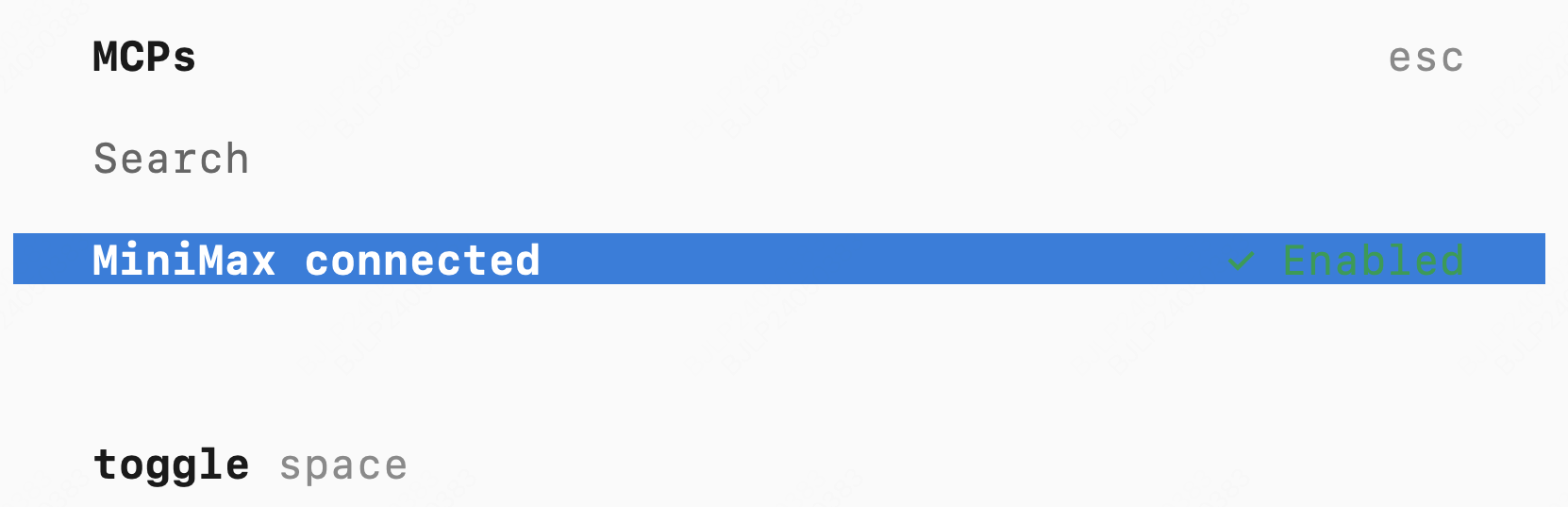
After entering OpenCode, type `/mcp`. If you can see `MiniMax connected`, the configuration is successful.
If you use MCP in an IDE (like TRAE), you also need to configure MCP in the corresponding IDE settings
## Use in Cursor
Download and install Cursor from [Cursor official website](https://cursor.com/)
Go to `Cursor -> Preferences -> Cursor Settings -> Tools & Integrations -> MCP -> Add Custom MCP`

Add the following configuration to `mcp.json` file:
```json theme={null}
{
"mcpServers": {
"MiniMax": {
"command": "uvx",
"args": ["minimax-coding-plan-mcp"],
"env": {
"MINIMAX_API_KEY": "Enter your API Key",
"MINIMAX_MCP_BASE_PATH": "Local output directory path, ensure the path exists and is writable",
"MINIMAX_API_HOST": "https://api.minimax.io",
"MINIMAX_API_RESOURCE_MODE": "Optional. Resource delivery method: url or local, default url"
}
}
}
}
```
## Use in OpenCode
Download and install OpenCode from [OpenCode official website](https://opencode.ai/)
Edit the config file `~/.config/opencode/opencode.json`, add the following MCP configuration:
```json theme={null}
{
"$schema": "https://opencode.ai/config.json",
"mcp": {
"MiniMax": {
"type": "local",
"command": ["uvx", "minimax-coding-plan-mcp", "-y"],
"environment": {
"MINIMAX_API_KEY": "MINIMAX_API_KEY",
"MINIMAX_API_HOST": "https://api.minimax.io"
},
"enabled": true
}
}
}
```
After entering OpenCode, type `/mcp`. If you can see `MiniMax connected`, the configuration is successful.