> ## Documentation Index
> Fetch the complete documentation index at: https://platform.minimax.io/docs/llms.txt
> Use this file to discover all available pages before exploring further.
# Cursor
> Use the latest MiniMax M-series models for AI programming in Cursor.
[**Cursor**](https://cursor.com) is Anysphere's AI-first IDE forked from VS Code, with built-in agents and codebase understanding.
## Install Cursor
1. Download and install Cursor from the [Cursor website](https://cursor.com/agents).
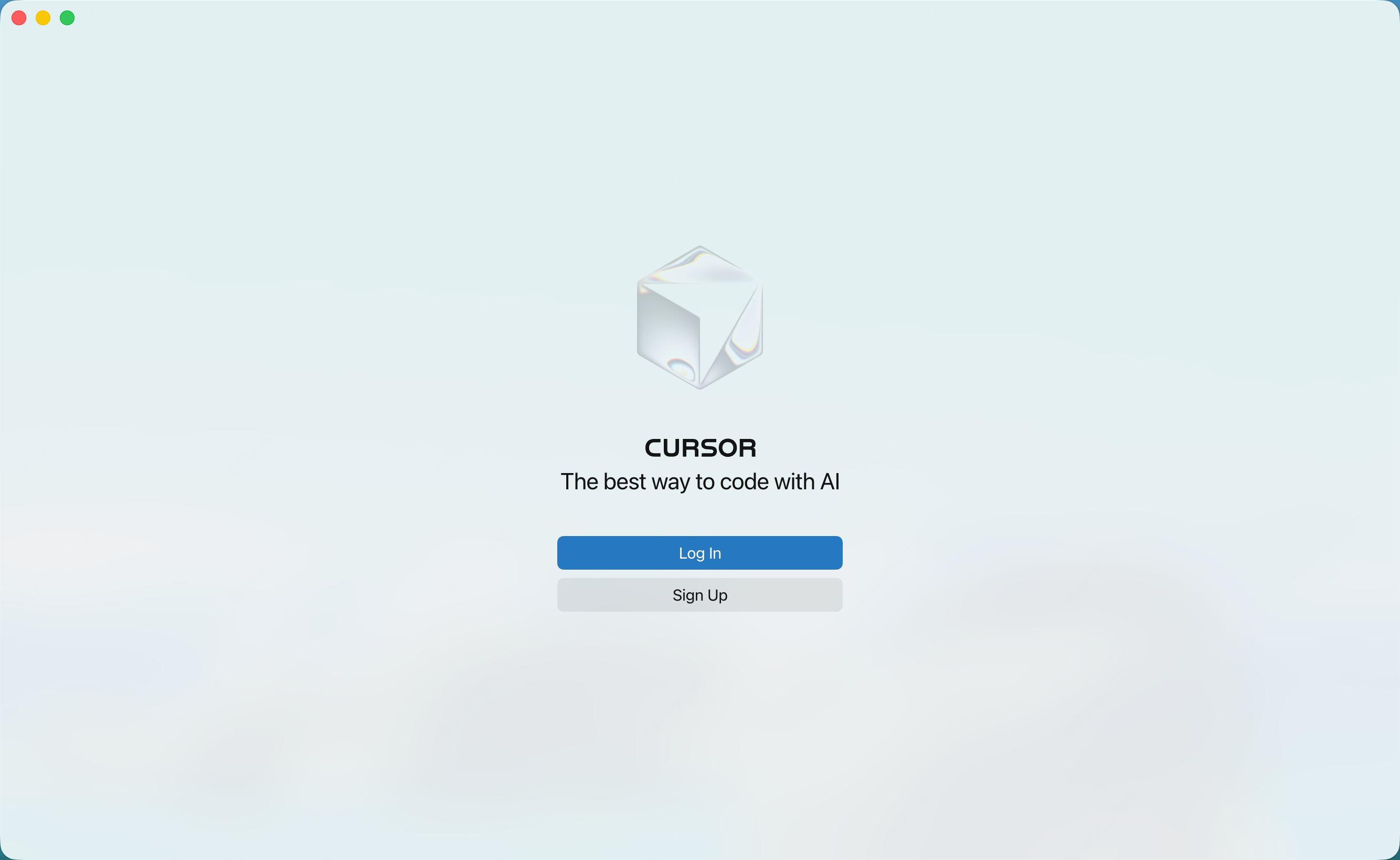
2. Open Cursor, click **Log In**, and sign in to your Cursor account.
## Configure MiniMax API
**Important: Clear OpenAI Environment Variables Before Configuration**
Before configuring, ensure you clear the following OpenAI-related environment variables to avoid conflicts with MiniMax API:
* `OPENAI_API_KEY`
* `OPENAI_BASE_URL`
**Note: Custom models require a Cursor Pro subscription or above.**
Without Cursor Pro, configuration will result in the following error:
`The model MiniMax-M3.1-Flash-Preview does not work with your current plan or api key`
**Known issue: "Override OpenAI Base URL" is a global setting**
Once enabled, the override applies to **all** API Keys you've configured in Cursor — including Anthropic / GPT keys for Cursor's built-in models. This is acknowledged by Cursor staff: when you set a base URL, all your API Keys see it ([forum thread](https://forum.cursor.com/t/anthropic-models-break-when-override-openai-baseurl-is-set/144899)).
If your Cursor-native Claude / GPT models stop working after enabling Override, turn it off when you're not using MiniMax. Cursor currently does not support per-model base URLs ([open feature request](https://forum.cursor.com/t/custom-base-urls-for-each-custom-model/147219)).
1. Click **"Models"** in the left sidebar to open the model configuration page.
2. Expand the **"API Keys"** section and configure the API information:
* Enable "Override OpenAI Base URL";
* Enter the MiniMax base URL `https://api.minimax.io/v1`
3. Paste your [Subscription Key](https://platform.minimax.io/console/plan) into the OpenAI API Key field.
4. Turn on **Use OpenAI API Key**.
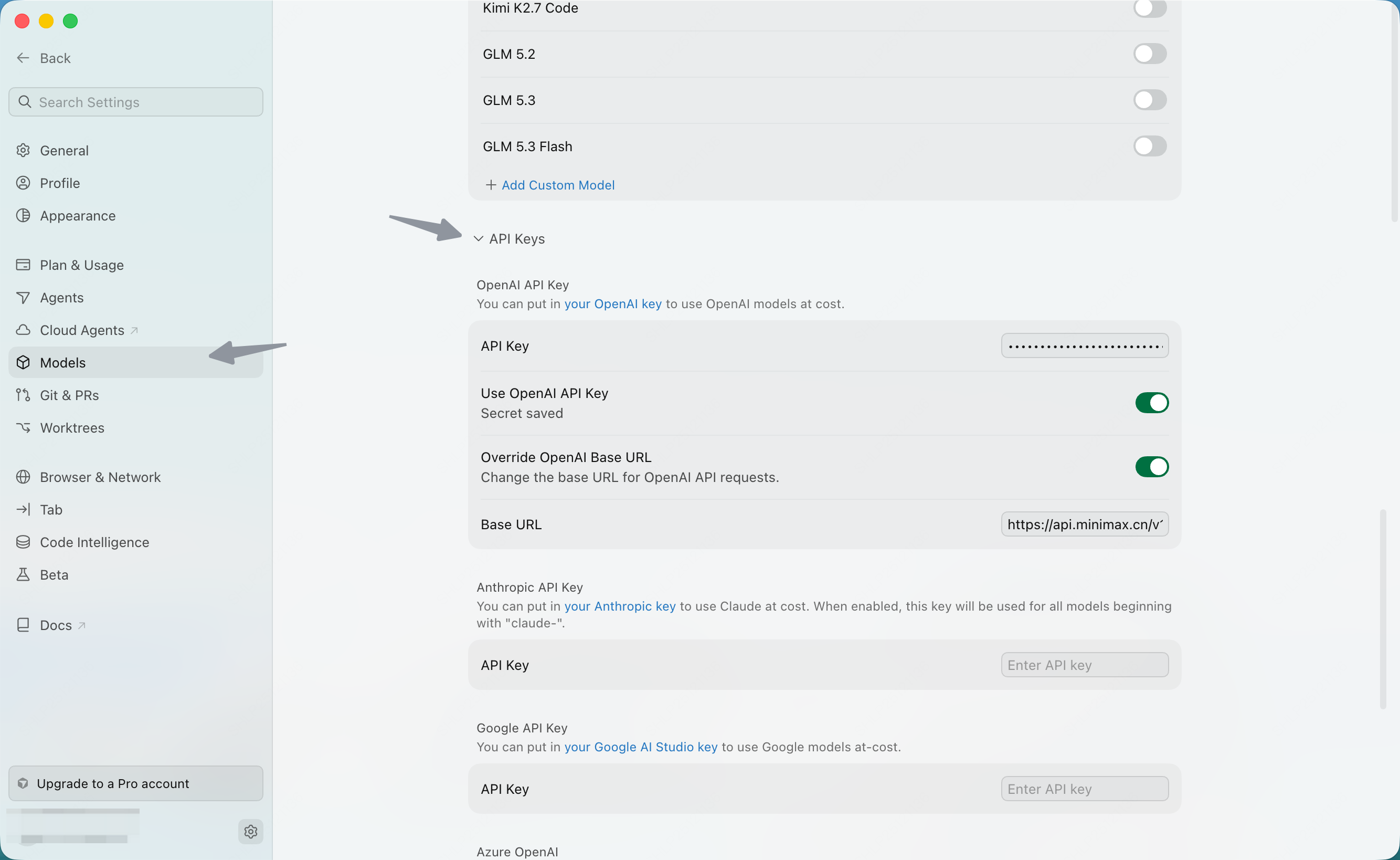
The screenshot shows the Mainland China endpoint. For this page, enter `https://api.minimax.io/v1` as specified above.
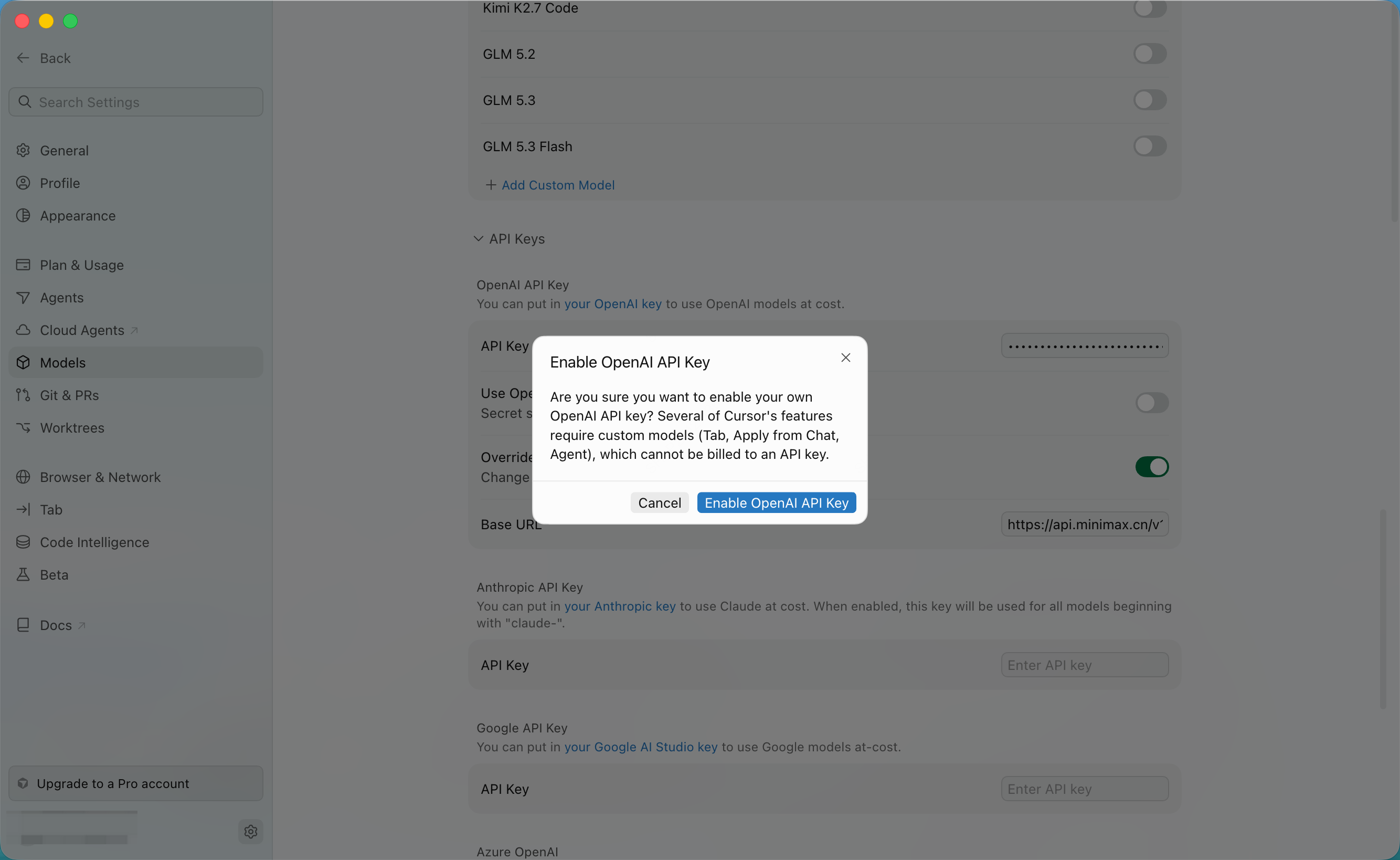
5. Click **Enable OpenAI API Key** in the confirmation dialog.
6. At the bottom of the model list in **Models**, click **Add Custom Model**.
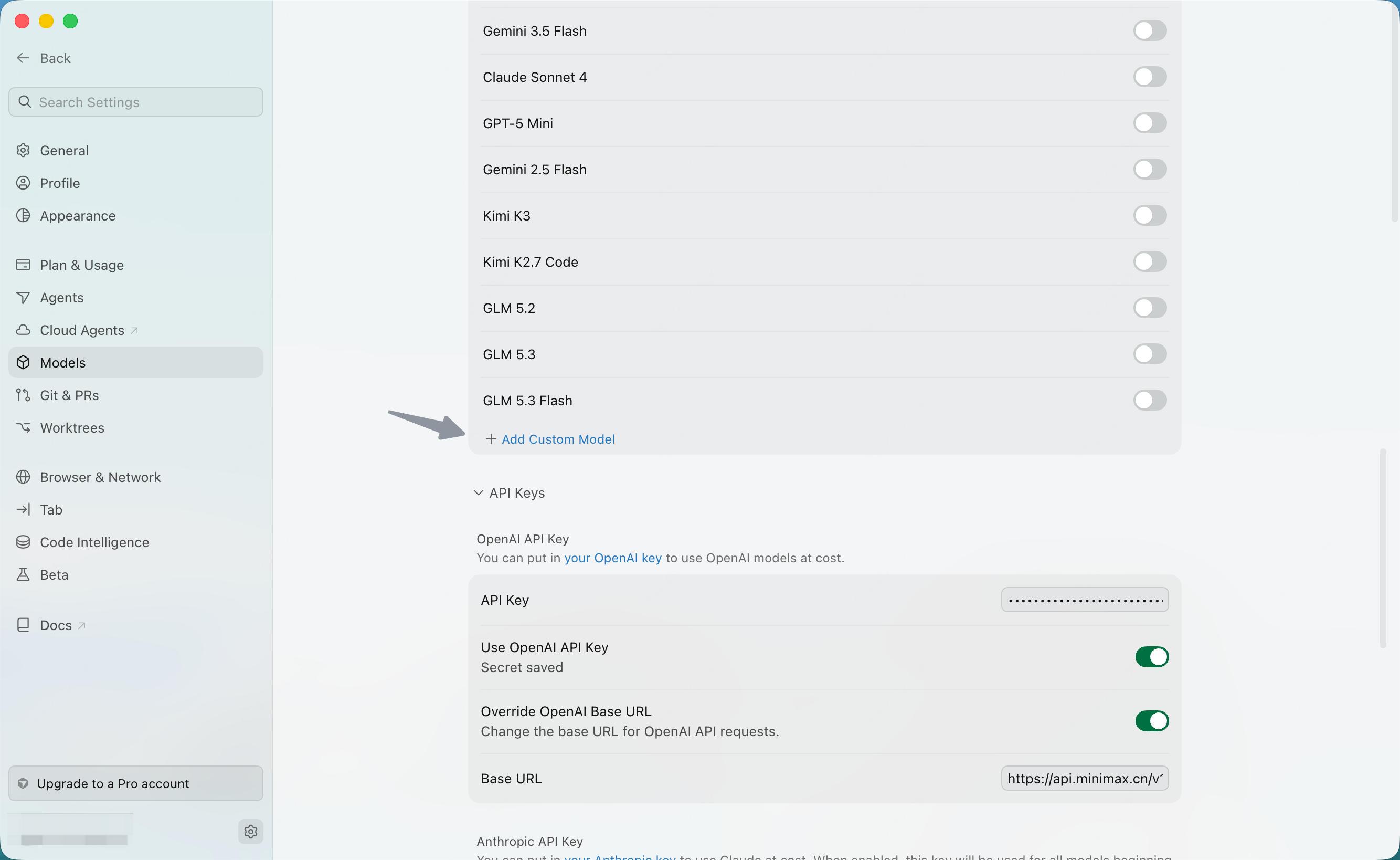
7. Enter the model name **"MiniMax-M3.1-Flash-Preview"**, then click the **"Add"** button.
Use the exact model name `MiniMax-M3.1-Flash-Preview` (capital M's, lowercase i, hyphen) — match the spelling shown in MiniMax docs.
8. Enable the newly added **"MiniMax-M3.1-Flash-Preview"** model.
9. Select the **"MiniMax-M3.1-Flash-Preview"** model in the chat panel and start using "MiniMax-M3.1-Flash-Preview" for development.
**Cursor Tab autocomplete is not powered by your custom MiniMax key.** Tab is a Cursor Pro feature that always uses Cursor's own model. Custom models only work in Chat / Composer / Edit modes.
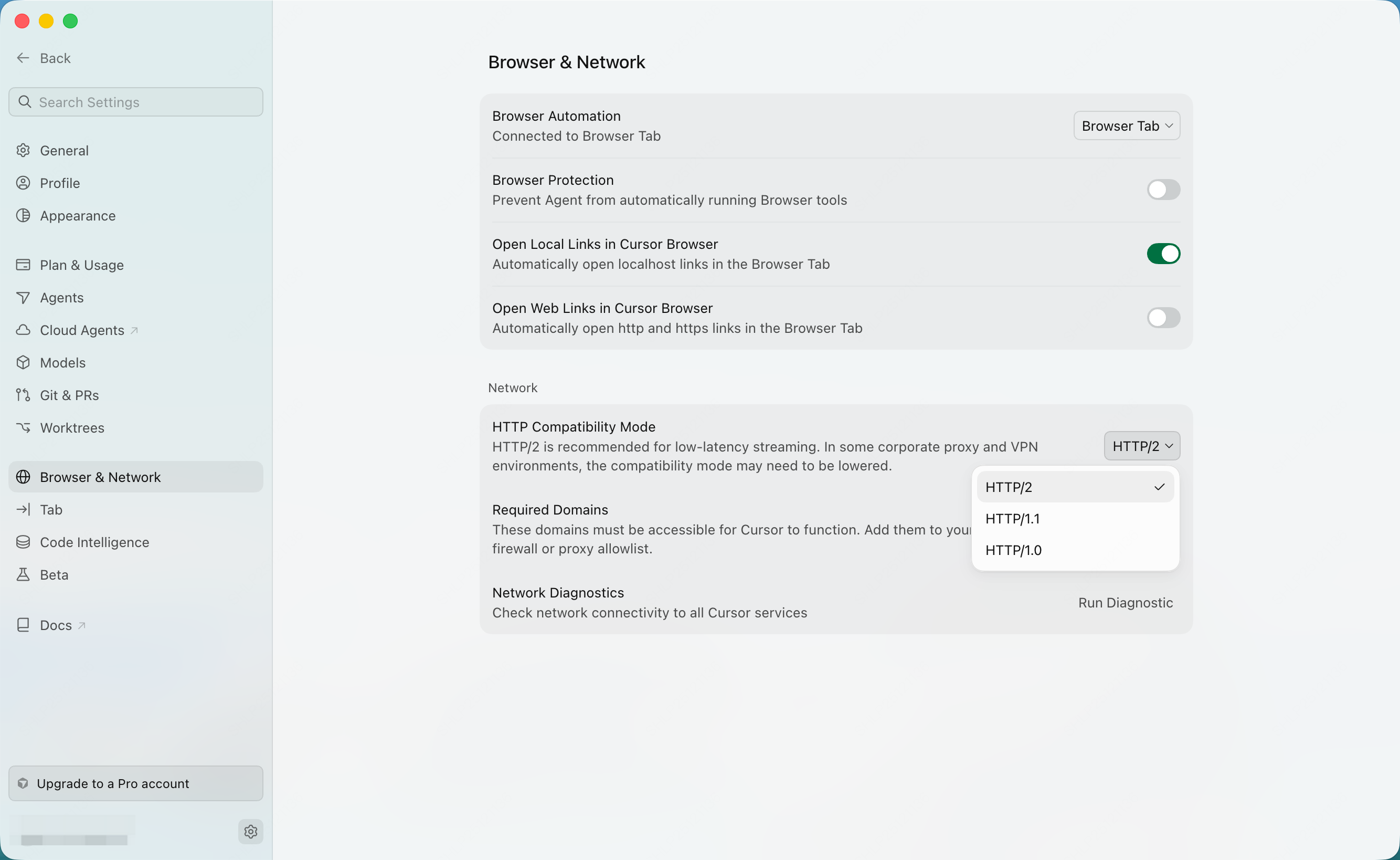
If the model returns no content, open **Browser & Network** in Cursor settings and try **HTTP/1.0** under **HTTP Compatibility Mode**.