> ## Documentation Index
> Fetch the complete documentation index at: https://platform.minimax.io/docs/llms.txt
> Use this file to discover all available pages before exploring further.
# Hermes Agent
> Use the latest MiniMax M-series models in Hermes Agent for autonomous AI-powered development.
[**Hermes Agent**](https://github.com/NousResearch/hermes-agent) is an open-source self-improving AI agent framework by Nous Research.
## Prerequisites
* An active MiniMax M Plan subscription. OAuth sign-in does not require an API Key; the API Key options below do.
* A computer with terminal access (macOS, Linux, or Windows with WSL2)
***
 ## Install Hermes Agent
[Hermes Agent](https://github.com/NousResearch/hermes-agent) is an open-source, self-improving AI agent built by [Nous Research](https://nousresearch.com). It features persistent cross-session memory, a built-in learning loop, 40+ integrated tools, and multi-platform access (CLI, Telegram, Discord, Slack, WhatsApp).
Run the one-line installer in your terminal:
```bash theme={null}
curl -fsSL https://raw.githubusercontent.com/NousResearch/hermes-agent/main/scripts/install.sh | bash
```
Verify the installation:
```bash theme={null}
hermes doctor
```
For more information, refer to the [Hermes Agent documentation](https://hermes-agent.nousresearch.com/docs/).
## Configure MiniMax M Plan
Run the model selector:
```bash theme={null}
hermes model
```
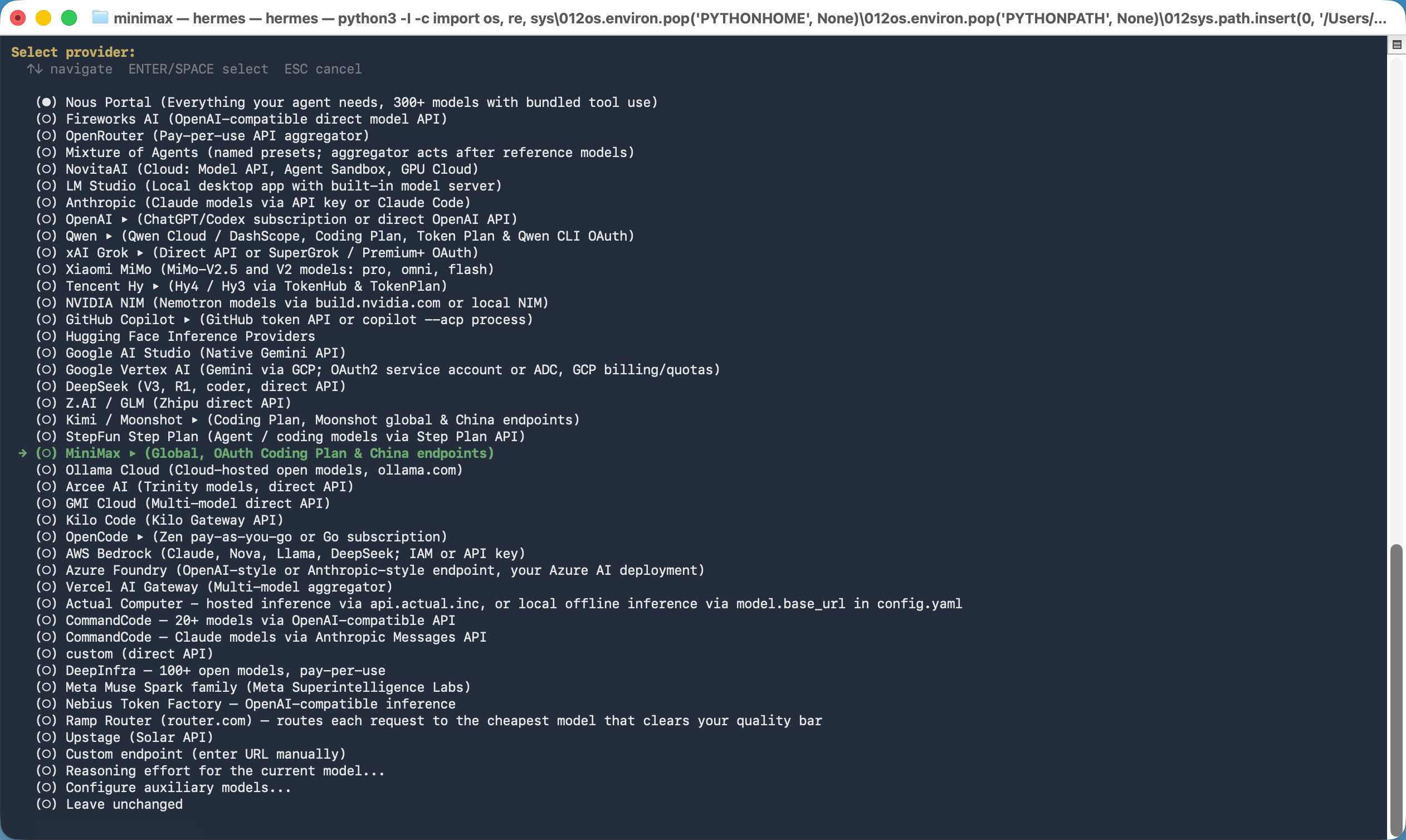
1. Select **MiniMax** from the provider list.
## Install Hermes Agent
[Hermes Agent](https://github.com/NousResearch/hermes-agent) is an open-source, self-improving AI agent built by [Nous Research](https://nousresearch.com). It features persistent cross-session memory, a built-in learning loop, 40+ integrated tools, and multi-platform access (CLI, Telegram, Discord, Slack, WhatsApp).
Run the one-line installer in your terminal:
```bash theme={null}
curl -fsSL https://raw.githubusercontent.com/NousResearch/hermes-agent/main/scripts/install.sh | bash
```
Verify the installation:
```bash theme={null}
hermes doctor
```
For more information, refer to the [Hermes Agent documentation](https://hermes-agent.nousresearch.com/docs/).
## Configure MiniMax M Plan
Run the model selector:
```bash theme={null}
hermes model
```
1. Select **MiniMax** from the provider list.
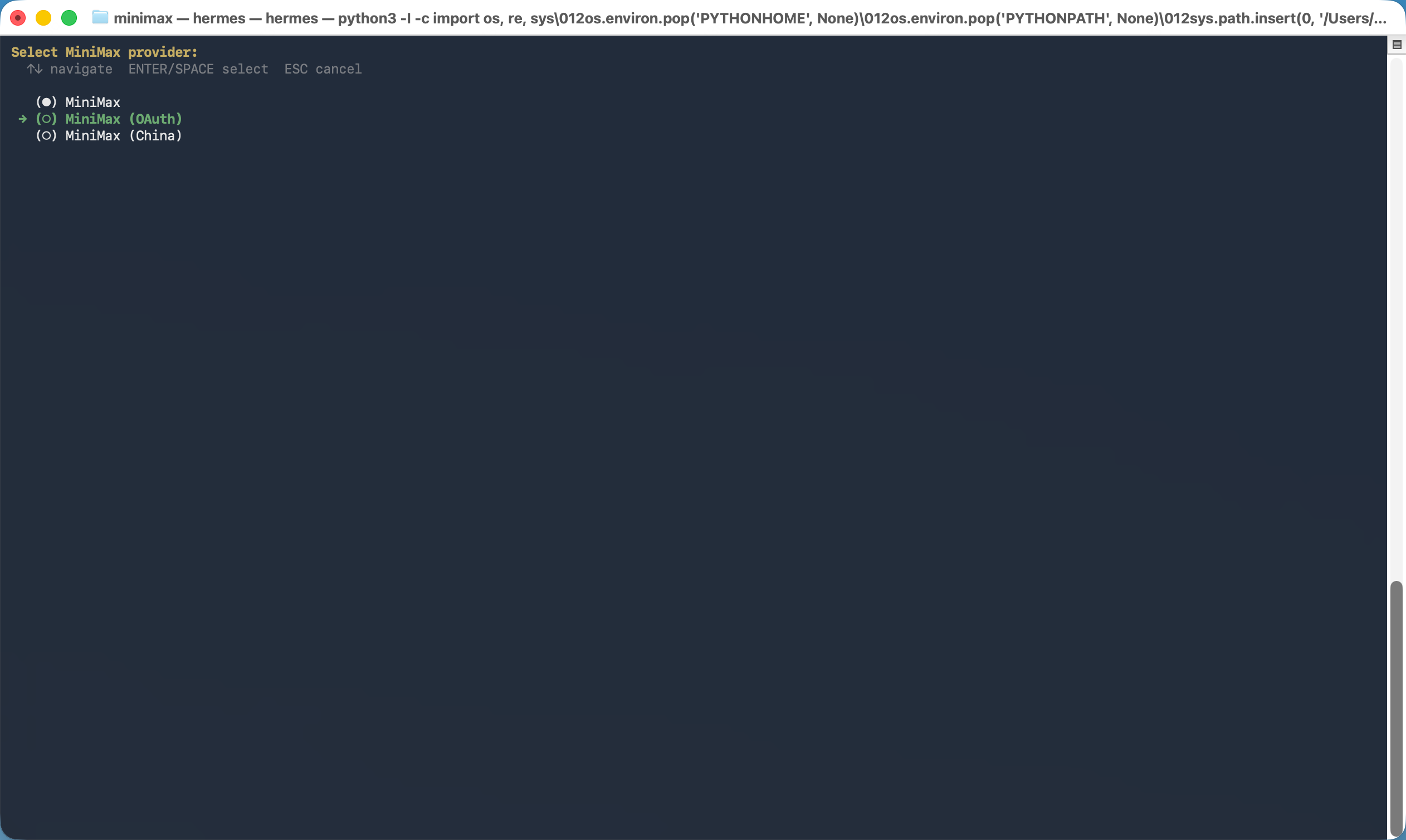
 2. Select **MiniMax (OAuth)**. Hermes opens the MiniMax sign-in page; sign in and authorize access. No API Key is needed.
 3. In the model list, choose **Enter custom model name** and enter `MiniMax-M3.1-Flash-Preview` if it is not listed by your Hermes version.
This OAuth option uses the international MiniMax endpoint. Check your account's access to the selected model before relying on it for work.
After selecting the model, you can edit `~/.hermes/config.yaml` and set `context_length: 1000000` (1M context) under the existing `model:` section. Keep its other fields.
When using the one-click setup wizard, you can skip the manual installation above and run:
```bash theme={null}
npx -y mmx-cli@latest agent setup
```
Select **Hermes Agent** and provide your [Subscription Key](https://platform.minimax.io/console/plan). If Hermes is missing, keep it selected in the second multi-select. The wizard runs the official installer's non-interactive core CLI stages, skips optional flows such as `setup` and `gateway`, and checks `hermes --version`. It then updates `~/.hermes/config.yaml` and `~/.hermes/.env`.
Hermes Agent has built-in support for MiniMax as a provider. Run the model selector:
```bash theme={null}
hermes model
```
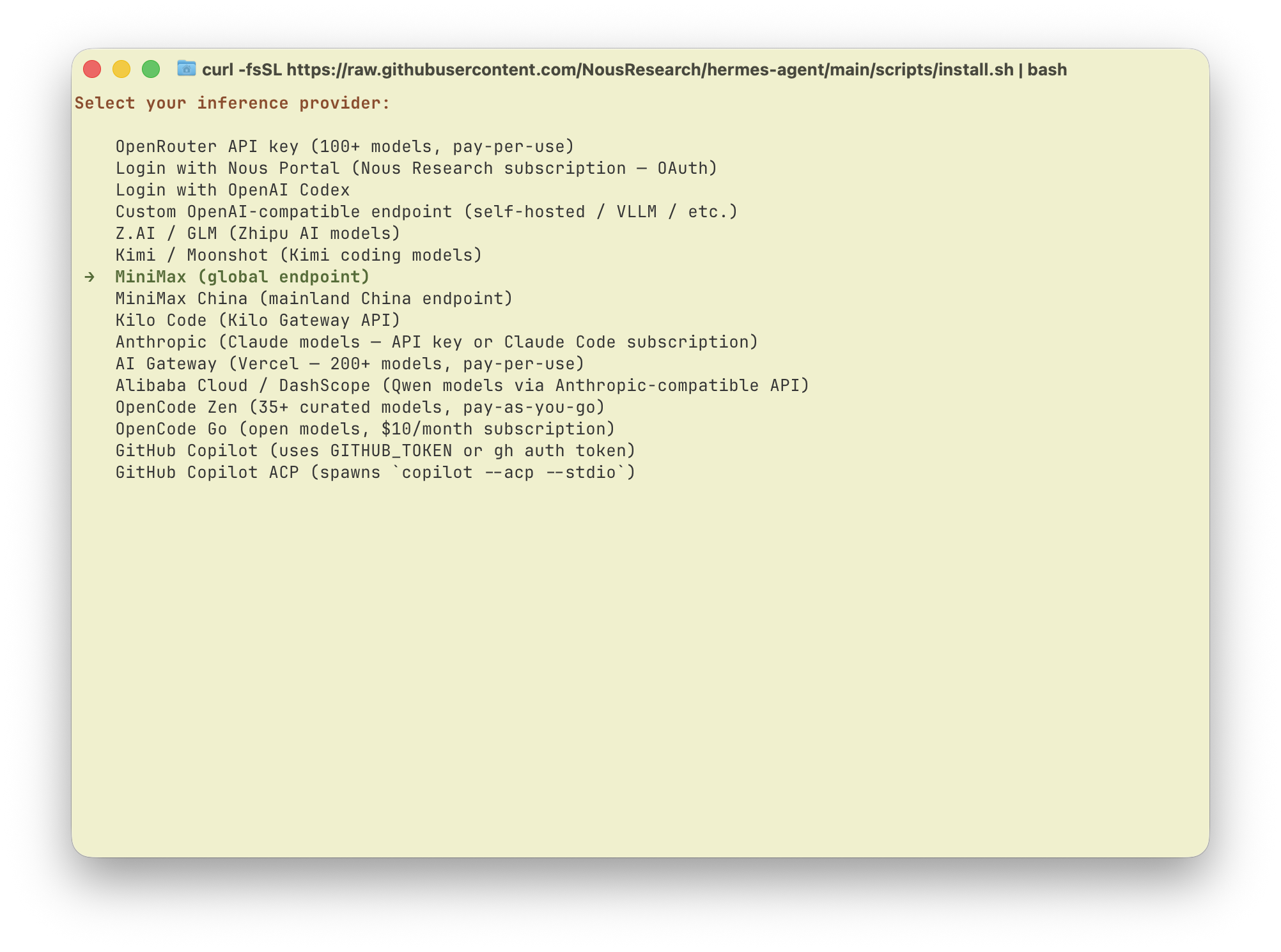
1. Select **"MiniMax (global endpoint)"** from the provider list.
3. In the model list, choose **Enter custom model name** and enter `MiniMax-M3.1-Flash-Preview` if it is not listed by your Hermes version.
This OAuth option uses the international MiniMax endpoint. Check your account's access to the selected model before relying on it for work.
After selecting the model, you can edit `~/.hermes/config.yaml` and set `context_length: 1000000` (1M context) under the existing `model:` section. Keep its other fields.
When using the one-click setup wizard, you can skip the manual installation above and run:
```bash theme={null}
npx -y mmx-cli@latest agent setup
```
Select **Hermes Agent** and provide your [Subscription Key](https://platform.minimax.io/console/plan). If Hermes is missing, keep it selected in the second multi-select. The wizard runs the official installer's non-interactive core CLI stages, skips optional flows such as `setup` and `gateway`, and checks `hermes --version`. It then updates `~/.hermes/config.yaml` and `~/.hermes/.env`.
Hermes Agent has built-in support for MiniMax as a provider. Run the model selector:
```bash theme={null}
hermes model
```
1. Select **"MiniMax (global endpoint)"** from the provider list.
 2. When prompted, enter your **Subscription Key** obtained from the [MiniMax M Plan page](https://platform.minimax.io/console/plan).
 3. Select **Enter custom model name** and enter `MiniMax-M3.1-Flash-Preview` if the model is not listed.
After selecting the model, you can edit `~/.hermes/config.yaml` and set `context_length: 1000000` (1M context) under the existing `model:` section. Keep its other fields.
OAuth sign-in does not use an API Key. For API Key setup, view your Subscription Key in [Plan Details](https://platform.minimax.io/console/plan). Subscription Keys are different from pay-as-you-go API Keys.
## Start Using Hermes Agent
Run `hermes` to start talking with Hermes Agent powered by the latest MiniMax M-series models.
Hermes Agent's persistent memory and self-improving skills system means it gets better the more you use it — your coding patterns, project context, and preferences are remembered across sessions automatically.
## Thinking depth
MiniMax-M3.1-Flash-Preview always enables thinking and cannot turn it off. Supported levels are `low`, `medium`, `high`, `xhigh`, and `max`; do not use `none` or `minimal`. When selecting a level through `/reasoning`, use the options supported by your Hermes Agent version.
3. Select **Enter custom model name** and enter `MiniMax-M3.1-Flash-Preview` if the model is not listed.
After selecting the model, you can edit `~/.hermes/config.yaml` and set `context_length: 1000000` (1M context) under the existing `model:` section. Keep its other fields.
OAuth sign-in does not use an API Key. For API Key setup, view your Subscription Key in [Plan Details](https://platform.minimax.io/console/plan). Subscription Keys are different from pay-as-you-go API Keys.
## Start Using Hermes Agent
Run `hermes` to start talking with Hermes Agent powered by the latest MiniMax M-series models.
Hermes Agent's persistent memory and self-improving skills system means it gets better the more you use it — your coding patterns, project context, and preferences are remembered across sessions automatically.
## Thinking depth
MiniMax-M3.1-Flash-Preview always enables thinking and cannot turn it off. Supported levels are `low`, `medium`, `high`, `xhigh`, and `max`; do not use `none` or `minimal`. When selecting a level through `/reasoning`, use the options supported by your Hermes Agent version.