> ## Documentation Index
> Fetch the complete documentation index at: https://platform.minimax.io/docs/llms.txt
> Use this file to discover all available pages before exploring further.
# Web search MCP
> Add web search to AI tools through MCP.
Web search MCP provides the `web_search` tool, helping AI tools access information on the web during coding.
## Tool Description
Performs web searches based on search queries, returning search results and related suggestions.
| Parameter | Type | Required | Description |
| :- | :- | :-: | :- |
| query | string | ✓ | Search query |
## Prerequisites
Use your Subscription Key.
```bash macOS / Linux theme={null}
curl -LsSf https://astral.sh/uv/install.sh | sh
```
```powershell Windows theme={null}
powershell -ExecutionPolicy ByPass -c "irm https://astral.sh/uv/install.ps1 | iex"
```
For other installation methods, refer to the [uv repository](https://github.com/astral-sh/uv).
```bash macOS / Linux theme={null}
which uvx
```
```powershell Windows theme={null}
(Get-Command uvx).source
```
If installed correctly, a path will be shown (e.g., `/usr/local/bin/uvx`). If you get `spawn uvx ENOENT` error, you need to configure the absolute path.
## Use in Claude Code
Download and install Claude Code from [Claude Code official website](https://www.claude.com/product/claude-code)
Run the following command in terminal, replace `api_key` with your API Key:
```bash theme={null}
claude mcp add -s user MiniMax --env MINIMAX_API_KEY=api_key --env MINIMAX_API_HOST=https://api.minimax.io -- uvx minimax-coding-plan-mcp
```
Edit the config file `~/.claude.json`, add the following MCP configuration:
```json theme={null}
{
"mcpServers": {
"MiniMax": {
"command": "uvx",
"args": ["minimax-coding-plan-mcp"],
"env": {
"MINIMAX_API_KEY": "MINIMAX_API_KEY",
"MINIMAX_API_HOST": "https://api.minimax.io"
}
}
}
}
```
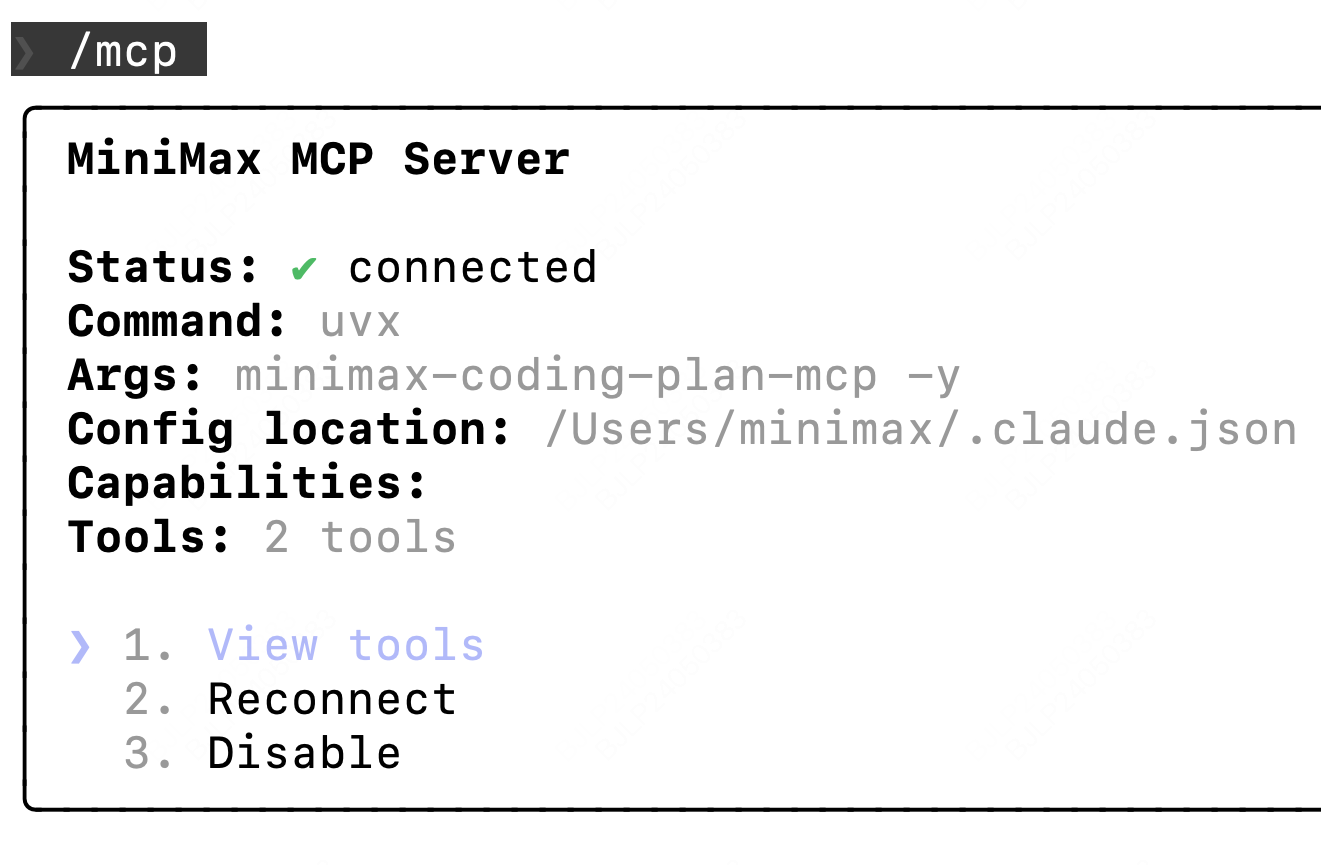
After entering Claude Code, type `/mcp`. If you can see `web_search`, the configuration is successful.
 ## Use in Cursor
Download and install Cursor from [Cursor official website](https://cursor.com/)
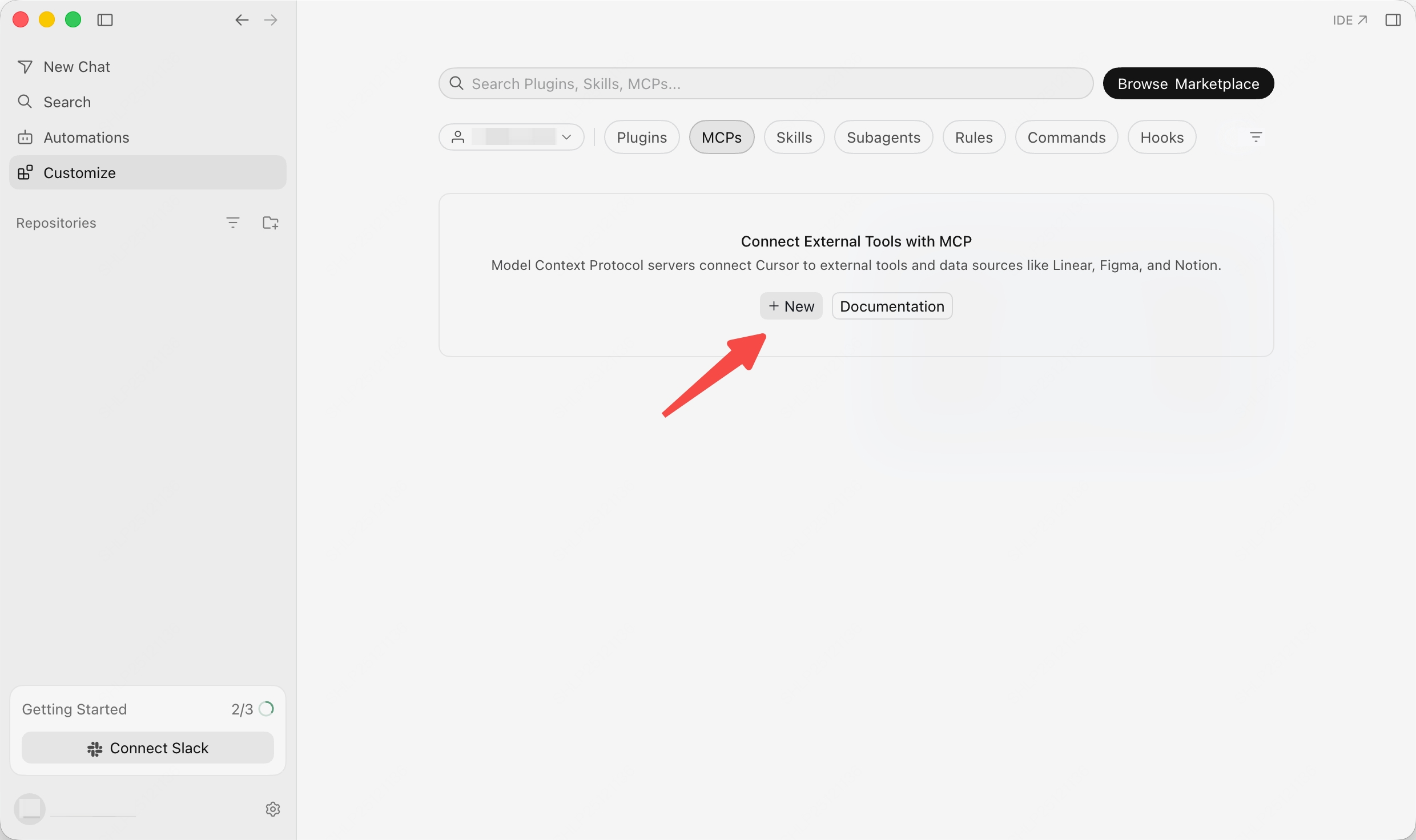
Open `Customize -> MCPs`, then click `New` to create an MCP server.
Add the following configuration to `mcp.json` file:
```json theme={null}
{
"mcpServers": {
"MiniMax": {
"command": "uvx",
"args": ["minimax-coding-plan-mcp"],
"env": {
"MINIMAX_API_KEY": "Enter your API Key",
"MINIMAX_API_HOST": "https://api.minimax.io"
}
}
}
}
```
## Use in OpenCode
Download and install OpenCode from [OpenCode official website](https://opencode.ai/)
Edit the config file `~/.config/opencode/opencode.json`, add the following MCP configuration:
```json theme={null}
{
"$schema": "https://opencode.ai/config.json",
"mcp": {
"MiniMax": {
"type": "local",
"command": ["uvx", "minimax-coding-plan-mcp"],
"environment": {
"MINIMAX_API_KEY": "MINIMAX_API_KEY",
"MINIMAX_API_HOST": "https://api.minimax.io"
},
"enabled": true
}
}
}
```
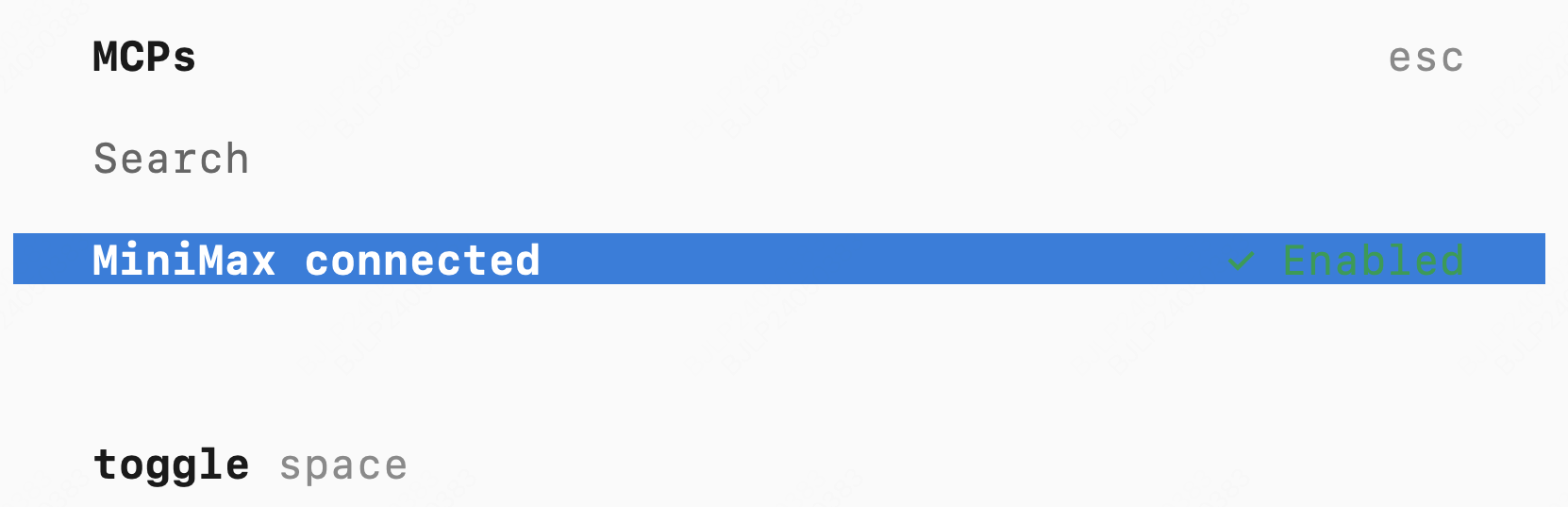
After entering OpenCode, type `/mcp`. If you can see `MiniMax connected`, the configuration is successful.
## Use in Cursor
Download and install Cursor from [Cursor official website](https://cursor.com/)
Open `Customize -> MCPs`, then click `New` to create an MCP server.

Add the following configuration to `mcp.json` file:
```json theme={null}
{
"mcpServers": {
"MiniMax": {
"command": "uvx",
"args": ["minimax-coding-plan-mcp"],
"env": {
"MINIMAX_API_KEY": "Enter your API Key",
"MINIMAX_API_HOST": "https://api.minimax.io"
}
}
}
}
```
## Use in OpenCode
Download and install OpenCode from [OpenCode official website](https://opencode.ai/)
Edit the config file `~/.config/opencode/opencode.json`, add the following MCP configuration:
```json theme={null}
{
"$schema": "https://opencode.ai/config.json",
"mcp": {
"MiniMax": {
"type": "local",
"command": ["uvx", "minimax-coding-plan-mcp"],
"environment": {
"MINIMAX_API_KEY": "MINIMAX_API_KEY",
"MINIMAX_API_HOST": "https://api.minimax.io"
},
"enabled": true
}
}
}
```
After entering OpenCode, type `/mcp`. If you can see `MiniMax connected`, the configuration is successful.