> ## Documentation Index
> Fetch the complete documentation index at: https://platform.minimax.io/docs/llms.txt
> Use this file to discover all available pages before exploring further.
# OpenClaw
> Use the latest MiniMax M-series models for anything you can think of in OpenClaw.
[**OpenClaw**](https://github.com/openclaw/openclaw) is a personal AI assistant running locally, integrating with messaging platforms for control.
## Prerequisites
* A MiniMax [Subscription Key](https://platform.minimax.io/console/plan) with an active M Plan subscription
* A computer with terminal access (macOS, Linux, or Windows with WSL)
***
## Install and Configure OpenClaw
Run the installation command in your terminal:
```bash theme={null}
curl -fsSL https://openclaw.ai/install.sh | bash
```
You'll see this entry page:
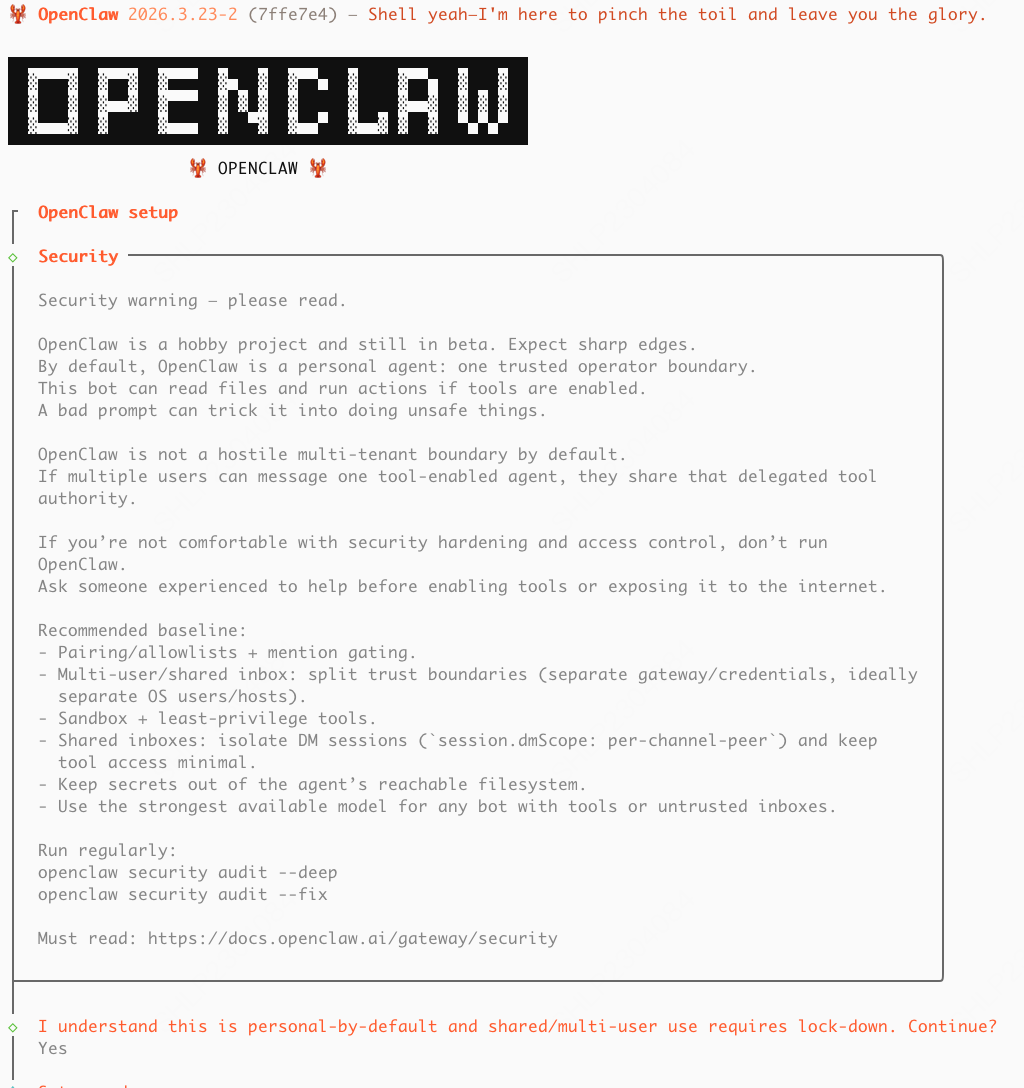 Select **"Yes"** .
Select **"QuickStart"** to use the guided setup.
Select **"MiniMax"** as the model provider.
Select **"MiniMax Global — OAuth (minimax.io)"** as the authentication method.
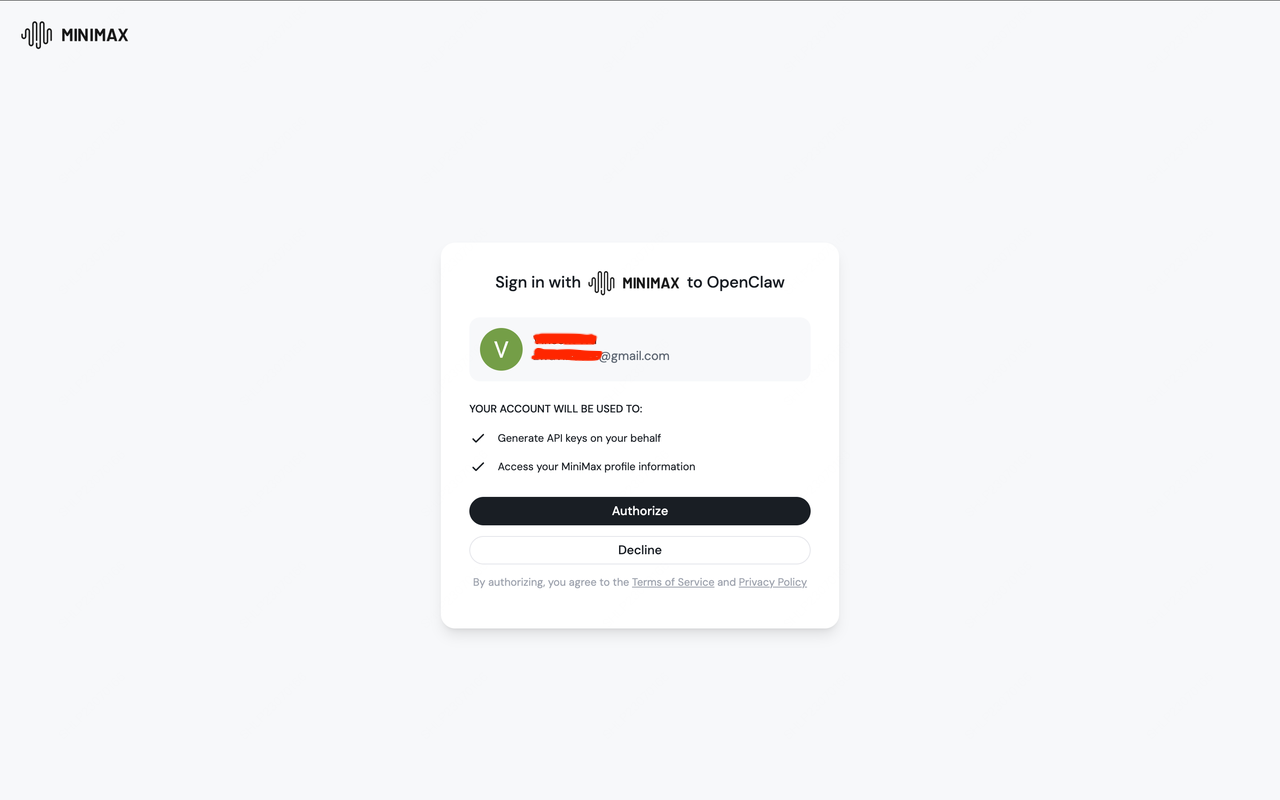
You'll be sent to a browser window to sign in to or sign up for your MiniMax API Platform account.
Select **"Authorize"**, after which you can return to the terminal.
Select **"Yes"** .
Select **"QuickStart"** to use the guided setup.
Select **"MiniMax"** as the model provider.
Select **"MiniMax Global — OAuth (minimax.io)"** as the authentication method.
You'll be sent to a browser window to sign in to or sign up for your MiniMax API Platform account.
Select **"Authorize"**, after which you can return to the terminal.
 In the model picker, select `MiniMax-M3.1-Flash-Preview` as the default model and press **Enter**.
Back in the terminal, select a messaging channel to connect. OpenClaw supports a range of platforms including Telegram, WhatsApp, Discord, iMessage, and more.
In the model picker, select `MiniMax-M3.1-Flash-Preview` as the default model and press **Enter**.
Back in the terminal, select a messaging channel to connect. OpenClaw supports a range of platforms including Telegram, WhatsApp, Discord, iMessage, and more.
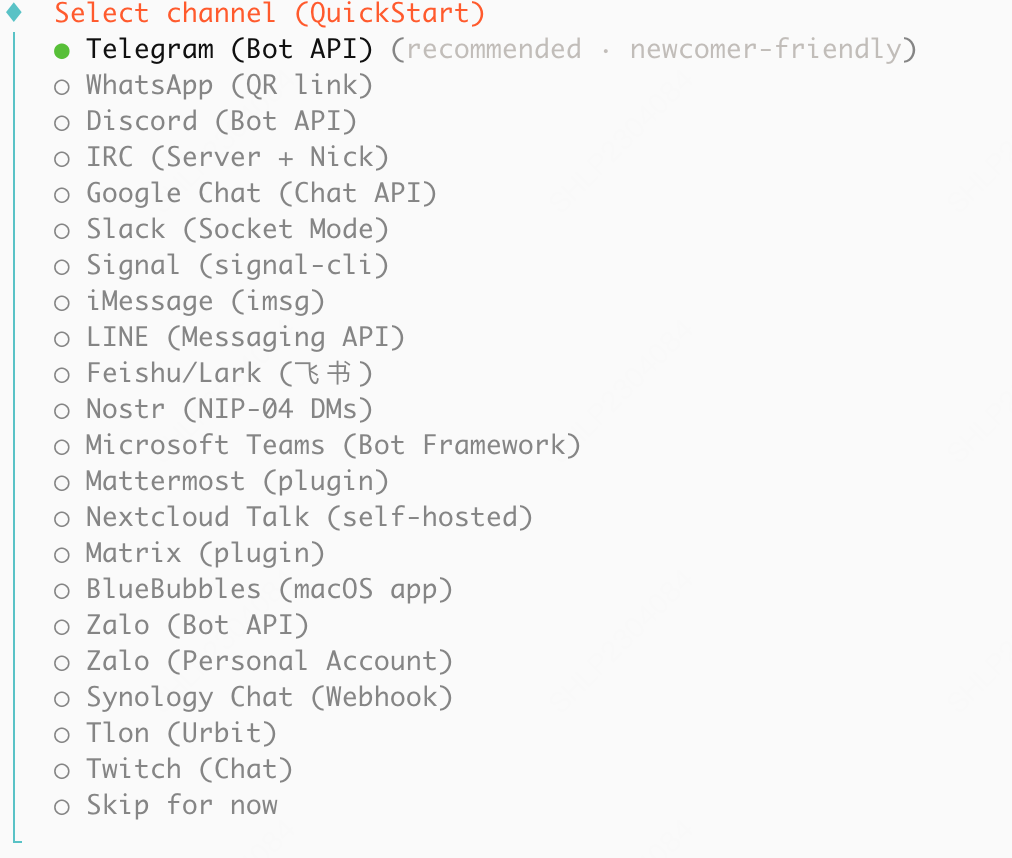 Follow the prompts for your chosen channel, then select **"Yes"** when asked to confirm.
 Select any additional skills you wish to install (press space to select, up and down arrows to navigate).
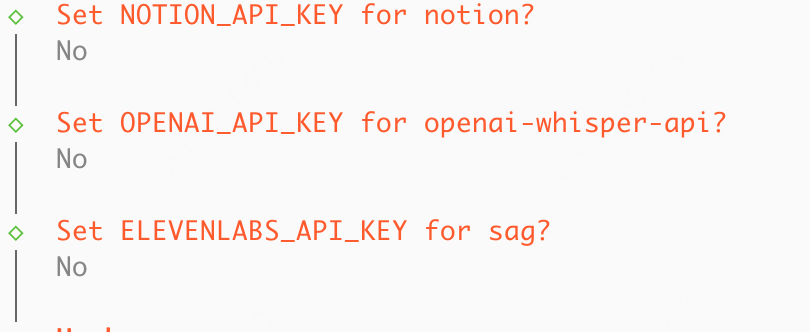
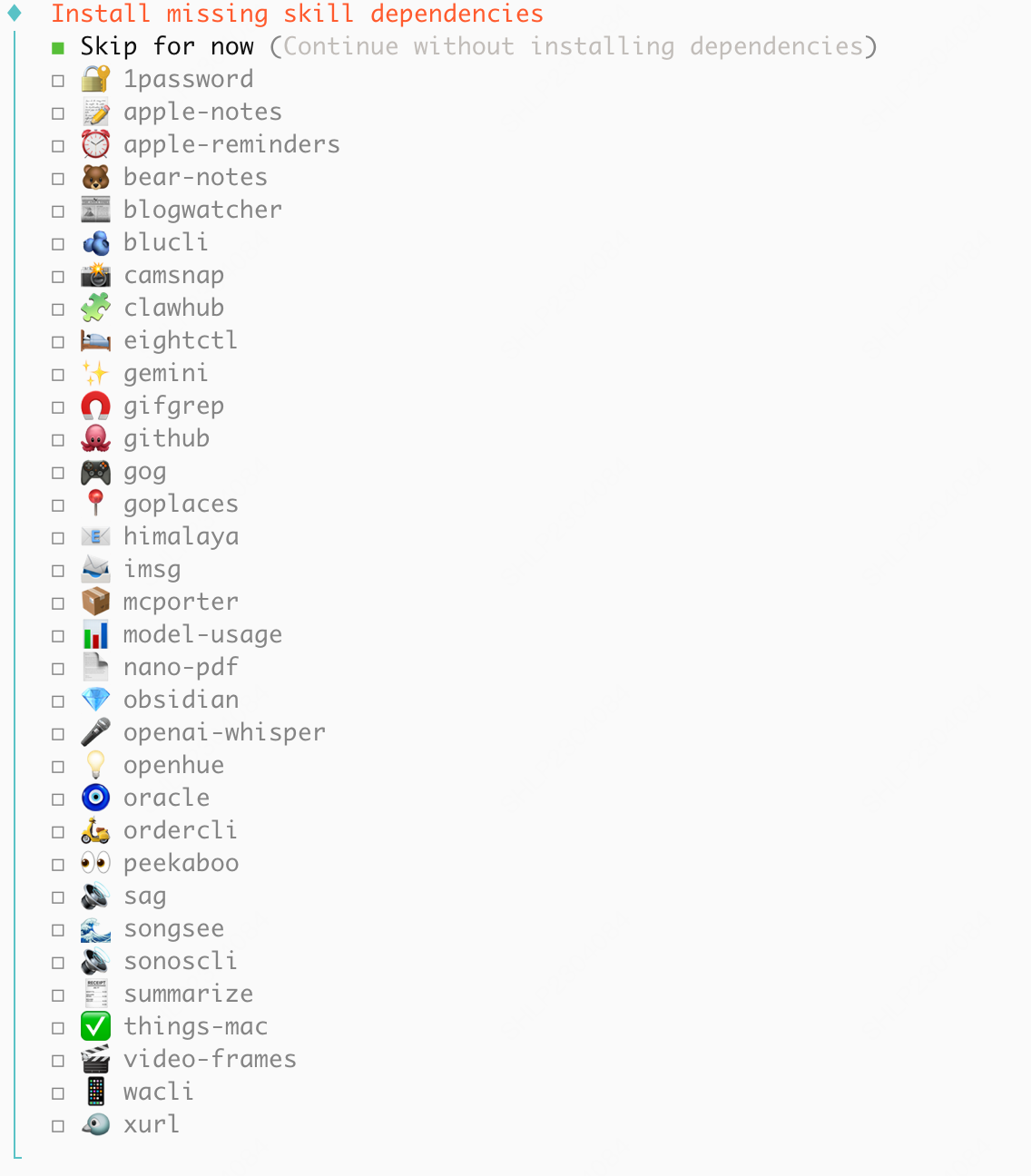 Configure additional API Keys for tools that OpenClaw can use (optional). Select **"Skip for now"** if you don't need additional tools.
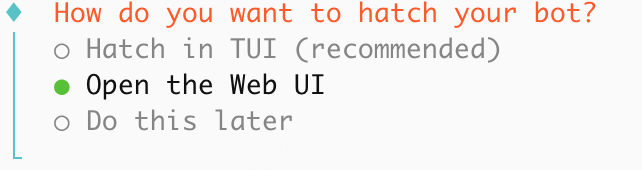
 Select **"Open the Web UI"** to access the OpenClaw dashboard.
 ***
## Thinking
`MiniMax-M3.1-Flash-Preview` always has thinking enabled and cannot turn it off. Do not use `/think off`.
***
## Thinking
`MiniMax-M3.1-Flash-Preview` always has thinking enabled and cannot turn it off. Do not use `/think off`.