> ## Documentation Index
> Fetch the complete documentation index at: https://platform.minimax.io/docs/llms.txt
> Use this file to discover all available pages before exploring further.

# OpenClaw

> <Note> In this tutorial, we'll show you how to use OpenClaw to connect MiniMax M3 to Telegram, creating your personal AI assistant that you can chat with anytime, anywhere. </Note>

<div style={{display: 'flex', alignItems: 'center', gap: '12px', marginBottom: '16px'}}>
  <div style={{width: '40px', height: '40px', borderRadius: '50%', background: 'linear-gradient(135deg, #f97316, #fb923c)', display: 'flex', alignItems: 'center', justifyContent: 'center', color: 'white', fontWeight: 'bold'}}>T</div>

  <div>
    <div style={{fontWeight: 500}}>TARS</div>
    <div style={{fontSize: '0.875rem', color: '#9ca3af'}}>January 28, 2026</div>
  </div>
</div>

<a href="https://github.com/openclaw/openclaw" target="_blank" style={{display: 'inline-flex', alignItems: 'center', gap: '8px', padding: '8px 16px', borderRadius: '8px', border: '1px solid #e5e7eb', textDecoration: 'none', color: 'inherit', marginBottom: '32px'}}>
  <svg height="20" width="20" viewBox="0 0 16 16" fill="currentColor">
    <path d="M8 0C3.58 0 0 3.58 0 8c0 3.54 2.29 6.53 5.47 7.59.4.07.55-.17.55-.38 0-.19-.01-.82-.01-1.49-2.01.37-2.53-.49-2.69-.94-.09-.23-.48-.94-.82-1.13-.28-.15-.68-.52-.01-.53.63-.01 1.08.58 1.23.82.72 1.21 1.87.87 2.33.66.07-.52.28-.87.51-1.07-1.78-.2-3.64-.89-3.64-3.95 0-.87.31-1.59.82-2.15-.08-.2-.36-1.02.08-2.12 0 0 .67-.21 2.2.82.64-.18 1.32-.27 2-.27.68 0 1.36.09 2 .27 1.53-1.04 2.2-.82 2.2-.82.44 1.1.16 1.92.08 2.12.51.56.82 1.27.82 2.15 0 3.07-1.87 3.75-3.65 3.95.29.25.54.73.54 1.48 0 1.07-.01 1.93-.01 2.2 0 .21.15.46.55.38A8.013 8.013 0 0016 8c0-4.42-3.58-8-8-8z" />
  </svg>

  View on GitHub
</a>

## What is OpenClaw?

**[OpenClaw](https://docs.openclaw.ai) (prev. Clawdbot)** is an open-source AI Agent gateway that bridges popular messaging platforms with AI models. It allows you to chat with AI assistants directly from your favorite messaging apps.

<Columns cols={2}>
  <Card title="Multi-Platform Support" icon="message-circle">
    WhatsApp, Telegram, Discord, iMessage, and more via plugins
  </Card>

  <Card title="AI Agent Bridge" icon="bot">
    Connect to coding agents like Pi with RPC mode and tool streaming
  </Card>

  <Card title="Multi-Agent Routing" icon="git-branch">
    Route different accounts to isolated agents with separate workspaces
  </Card>

  <Card title="MiniMax Integration" icon="sparkles">
    Native support for MiniMax M3 as a model provider
  </Card>
</Columns>

With OpenClaw and MiniMax M3, you can create a powerful AI assistant accessible from your pocket - just send a message and get intelligent responses anywhere, anytime.

***

## Quick Start

This guide will walk you through setting up OpenClaw with Telegram and MiniMax M3.

### Prerequisites

* A Telegram account (phone number required)
* A MiniMax [Subscription Key](https://platform.minimax.io/user-center/payment/token-plan) with Token Plan or Credits access, or a [pay-as-you-go](https://platform.minimax.io/user-center/basic-information/interface-key) API Key
* A computer with terminal access (macOS, Linux, or Windows with WSL)

***

## Part 1: Create a Telegram Bot

<Steps>
  <Step title="Open Telegram">
    Create a Telegram account if you don't have one (phone number required).
  </Step>

  <Step title="Find BotFather">
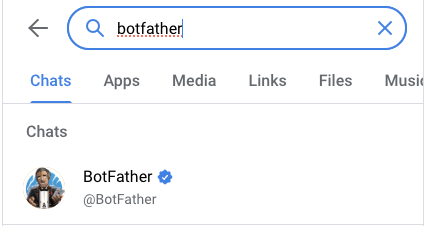
    Search and select **@BotFather** in Telegram. This is the official bot for creating and managing Telegram bots.

    <img src="https://file.cdn.minimax.io/public/baf65e56-2f81-4e98-b643-46b06707cd34.png" alt="Find BotFather" style={{borderRadius: '8px', marginTop: '12px', maxWidth: '100%'}} />
  </Step>

  <Step title="Create Your Bot">
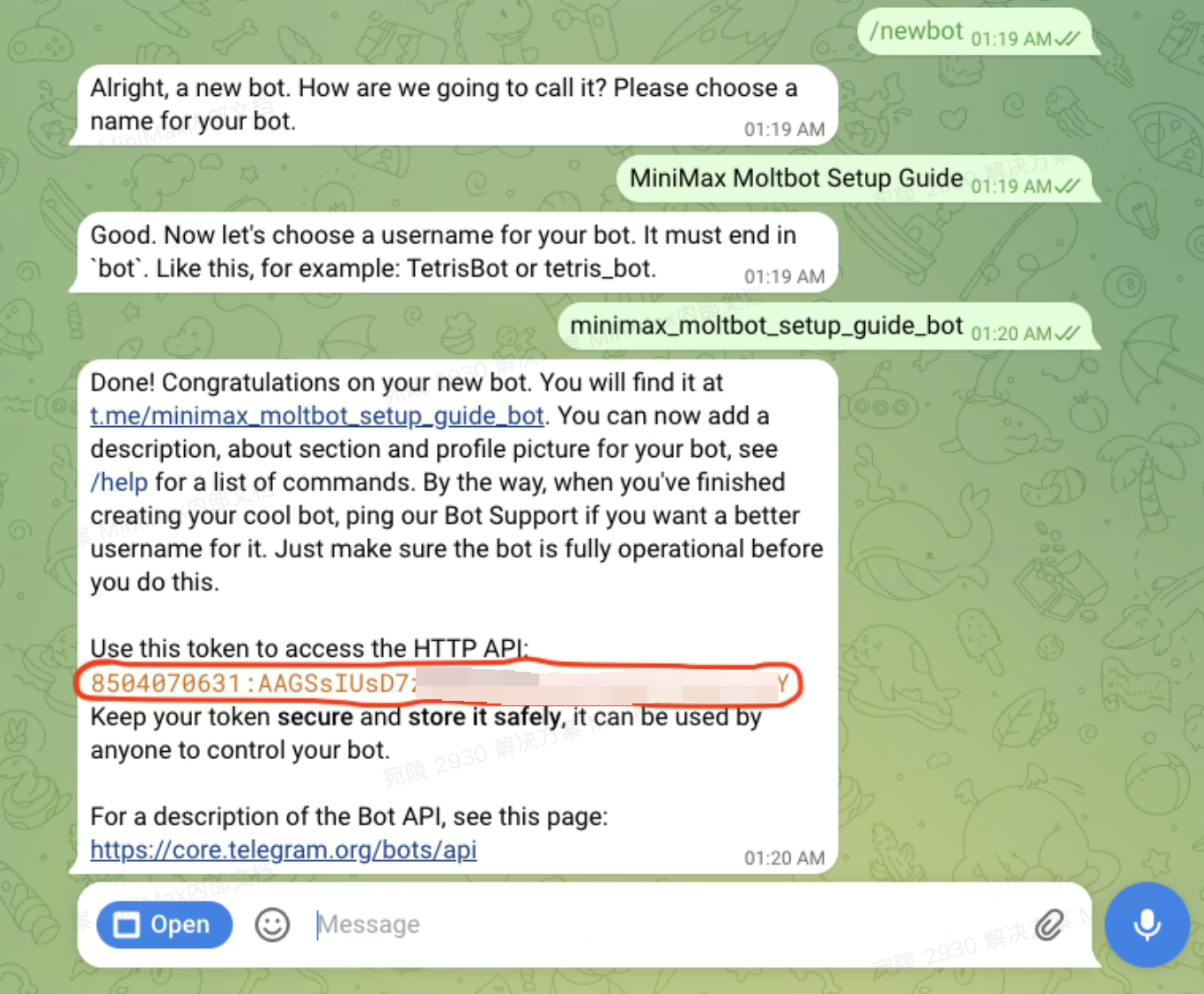
    Send `/newbot` to BotFather, then:

    * Choose your bot's display name
    * Choose your bot's username (must be unique)
    * **Save the bot token** - you'll need it later!

    <img src="https://file.cdn.minimax.io/public/5587734a-6926-4cfd-9fde-7b4d2534b5d2.png" alt="Create bot" style={{borderRadius: '8px', marginTop: '12px', maxWidth: '100%'}} />
  </Step>

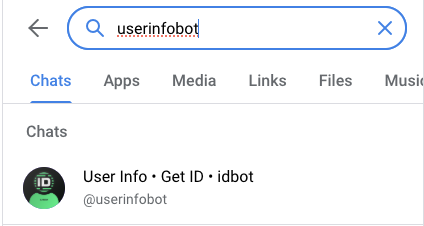
  <Step title="Find UserInfoBot">
    Search and select **@userinfobot** in Telegram.

    <img src="https://file.cdn.minimax.io/public/bfe77d39-ff96-40bc-a5f7-85d80926edfd.png" alt="Find UserInfoBot" style={{borderRadius: '8px', marginTop: '12px', maxWidth: '100%'}} />
  </Step>

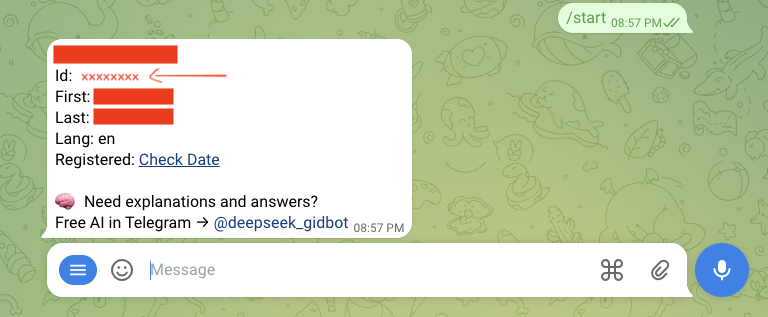
  <Step title="Get Your Telegram ID">
    Send `/start` to @userinfobot. **Save your Telegram ID** for later use.

    <img src="https://file.cdn.minimax.io/public/1fd2983d-7efa-4252-a9c4-458905cf5f6c.png" alt="Get Telegram ID" style={{borderRadius: '8px', marginTop: '12px', maxWidth: '100%'}} />
  </Step>
</Steps>

***

## Part 2: Install and Configure OpenClaw

<Steps>
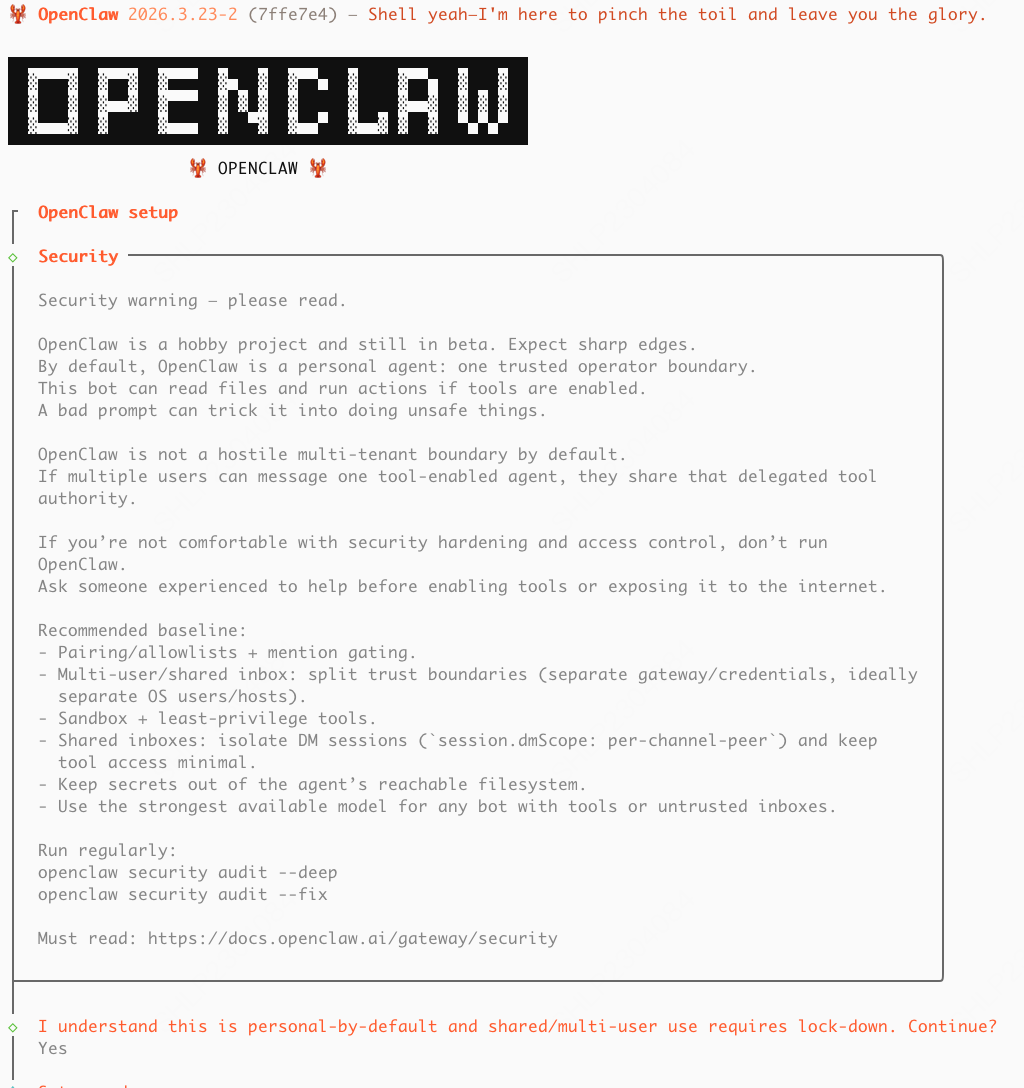
  <Step title="Run Installation Command">
    Run the installation command in your terminal:

    ```bash theme={null}
    curl -fsSL https://openclaw.ai/install.sh | bash
    ```

    You'll see this entry page:

    <img src="https://file.cdn.minimax.io/public/0fc6ba49-4324-4d69-ae58-56e4f5eac647.png" alt="Entry page" style={{borderRadius: '8px', marginTop: '12px', maxWidth: '100%'}} />
  </Step>

  <Step title="Start Setup">
    Select **"Yes"** .
  </Step>

  <Step title="Select QuickStart Mode">
    Select **"QuickStart"** to use the guided setup.
  </Step>

  <Step title="Select Model Provider">
    Select **"MiniMax"** as the model provider.
  </Step>

  <Step title="Select Auth Method">
    Select **"MiniMax Global — OAuth (minimax.io)"** as the authentication method.
  </Step>

  <Step title="Sign In to MiniMax">
    You'll be sent to a browser window to sign in to or sign up for your MiniMax API Platform account.
  </Step>

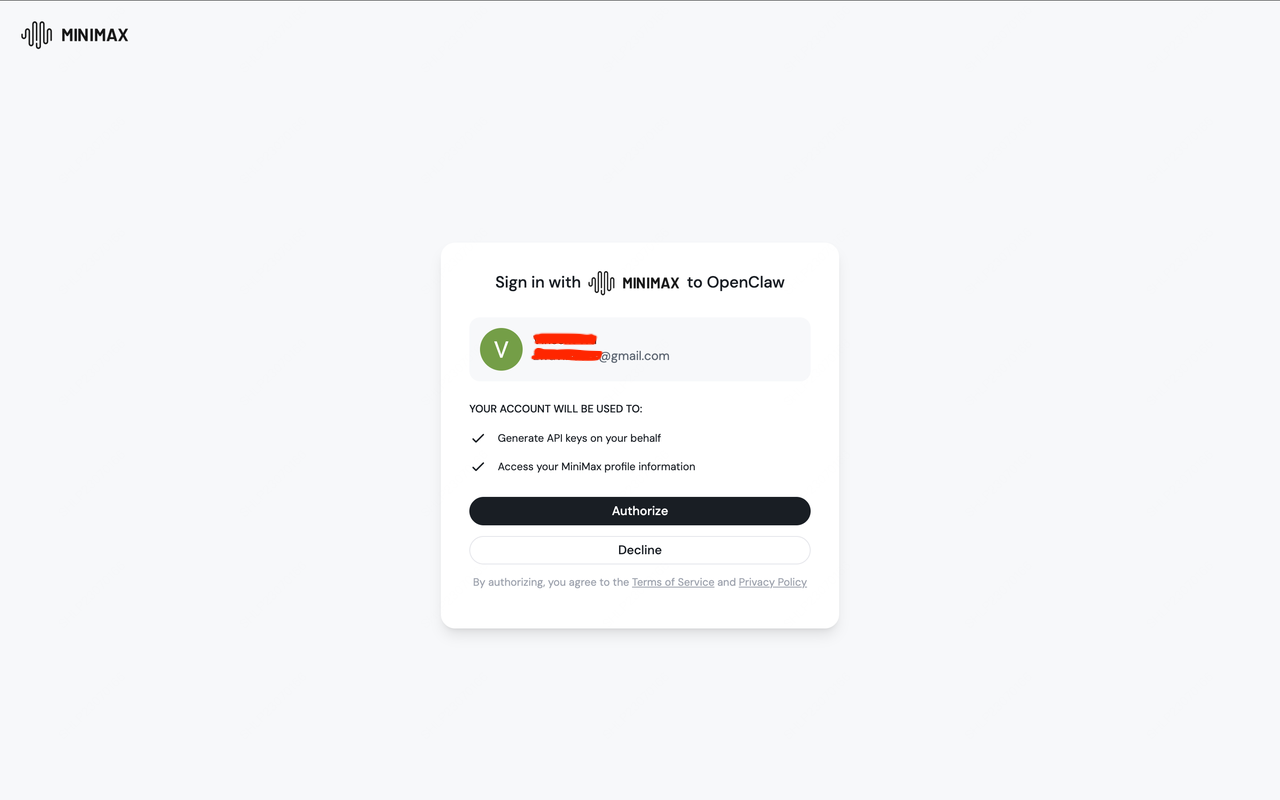
  <Step title="Authorize OpenClaw">
    Select **"Authorize"**, after which you can return to the terminal.

    <img src="https://mintcdn.com/minimax-cac98058/Z6t8NKWdGWkRU7_m/images/openclaw-authorize.png?fit=max&auto=format&n=Z6t8NKWdGWkRU7_m&q=85&s=8f6f82d5c7e0ed9288ff7c055542d43f" alt="Authorize" style={{borderRadius: '8px', marginTop: '12px', maxWidth: '100%'}} width="1280" height="800" data-path="images/openclaw-authorize.png" />
  </Step>

  <Step title="Confirm Model Selection">
    A model picker will appear with the available models already selected. Press **Enter** to continue.
  </Step>

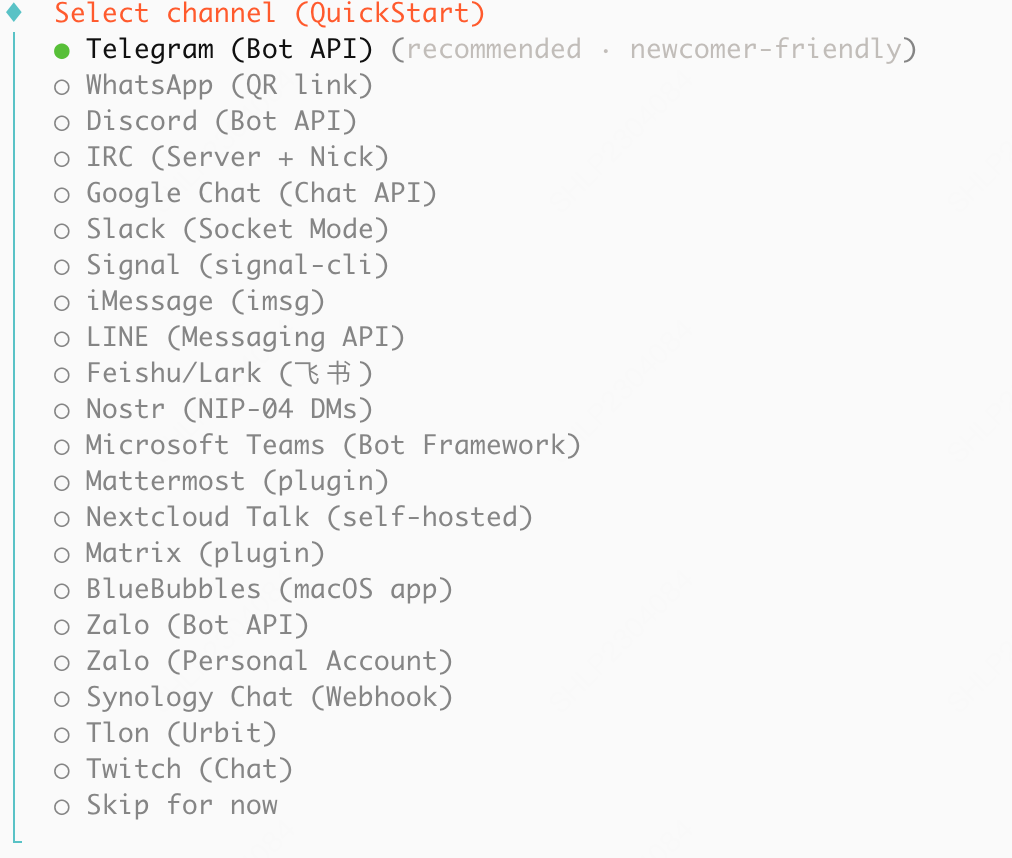
  <Step title="Select Telegram Channel">
    Back in the terminal, select **"Telegram (Bot API)"** as your messaging channel.

    <img src="https://file.cdn.minimax.io/public/6307996b-250d-45be-b004-68b1d3ddd396.png" alt="Select Telegram" style={{borderRadius: '8px', marginTop: '12px', maxWidth: '100%'}} />
  </Step>

  <Step title="Enter Bot Token">
    Enter the Telegram Bot token you saved from BotFather in Part 1.

    <img src="https://file.cdn.minimax.io/public/311f0bf9-6c4a-49a1-9461-7a4561a908c9.png" alt="Enter bot token" style={{borderRadius: '8px', marginTop: '12px', maxWidth: '100%'}} />
  </Step>

  <Step title="Confirm Installation">
    Select **"Yes"** when asked to confirm.

    <img src="https://file.cdn.minimax.io/public/b1d04c91-ab5f-494a-a798-ce9484eb71f2.png" alt="Confirm" style={{borderRadius: '8px', marginTop: '12px', maxWidth: '100%'}} />
  </Step>

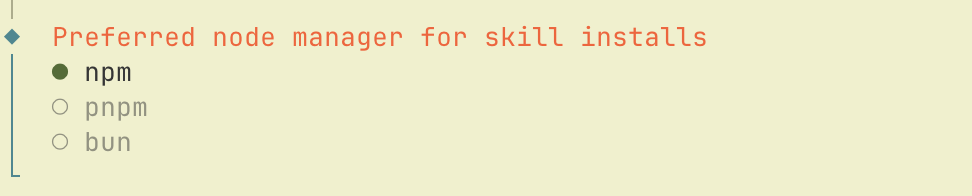
  <Step title="Select Package Manager">
    Select **"npm"** as the package manager.

    <img src="https://file.cdn.minimax.io/public/09ffb99a-7ec7-4fdb-a2e7-6a8e73c6b630.png" alt="Select npm" style={{borderRadius: '8px', marginTop: '12px', maxWidth: '100%'}} />
  </Step>

  <Step title="Select Skills">
    Select any additional skills you wish to install (press space to select, up and down arrows to navigate).

    <img src="https://file.cdn.minimax.io/public/560c2837-c62c-4685-acd9-26fc0e0648db.png" alt="Select skills" style={{borderRadius: '8px', marginTop: '12px', maxWidth: '100%'}} />
  </Step>

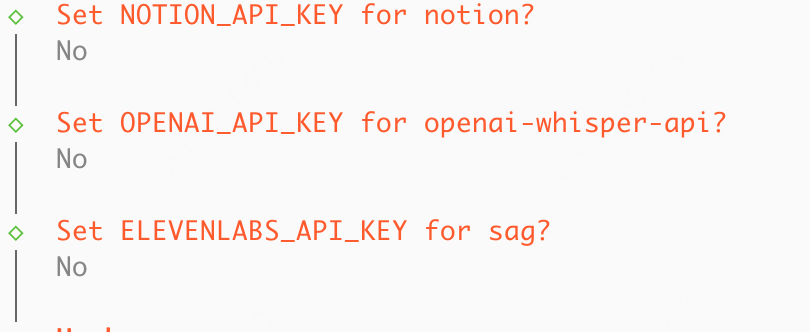
  <Step title="Configure API Keys">
    Configure additional API Keys for tools that OpenClaw can use (optional).

    <img src="https://file.cdn.minimax.io/public/668de94c-6ab0-4e61-8a1b-7312a0c2357d.png" alt="Configure API Keys" style={{borderRadius: '8px', marginTop: '12px', maxWidth: '100%'}} />
  </Step>

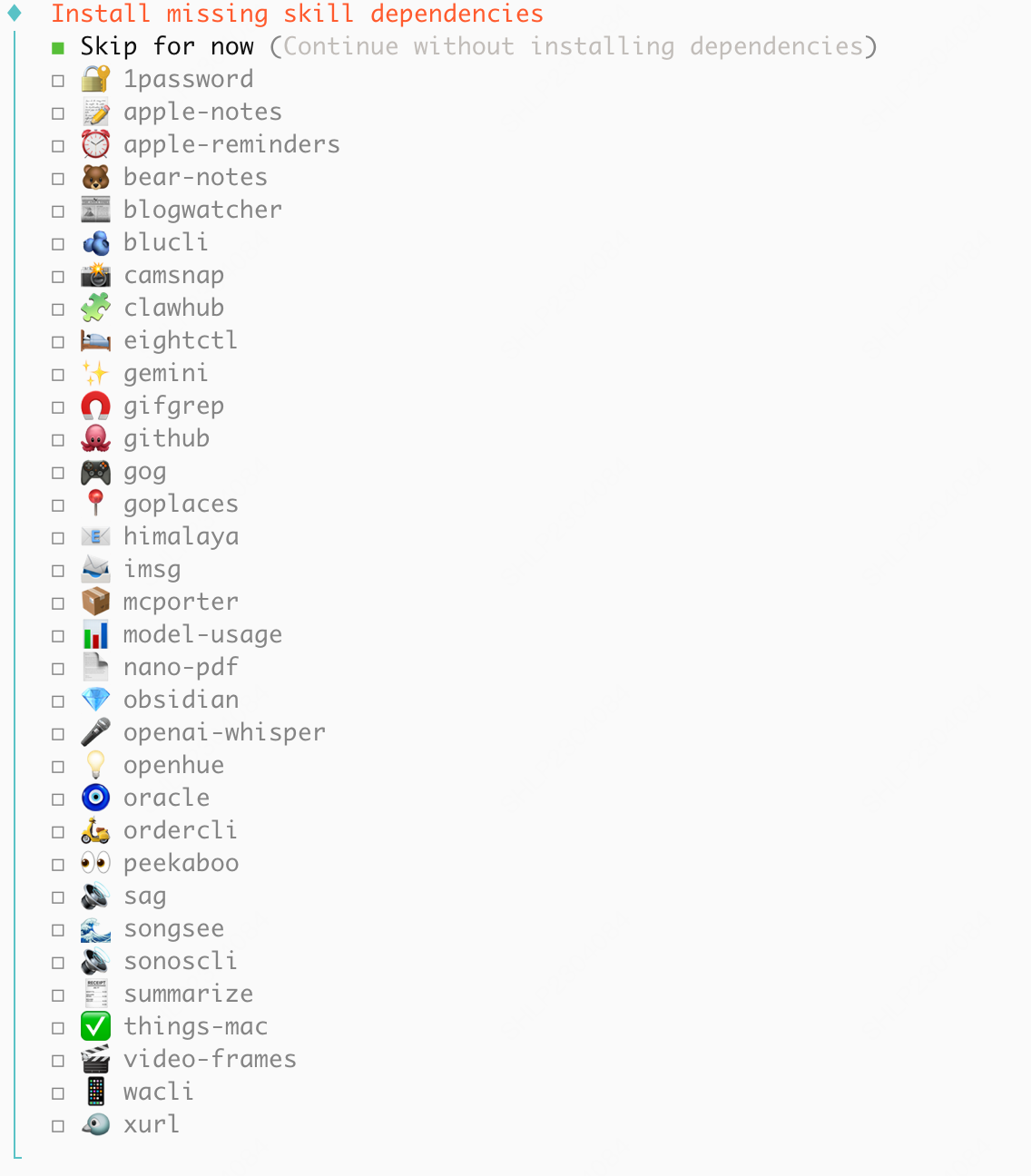
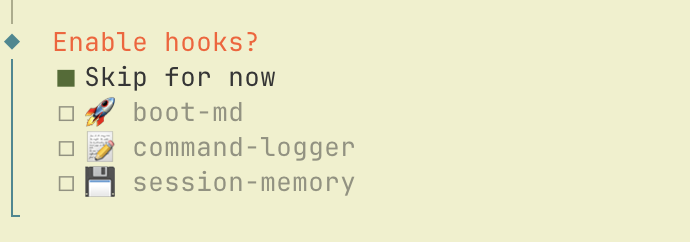
  <Step title="Skip Additional Config">
    Select **"Skip for now"** if you don't want to configure additional tools (press space to select, up and down arrows to navigate).

    <img src="https://file.cdn.minimax.io/public/3b30ec1e-46d8-49a5-ba0f-eb69d1333dee.png" alt="Skip for now" style={{borderRadius: '8px', marginTop: '12px', maxWidth: '100%'}} />
  </Step>

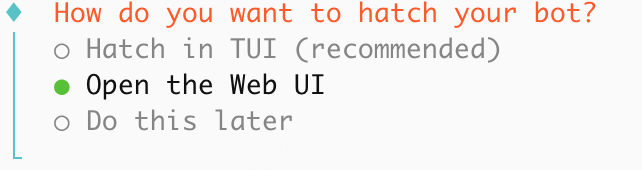
  <Step title="Open Web UI">
    Select **"Open the Web UI"** to access the OpenClaw dashboard.

    <img src="https://file.cdn.minimax.io/public/2ae52543-decb-4269-8d4d-475577e3edfe.png" alt="Open Web UI" style={{borderRadius: '8px', marginTop: '12px', maxWidth: '100%'}} />
  </Step>
</Steps>

***

## Part 3: Connect to Your Bot

<Steps>
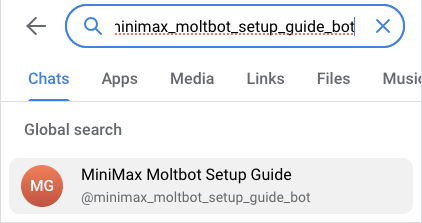
  <Step title="Find Your Bot">
    In Telegram, search and select the bot you created in Part 1.

    <img src="https://file.cdn.minimax.io/public/e0061758-e846-42d3-8430-38eb5fd41bba.png" alt="Find your bot" style={{borderRadius: '8px', marginTop: '12px', maxWidth: '100%'}} />
  </Step>

  <Step title="Start the Bot">
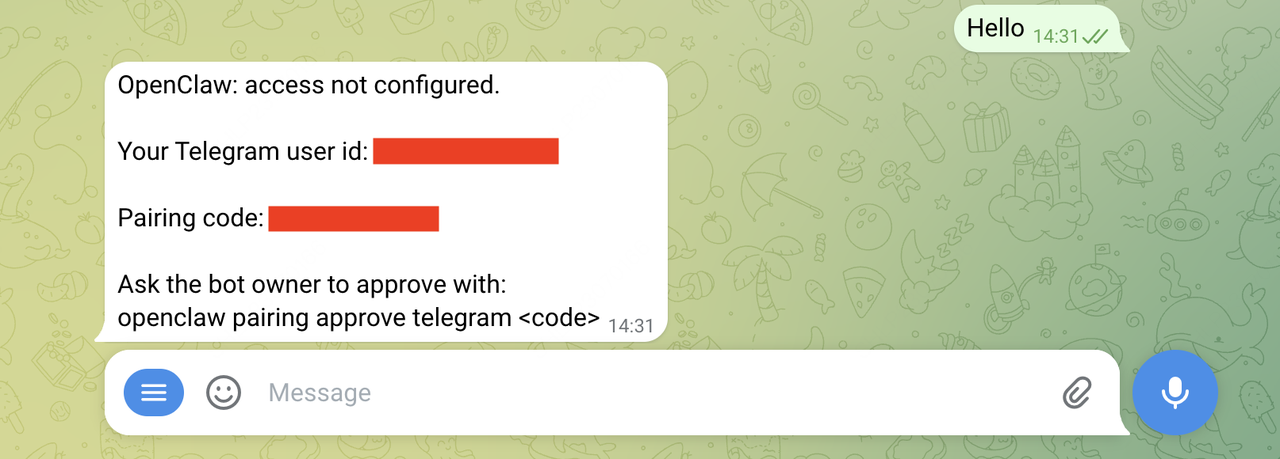
    Send something to your bot. You should receive a message containing a pairing code.

    <img src="https://file.cdn.minimax.io/public/5a19f70c-cf6d-43e2-9f09-01447cb0477f.png" alt="Start bot" style={{borderRadius: '8px', marginTop: '12px', maxWidth: '100%'}} />
  </Step>

  <Step title="Approve Pairing">
    In your terminal, run the following command (replace `<code>` with the pairing code from the message):

    ```bash theme={null}
    openclaw pairing approve telegram <code>
    ```

    <img src="https://file.cdn.minimax.io/public/2fc8611b-f140-464f-bc29-000d5a224703.png" alt="Approve pairing" style={{borderRadius: '8px', marginTop: '12px', maxWidth: '100%'}} />
  </Step>

  <Step title="Verify Connection">
    You should see a success message in both the terminal and Telegram.

    <img src="https://file.cdn.minimax.io/public/153b9c3d-e434-4dad-aadd-0c880ab09d81.png" alt="Success" style={{borderRadius: '8px', marginTop: '12px', maxWidth: '100%'}} />
  </Step>
</Steps>

***

## Start Chatting!

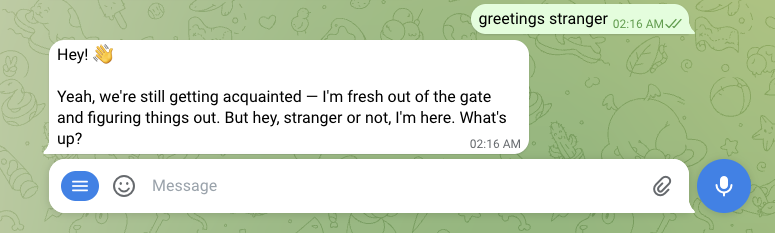
**Congratulations!** You're all set! You can start chatting with your OpenClaw in Telegram now.

<img src="https://file.cdn.minimax.io/public/7668a035-a22a-4599-9621-715c8e97b9cd.png" alt="Start chatting" style={{borderRadius: '8px', marginTop: '12px', maxWidth: '100%'}} />

<Note>
  Your OpenClaw-powered assistant can help you with:

  * Answering questions and providing information
  * Writing and editing text
  * Coding assistance and debugging
  * Creative tasks and brainstorming
  * And much more!
</Note>

***

<Tip>
  When logged in to `minimax-portal` via OAuth, OpenClaw's `image` tool is automatically configured to use the VLM endpoint behind MiniMax's [Image Understanding MCP server](/token-plan/mcp-guide), giving your agent image understanding capabilities out of the box — no extra setup needed.
</Tip>

## Summary

In this tutorial, you learned how to:

* **Create a Telegram Bot**
* **Install and configure OpenClaw** with MiniMax OAuth authentication
* **Connect your bot** to enable AI-powered conversations

With OpenClaw and MiniMax M3, you now have a personal AI assistant accessible from anywhere through Telegram. The combination of OpenClaw's flexible gateway architecture and MiniMax M3's powerful capabilities creates a seamless AI experience on your favorite messaging platform.

***

## Related Resources
<Columns cols={3}>
  <Card title="MiniMax M3" icon="sparkles" href="https://www.minimax.io/models/text/m3" />

  <Card title="OpenClaw Documentation" icon="book-open" href="https://docs.openclaw.ai/" />

  <Card title="Token Plan" icon="credit-card" href="https://platform.minimax.io/subscribe/token-plan" />
</Columns>