> ## Documentation Index
> Fetch the complete documentation index at: https://platform.minimax.io/docs/llms.txt
> Use this file to discover all available pages before exploring further.

# MiniMax CLI

> [mmx-cli](https://github.com/MiniMax-AI/cli): one prompt to bring MiniMax into your AI agent

For Token Plan users, no coding is required to unlock MiniMax multimodal capabilities in your AI agent: video generation, speech synthesis, music creation, coding, and more. You can call these capabilities directly in assistants like OpenClaw and Claude Code.

If you still prefer direct API integration, see the [API Documentation](https://platform.minimax.io/docs/api-reference/api-overview).

### Install and configure the CLI

<Tabs>
  <Tab title="Install via an agent">
    Copy the prompt below to your AI agent (OpenClaw, Claude Code, Cursor, MaxClaw, AutoClaw, KimiClaw, TRAE, OpenCode, etc.). It will guide you through installing the CLI, signing in, and adding the SKILL:

    ```text theme={null}
    Please integrate MiniMax CLI (https://github.com/MiniMax-AI/cli) for me in three steps:

    1. Install globally: run `npm install -g mmx-cli`, then verify with `mmx --version`
    2. Sign in: run `mmx auth login --api-key sk-xxxxx` (replace sk-xxxxx with my actual key); the latest CLI auto-detects the service region from the API Key — if API calls return 401 later, fall back to `mmx config set --key region --value global|cn` to set it manually
    3. Install the official SKILL (recommended, helps you call mmx more accurately afterwards): run `npx skills add MiniMax-AI/cli -y -g`

    After that, run `mmx quota` to confirm my Token Plan balance.
    ```
  </Tab>

  <Tab title="Manual install">
    <Steps>
      <Step title="Install mmx-cli">
        Run the following command to install globally:

        ```bash theme={null}
        npm install -g mmx-cli
        ```
      </Step>

      <Step title="Sign in with an API Key">
        Authenticate with your API Key (replace `sk-xxxxx` with your key):

        ```bash theme={null}
        mmx auth login --api-key sk-xxxxx
        ```

        The latest mmx-cli auto-detects the service region based on the API Key, so manual region configuration is usually unnecessary.

        <Note>
          The service region depends on whether you purchased the API service from the mainland China platform (`cn`, [MiniMax China subscription](https://platform.minimaxi.com/subscribe/token-plan)) or the overseas platform (`global`, [MiniMax international subscription](https://platform.minimax.io/subscribe/token-plan)).
        </Note>

        <Warning>
          If your API calls return 401 after login, region detection likely failed. Set it manually:

          ```bash theme={null}
          mmx config set --key region --value global   # Overseas Service
          mmx config set --key region --value cn       # Mainland China Service
          ```

          Run `mmx auth status` to confirm the active region matches the platform you purchased from.
        </Warning>
      </Step>

      <Step title="Install the SKILL (optional, recommended for Agent users)">
        If you want Claude Code, OpenClaw, Cursor, or other AI Agents to call mmx, install the official SKILL.md so the Agent can make better decisions and skip flipping through `--help`:

        ```bash theme={null}
        npx skills add MiniMax-AI/cli -y -g
        ```

        <Tip>
          The SKILL is auto-symlinked into `~/.claude/skills/`, `~/.openclaw/skills/`, and similar Agent directories, and is recognized after the next Agent restart. **Skip this step if you only use mmx directly in the terminal.**
        </Tip>
      </Step>
    </Steps>
  </Tab>
</Tabs>

### Use the CLI

<Tabs>
  <Tab title="Call via an agent">
    **Language**

    `Use minimax to write a 4-line poem about AI`

    ***

    **Video**

    `Generate a video: at sunset, a cat sits by the window looking into the distance`

    ***

    **Music**

    `Generate an upbeat jazz song about a summer beach`

    ***

    **Speech**

    `Read in a gentle female voice: Welcome to MiniMax Token Plan. After subscribing, your AI agent can generate video, music, speech, and images with full multimodal capability.`

    ***

    **Image**

    `Generate a cyberpunk city night scene in 16:9`

    Generated files are saved in `minimax-output/` under your current directory. If you’re using an agent, it’s recommended to have it display the generated media directly in its output.
  </Tab>

  <Tab title="Manual commands">
    **Language**

    `mmx text chat --message "Write a 4-line poem about AI"`

    ***

    **Video**

    `mmx video generate --prompt "At sunset, a cat sits by the window looking into the distance"`

    ***

    **Music**

    `mmx music generate --prompt "Upbeat jazz song about a summer beach" --out jazz-summer.mp3`

    ***

    **Speech**

    `mmx speech synthesize --text "Welcome to MiniMax Token Plan. After subscribing, your AI agent can generate video, music, speech, and images with full multimodal capability." --out voiceover.mp3`

    ***

    **Image**

    `mmx image "Cyberpunk city night scene, 16:9"`
  </Tab>
</Tabs>

### CLI Dashboard

<Note title="Open the CLI Dashboard" type="info">
  <div>
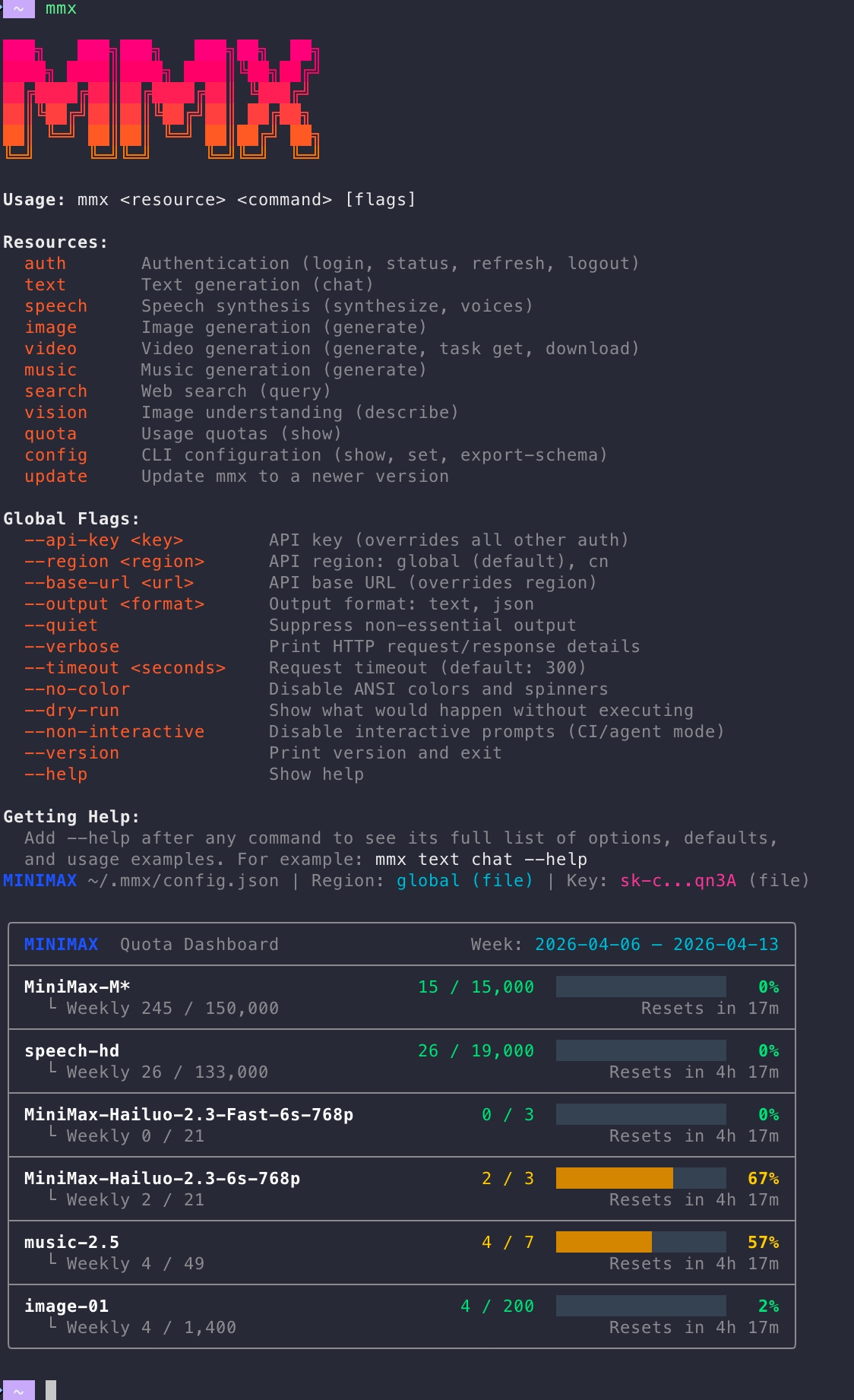
    <p>Run <code>mmx</code> in your terminal to open the CLI panel and quickly discover the main commands, flags, and usage info.</p>

    <img src="https://file.cdn.minimax.io/public/1807ed21-2bb6-4066-92ba-e3c99725370e.jpeg" style={{borderRadius: '8px', marginTop: '12px', maxWidth: '100%'}} alt="MMX-CLI panel overview" />

    <ul style={{marginTop: '12px'}}>
      <li><strong>resources</strong>: available resource types</li>
      <li><strong>flags</strong>: supported options for commands</li>
      <li><strong>usage</strong>: remaining quota and usage overview</li>
      <li><strong>help</strong>: entry points for documentation</li>
    </ul>
  </div>
</Note>

***

## Capability overview

MMX-CLI provides a single command-line entry point across language, image, video, speech, music, vision understanding, and web search:

| Capability   | Basic command           | Description                                                    |
| ------------ | ----------------------- | -------------------------------------------------------------- |
| **Language** | `mmx text chat`         | multi-turn chat, streaming output, system prompts, JSON output |
| **Image**    | `mmx image generate`    | text-to-image, aspect ratio controls, batch generation         |
| **Video**    | `mmx video generate`    | async generation, task status, downloading                     |
| **Speech**   | `mmx speech synthesize` | text-to-speech (TTS), multiple voices, streaming               |
| **Music**    | `mmx music generate`    | text-to-music, with-lyrics and instrumental modes              |
| **Vision**   | `mmx vision describe`   | image understanding from local files, URLs, or file IDs        |
| **Search**   | `mmx search query`      | built-in web search                                            |

<Accordion title="More operations commands">
  | Command                              | Purpose                                                    | Typical example                              |
  | ------------------------------------ | ---------------------------------------------------------- | -------------------------------------------- |
  | `mmx auth status / refresh / logout` | Show login identity / refresh credentials / log out        | `mmx auth status`                            |
  | `mmx config show / set`              | View or change configuration (region, default model, etc.) | `mmx config set --key region --value global` |
  | `mmx quota`                          | View Token Plan usage and remaining quota                  | `mmx quota`                                  |
  | `mmx update / mmx update latest`     | Check for updates / upgrade to the latest version          | `mmx update latest`                          |
</Accordion>

***

### Usage coverage

For Token Plan quota and usage bar behavior, see: [Token Plan Pricing](https://platform.minimax.io/docs/guides/pricing-token-plan)

***

## FAQ

### Where do I get an API Key?

* **Overseas (default)**: [Subscribe to Token Plan on platform.minimax.io](https://platform.minimax.io/subscribe/token-plan) → API Key for the overseas service
* **Mainland China**: [Subscribe to Token Plan on platform.minimaxi.com](https://platform.minimaxi.com/subscribe/token-plan) → API Key for the mainland China service

### Still getting 401 after login?

`mmx auth login` usually auto-detects the service region from the API Key. If you still get 401, region detection likely failed — set it manually:

```bash theme={null}
mmx config set --key region --value global    # Overseas plan
mmx config set --key region --value cn        # Mainland China plan
```

Then run `mmx auth status` to confirm the active region matches the platform you purchased from.

***