> ## Documentation Index
> Fetch the complete documentation index at: https://platform.minimax.io/docs/llms.txt
> Use this file to discover all available pages before exploring further.
# Other Tools
> Configure the latest MiniMax M-series models in any AI coding tool that supports custom OpenAI-compatible or Anthropic-compatible endpoints.
The pages above walk through the most popular AI coding tools step-by-step. For other tools that accept a custom Base URL + API Key, use the values below.
## Configuration Reference
MiniMax exposes two protocols. Pick whichever your tool supports — most modern tools support at least one.
### OpenAI-Compatible Protocol
| Field | Value |
| ------------ | ---------------------------------------------------------------------------------- |
| **Provider** | `OpenAI Compatible` (sometimes called `Custom` or `OpenAI-format`) |
| **Base URL** | `https://api.minimax.io/v1` |
| **API Key** | [Get Subscription Key](https://platform.minimax.io/user-center/payment/token-plan) |
| **Model ID** | `MiniMax-M3` |
### Anthropic-Compatible Protocol
| Field | Value |
| ------------ | ---------------------------------------------------------------------------------- |
| **Provider** | `Anthropic Compatible` (sometimes called `Claude` or `Custom Anthropic`) |
| **Base URL** | `https://api.minimax.io/anthropic` |
| **API Key** | [Get Subscription Key](https://platform.minimax.io/user-center/payment/token-plan) |
| **Model ID** | `MiniMax-M3` |
## Which Protocol Should I Pick?
| Tool style | Recommended protocol | Typical env vars |
| ----------------------------------------------------- | ---------------------------------------------------------------------------- | --------------------------------------------- |
| Claude Code-style (TUI / CLI written for Anthropic) | Anthropic-Compatible | `ANTHROPIC_BASE_URL` + `ANTHROPIC_AUTH_TOKEN` |
| Cursor / Continue / Aider / OpenAI-format IDE plugins | OpenAI-Compatible | `OPENAI_BASE_URL` + `OPENAI_API_KEY` |
| Tools that ask for both | Either works — Anthropic-Compatible is recommended for prompt-cache benefits | |
## Cherry Studio
[**Cherry Studio**](https://github.com/CherryHQ/cherry-studio) is an open-source desktop client supporting 50+ LLM providers, with built-in MCP servers and 300+ assistants.
Install Cherry Studio per the [official docs](https://docs.cherry-ai.com/en-us/cherry-studio/download).
Open Cherry Studio → click **Choose other Providers** → search `MiniMax`, then pick **MiniMax**.
Enter your [Subscription Key](https://platform.minimax.io/user-center/payment/token-plan) (the API Host is prefilled), then click **Check** to verify.
Select `MiniMax-M3` from the model list.
## Xcode
[**Xcode**](https://developer.apple.com/xcode/) is Apple's official IDE for macOS, iOS, iPadOS, watchOS, and visionOS, now with built-in Coding Intelligence.
Install Xcode 26 or later from the [Mac App Store](https://apps.apple.com/us/app/xcode/id497799835).
Open Xcode → top menu **Xcode → Settings → Intelligence → Add a Model Provider**, choose the **Internet Hosted** tab, and fill in:
* **URL**: `https://api.minimax.io` (bare host, no path)
* **API Key Header**: `Authorization` (override the default `x-api-key`)
* **API Key**: `Bearer ` (the word `Bearer`, **a single space**, then your `sk-cp-…` key — [get one here](https://platform.minimax.io/user-center/payment/token-plan))
* **Description**: `MiniMax` (any value)
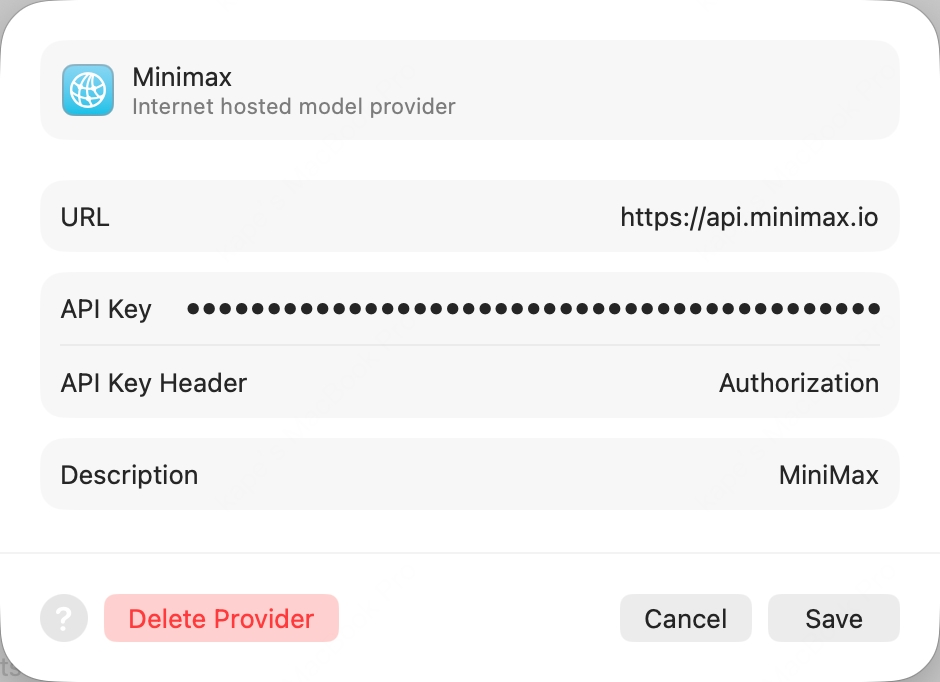 Click **Add**. Back in the Intelligence pane, open the new MiniMax provider and enable `MiniMax-M3`.
Open any project, press **⌘+0** to bring up the Coding Assistant, click the edit icon at the top-left to pick `MiniMax-M3`.
## Pi
Click **Add**. Back in the Intelligence pane, open the new MiniMax provider and enable `MiniMax-M3`.
Open any project, press **⌘+0** to bring up the Coding Assistant, click the edit icon at the top-left to pick `MiniMax-M3`.
## Pi
[**Pi**](https://github.com/earendil-works/pi) is an open-source TUI coding agent from earendil-works that talks to any provider through a unified LLM API.
```bash theme={null}
npm install -g @earendil-works/pi-coding-agent
```
Export your [Subscription Key](https://platform.minimax.io/user-center/payment/token-plan) (prefix `sk-cp-…`) and launch Pi:
```bash theme={null}
export MINIMAX_API_KEY=sk-cp-...
pi --provider minimax --model MiniMax-M3
```
## Kilo Code
[**Kilo Code**](https://github.com/Kilo-Org/kilocode) is an open-source AI coding agent for VS Code, supporting multiple LLM providers and MCP servers.
First clear the `ANTHROPIC_AUTH_TOKEN` and `ANTHROPIC_BASE_URL` env vars — otherwise they will override the configuration.
Search `Kilo Code` in the VS Code Extensions panel and install.
Open Kilo Code → **Settings**:
* **API Provider** = `MiniMax`
* **MiniMax Entrypoint** = `api.minimax.io`
* **MiniMax API Key** = your [Subscription Key](https://platform.minimax.io/user-center/payment/token-plan)
* **Model** = `MiniMax-M3`
Click **Save** then **Done**.
## Zed
[**Zed**](https://github.com/zed-industries/zed) is an open-source, high-performance multiplayer code editor written in Rust by the Atom creators.
Install Zed per the [official docs](https://zedhub.org/getting-started).
Settings → **LLM Provider** → **+Add Provider** → choose **OpenAI**, fill:
* **API URL** = `https://api.minimax.io/v1`
* **API Key** = from [Token Plan](https://platform.minimax.io/user-center/payment/token-plan)
* **Model Name** = `MiniMax-M3`
Click **Save Provider**. Then back in the LLM Provider list, click the new MiniMax entry, **re-enter the API Key and press Enter** to confirm.
Return to the agent panel, click **Select a Model** at the bottom-right and pick `MiniMax-M3`.
## OpenCode
[**OpenCode**](https://github.com/sst/opencode) is an open-source terminal AI coding agent by SST, with multi-provider support and LSP integration.
OpenCode has **built-in MiniMax-M3 support** — no config file needed.
```bash theme={null}
curl -fsSL https://opencode.ai/install | bash
# or: npm i -g opencode-ai
```
Run `opencode auth login`, then when prompted, search and pick **MiniMax Token Plan (minimax.io)**, and enter your [Token Plan](https://platform.minimax.io/user-center/payment/token-plan) API Key.
Run `opencode` to start.
## Grok CLI
[**Grok CLI**](https://github.com/superagent-ai/grok-cli) is an open-source terminal coding agent that connects to xAI's Grok and OpenAI-compatible providers.
Not recommended for Agent workflows — use **Claude Code** or **Cursor** for best results.
First clear the `OPENAI_API_KEY` and `OPENAI_BASE_URL` env vars.
```bash theme={null}
npm install -g @vibe-kit/grok-cli
```
```bash theme={null}
export GROK_BASE_URL=https://api.minimax.io/v1
export GROK_API_KEY=sk-cp-... # from Token Plan
grok --model MiniMax-M3
```
## Droid
[**Droid**](https://factory.ai) is Factory's official terminal coding agent that integrates with IDEs and developer collaboration tools.
You must first clear the `ANTHROPIC_AUTH_TOKEN` env var (otherwise it overrides the API Key in `config.json`). Note the config file path is `~/.factory/config.json` (**not** `settings.json`).
```bash theme={null}
curl -fsSL https://app.factory.ai/cli | sh # macOS / Linux
# Windows: irm https://app.factory.ai/cli/windows | iex
```
Edit `~/.factory/config.json`:
```json theme={null}
{
"custom_models": [{
"model_display_name": "MiniMax-M3",
"model": "MiniMax-M3",
"base_url": "https://api.minimax.io/anthropic",
"api_key": "",
"provider": "anthropic",
"max_tokens": 64000
}]
}
```
Launch `droid`, then `/model` and pick `MiniMax-M3`.
## Qwen Code
[**Qwen Code**](https://github.com/QwenLM/qwen-code) is Alibaba's open-source terminal coding agent optimized for the Qwen model family.
Linux / macOS:
```bash theme={null}
bash -c "$(curl -fsSL https://qwen-code-assets.oss-cn-hangzhou.aliyuncs.com/installation/install-qwen.sh)"
```
Windows (works in both Command Prompt and PowerShell):
```powershell theme={null}
powershell -Command "Invoke-WebRequest 'https://qwen-code-assets.oss-cn-hangzhou.aliyuncs.com/installation/install-qwen.bat' -OutFile (Join-Path $env:TEMP 'install-qwen.bat'); & (Join-Path $env:TEMP 'install-qwen.bat')"
```
Run `qwen` in your terminal. Pick **Third-party Providers** → **MiniMax API Key** → region **International**.
Enter your API Key from [Token Plan](https://platform.minimax.io/user-center/payment/token-plan) (prefix `sk-cp-…`) and press Enter.
The default model ID should be `MiniMax-M3` — press Enter to submit and start chatting.
## Open WebUI
[**Open WebUI**](https://github.com/open-webui/open-webui) is a self-hosted, open-source AI chat platform with offline support, RAG, and multi-model runners.
Install via Python pip (requires **Python 3.11** to avoid compatibility issues):
```bash theme={null}
pip install open-webui
open-webui serve
```
Open [http://localhost:8080](http://localhost:8080) in your browser and follow the prompt to create a local admin account.
Click the avatar (top-right) → **Admin Panel** → top **Settings** tab → left **Connections**. In the **OpenAI** row, click **➕ Add Connection**, fill:
* **URL**: `https://api.minimax.io/v1`
* **Auth** (Bearer mode): your API Key from [Token Plan](https://platform.minimax.io/user-center/payment/token-plan) (prefix `sk-cp-…`)
Click **Save** and back in the chat view, pick `MiniMax-M3` from the top model selector to start chatting.
## nanobot
[**nanobot**](https://github.com/HKUDS/nanobot) is an ultra-lightweight open-source personal AI agent CLI from HKUDS, with chat channels, memory, and MCP support.
```bash theme={null}
uv tool install nanobot-ai
# or: pipx install nanobot-ai
# or: pip install nanobot-ai # may need --user or --break-system-packages on macOS
```
```bash theme={null}
nanobot onboard
```
Replace `sk-cp-...` with your [Token Plan API Key](https://platform.minimax.io/user-center/payment/token-plan):
```bash theme={null}
python3 -c '
import json, os, sys
p = os.path.expanduser("~/.nanobot/config.json")
c = json.load(open(p))
c["providers"]["minimax"]["apiKey"] = sys.argv[1]
c["providers"]["minimax"]["apiBase"] = "https://api.minimax.io/v1"
c["agents"]["defaults"]["provider"] = "minimax"
c["agents"]["defaults"]["model"] = "MiniMax-M3"
json.dump(c, open(p, "w"), indent=2)
' sk-cp-...
```
```bash theme={null}
nanobot agent
```
## OpenHands
[**OpenHands**](https://github.com/All-Hands-AI/OpenHands) (formerly OpenDevin) is an open-source AI software-development agent by All-Hands-AI, with TUI, web GUI, and IDE integrations.
```bash theme={null}
pipx install openhands
```
Replace `sk-cp-...` with your [Token Plan API Key](https://platform.minimax.io/user-center/payment/token-plan):
```bash theme={null}
pipx run --spec openhands python -c '
import sys
from openhands_cli.stores.agent_store import AgentStore
AgentStore().create_and_save_from_settings(
llm_api_key=sys.argv[1],
settings={"llm_model": "openai/MiniMax-M3",
"llm_base_url": "https://api.minimax.io/v1"},
)
' sk-cp-...
```
```bash theme={null}
openhands
```
## LangChain
[**LangChain**](https://github.com/langchain-ai/langchain) is the open-source framework by LangChain Inc. for building LLM-powered applications, with model adapters, retrieval, agents, and tracing.
```bash theme={null}
pip install langchain-openai
```
Replace `sk-cp-...` with your [Token Plan API Key](https://platform.minimax.io/user-center/payment/token-plan):
```python theme={null}
from langchain_openai import ChatOpenAI
llm = ChatOpenAI(
model="MiniMax-M3",
api_key="sk-cp-...",
base_url="https://api.minimax.io/v1",
)
print(llm.invoke("Hello").content)
```