> ## Documentation Index
> Fetch the complete documentation index at: https://platform.minimax.io/docs/llms.txt
> Use this file to discover all available pages before exploring further.
# TRAE
> Use the latest MiniMax M-series models for AI programming in TRAE.
[**TRAE**](https://www.trae.ai) is ByteDance's AI-native IDE with intelligent collaboration and agent automation.
## Install and Launch TRAE
Go to [TRAE's website](https://www.trae.ai/?utm_source=content\&utm_medium=doc_minimax\&utm_campaign=minimax) to install TRAE
Click TRAE's icon to launch it. The following screen appears at TRAE's first launch
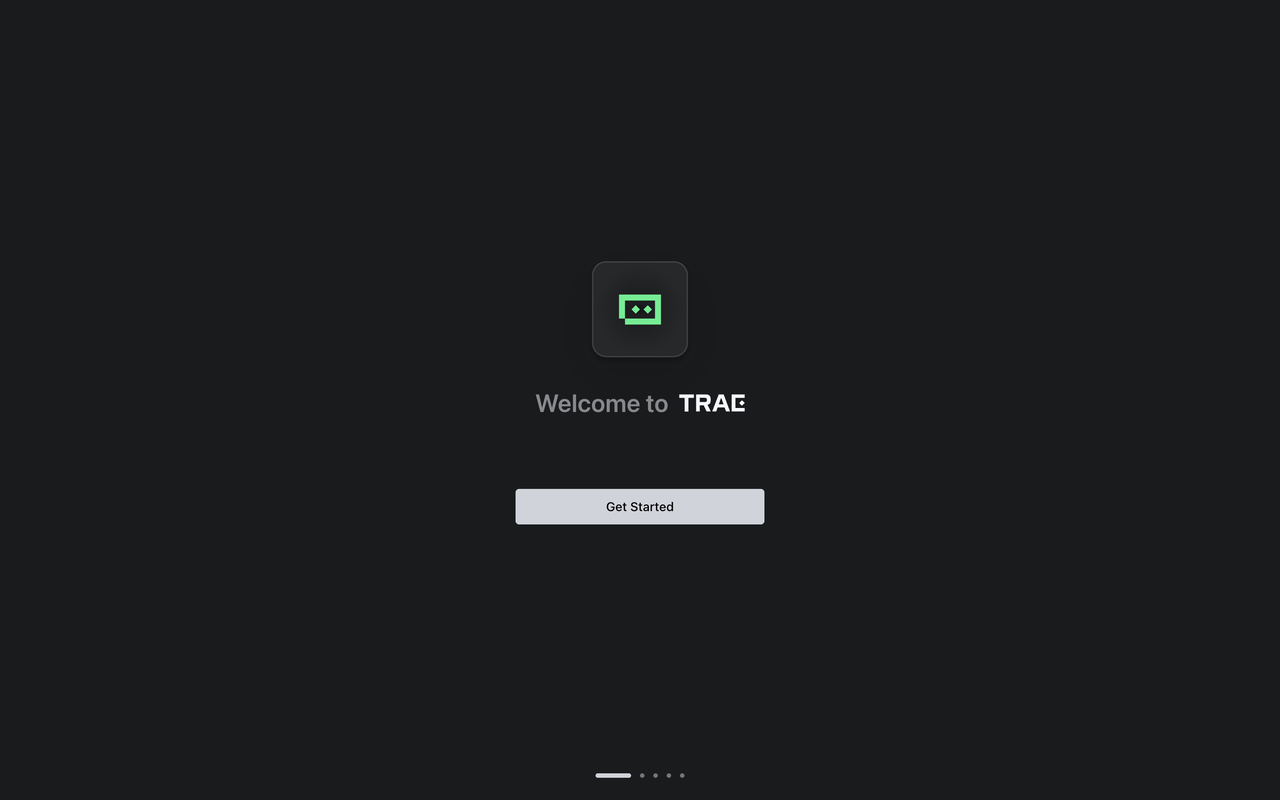
Click the Get Started button, TRAE's setup begins
For detailed installation steps, please refer to: [Trae Setup Guide](https://docs.trae.ai/ide/set-up-trae?_lang=en)
## Configure MiniMax API
**Important: Clear OpenAI Environment Variables Before Configuration**
Before configuring, ensure you clear the following OpenAI-related environment variables to avoid conflicts with MiniMax API:
* `OPENAI_API_KEY`
* `OPENAI_BASE_URL`
In TRAE, you can connect to MiniMax M3 model using API Keys obtained from the [MiniMax Developer Platform](https://platform.minimax.io/user-center/payment/token-plan) .
At the top right of the side chat box, click Settings icon > Models
Click the + Add Model button. The Add Model pop-up appears
Enter Configuration Details:
* Provider: Select **MiniMax-Global**
* Model: Select **MiniMax-M3**
* API Key: Input your **[MiniMax API Key](https://platform.minimax.io/user-center/payment/token-plan)**
Click the **Add Model** button