

mmx command) is MiniMax’s official command-line tool. With an M Plan subscription, you can use MiniMax text, image, video, speech, vision, and web search capabilities directly in your terminal or let AI agents such as Claude Code and OpenClaw call them for you, with no code required. Available capabilities depend on your plan and CLI version.
MiniMax CLI requires Node.js 18 or later.
How to install Node.js
How to install Node.js
Visit the Node.js website, then download and install the current LTS version. When installation finishes, reopen your terminal and run:If both commands show a version number, the installation was successful.
Install and configure
- Install via an agent
- Manual install
Send the prompt below to your AI agent to install the CLI and add the SKILL. Sign in yourself in the terminal; do not send your Subscription Key to the agent.
Examples
After installing the SKILL, you can ask your agent in plain language to use MiniMax CLI, or run the matching command in your terminal. Text- Ask your agent:
Use MiniMax to write a four-line poem about AI - Terminal command:
mmx text chat --message "Write a four-line poem about AI"
- Ask your agent:
Generate a video: at sunset, a cat sits by the window looking into the distance - Terminal command:
mmx video generate --prompt "At sunset, a cat sits by the window looking into the distance"
- Ask your agent:
Read in a gentle female voice: Welcome to MiniMax M Plan. With a subscription, your agent can generate video, speech, and images. - Terminal command:
mmx speech synthesize --text "Welcome to MiniMax M Plan. With a subscription, your agent can generate video, speech, and images." --out voiceover.mp3
- Ask your agent:
Generate a cyberpunk city night scene in 16:9 - Terminal command:
mmx image generate --prompt "Cyberpunk city night scene" --aspect-ratio 16:9
--out for a single output path or --out-dir for batch output.
CLI dashboard
Runmmx with no arguments to open the CLI dashboard, which shows the main commands, options, and usage.
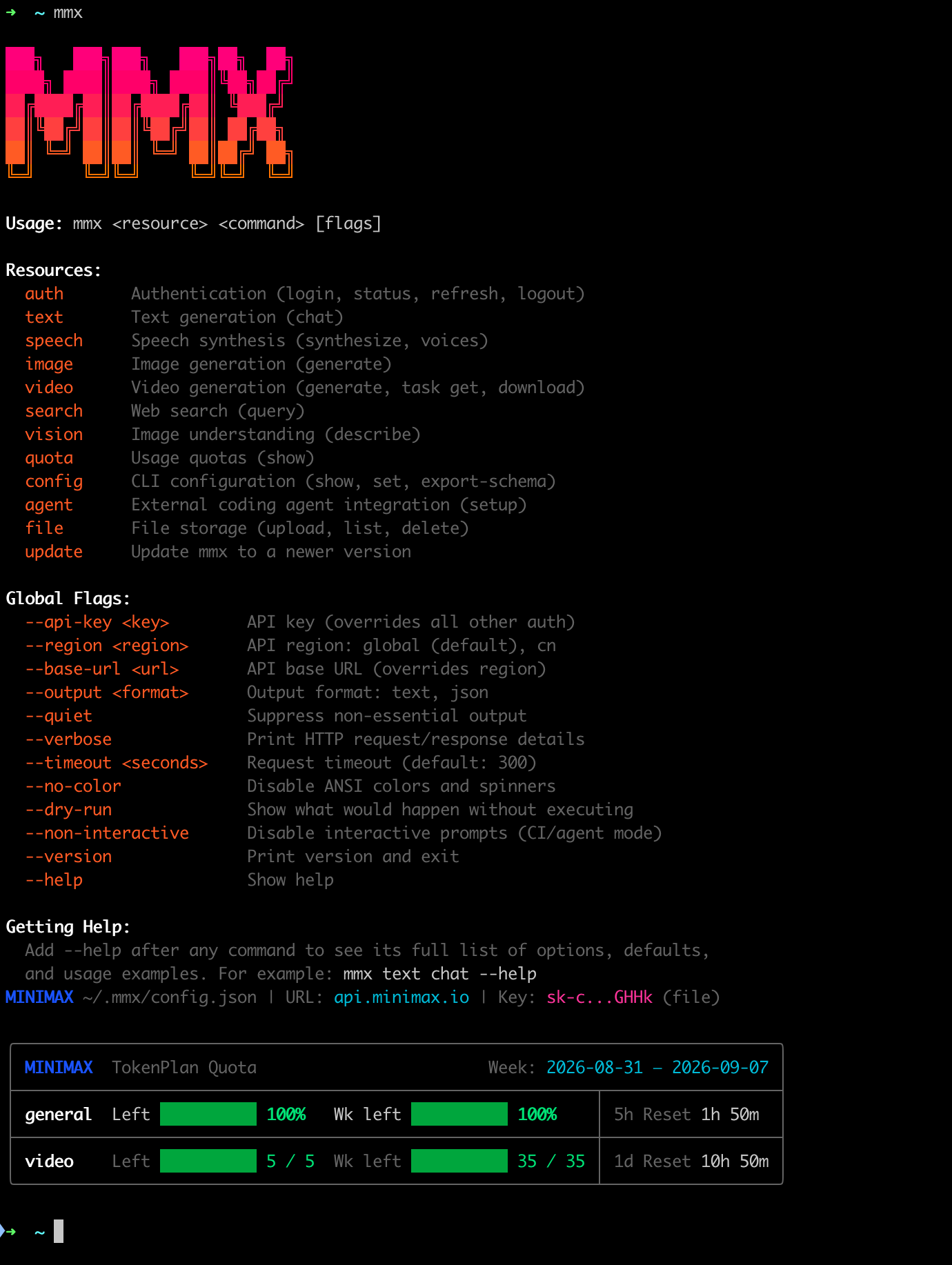
- resources: resource types you can call
- flags: options supported by commands
- usage: current plan usage
- help: usage instructions
Command reference
More management commands
More management commands
One-click setup wizard
The one-click setup wizard verifies your key, installs missing tools if you choose, and adds MiniMax to the configuration of the AI coding tools you select. It currently supports Claude Code, Codex CLI, OpenCode, Grok CLI, Hermes Agent, and Pi.Configure with the wizard
1
Get your Subscription Key
Get your Subscription Key from Plan Details.The wizard also accepts pay-as-you-go API Keys. Subscription Keys (
sk-cp-...) and pay-as-you-go API Keys (sk-api-...) are billed separately, and the wizard asks which type you are using.2
Run the wizard
PATH, a second multi-select asks which tools to install. Then choose the service region and key type, and paste your key.After you confirm, the wizard verifies the key, then shows and runs the official package or installer script. It checks each installed tool before writing the MiniMax configuration. If installation fails, you can skip it and continue writing the configuration.3
Start your tool
After setup succeeds, start the selected tool, such as
claude, codex, or opencode, to use MiniMax models.View installer sources and commands
View installer sources and commands
- macOS / Linux
- Windows
Claude CodeCodex CLIGrok CLIOpenCodePiFor Hermes Agent, the wizard runs the non-interactive core CLI stages of the official installer and skips optional flows such as
setup and gateway.Non-interactive mode
Pass options after the npx command to run the wizard non-interactively, for example in scripts. Non-interactive mode only writes configuration and does not install tools. You must specify the tools, key, and service region:--all to configure every supported tool. Add --dry-run to preview the files that would change; it does not make network requests, install tools, or write files.
Configuration files
When writing configuration, the wizard:
- Updates only the MiniMax configuration of the selected tools and keeps other providers and unrelated settings
- Creates a timestamped
.bakbackup before changing an existing file - Makes configuration files readable and writable only by the current user (except on Windows)
- Restores the files it changed if any step fails
Troubleshooting
API calls return 401 after sign-in
API calls return 401 after sign-in
The service region was probably not detected. Set the overseas region manually, then check the active region:
The agent setup command is missing
The agent setup command is missing
Make sure Node.js 18 or later is installed, then run
npx -y mmx-cli@latest agent setup again. If your local mmx is outdated, you can use this npx command instead.A tool shows not detected on PATH
A tool shows not detected on PATH
The wizard did not find the tool in the current terminal’s
PATH. In interactive mode, it checks the installation requirements and asks whether to install each eligible tool.The installation choices do not appear
The installation choices do not appear
The install list does not appear when the tool is already installed, the wizard is running non-interactively, or the environment does not meet the installation requirements. The wizard lists missing commands or unsupported architectures; Pi also requires Node.js 22.19 or later.
Installation fails
Installation fails
The wizard shows the command it ran and the error. For npm permission errors with Codex, OpenCode, or Pi, see the npm documentation. You can also skip installation and continue writing the configuration.
The tool still connects to another service
The tool still connects to another service
Check for environment variables that override configuration files, such as
ANTHROPIC_AUTH_TOKEN and ANTHROPIC_BASE_URL for Claude Code, or OPENAI_API_KEY and OPENAI_BASE_URL for Grok CLI.Codex already uses a custom model catalog
Codex already uses a custom model catalog
If
model_catalog_json in ~/.codex/config.toml points to a custom file, the wizard stops without changing any files. Keep the catalog and configure Codex manually, or remove that setting and try again.