

T
TARS
January 28, 2026
What is OpenClaw?
OpenClaw (prev. Clawdbot) is an open-source AI Agent gateway that bridges popular messaging platforms with AI models. It allows you to chat with AI assistants directly from your favorite messaging apps.Multi-Platform Support
WhatsApp, Telegram, Discord, iMessage, and more via plugins
AI Agent Bridge
Connect to coding agents like Pi with RPC mode and tool streaming
Multi-Agent Routing
Route different accounts to isolated agents with separate workspaces
MiniMax Integration
Native support for MiniMax M3 as a model provider
Quick Start
This guide will walk you through setting up OpenClaw with Telegram and MiniMax M3.Prerequisites
- A Telegram account (phone number required)
- A MiniMax Subscription Key with Token Plan or Credits access, or a pay-as-you-go API Key
- A computer with terminal access (macOS, Linux, or Windows with WSL)
Part 1: Create a Telegram Bot
1
Open Telegram
Create a Telegram account if you don’t have one (phone number required).
2
Find BotFather
Search and select @BotFather in Telegram. This is the official bot for creating and managing Telegram bots.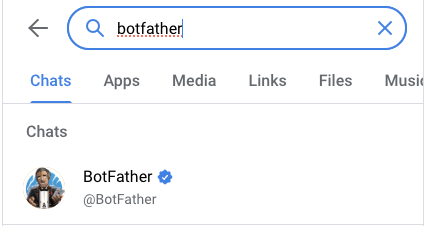
3
Create Your Bot
Send 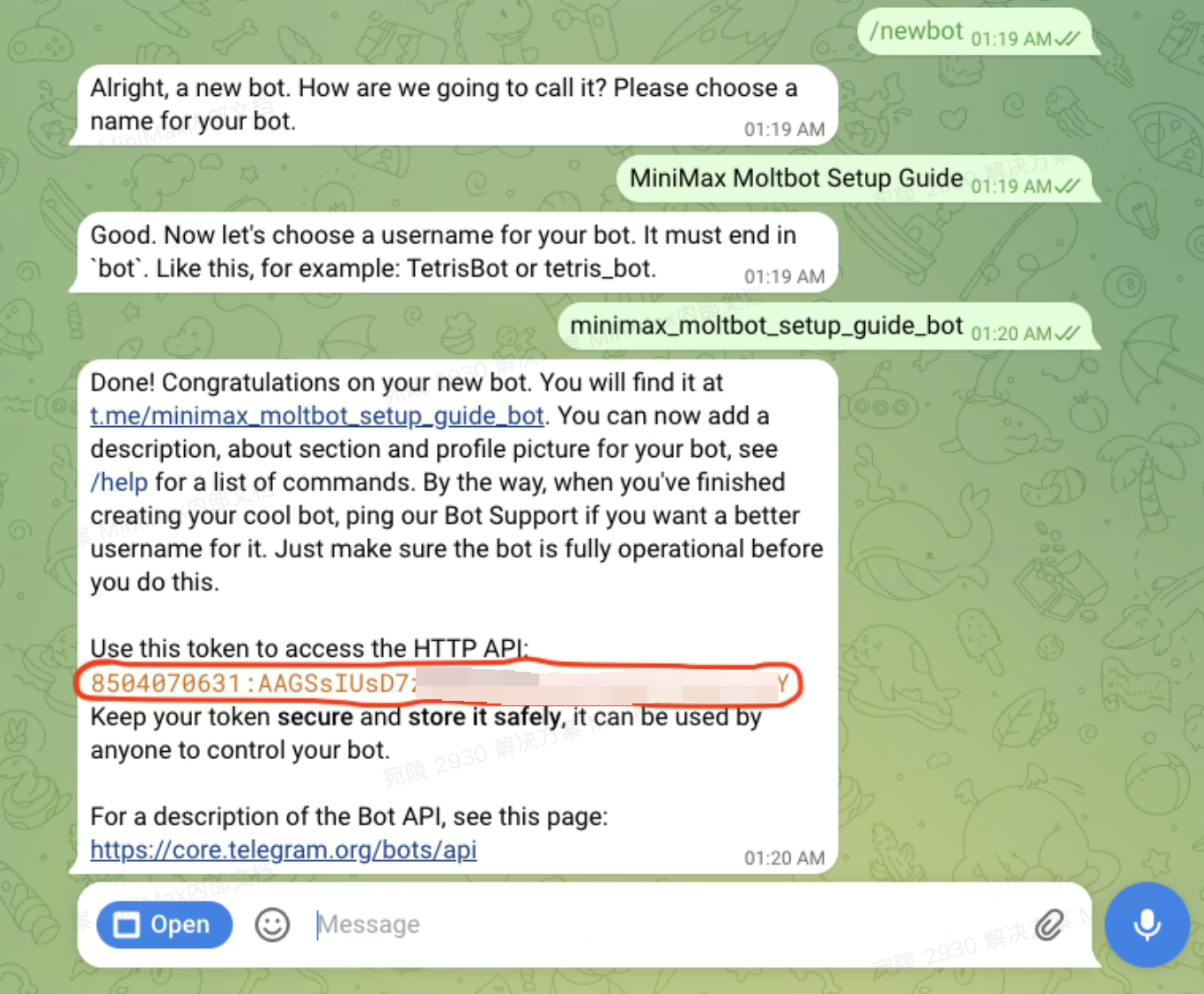
/newbot to BotFather, then:- Choose your bot’s display name
- Choose your bot’s username (must be unique)
- Save the bot token - you’ll need it later!
4
Find UserInfoBot
Search and select @userinfobot in Telegram.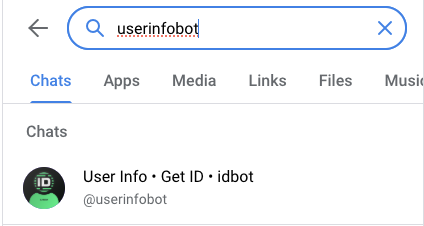
5
Get Your Telegram ID
Send 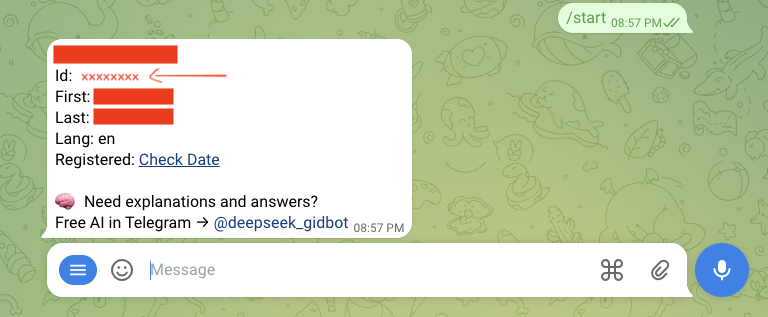
/start to @userinfobot. Save your Telegram ID for later use.Part 2: Install and Configure OpenClaw
1
Run Installation Command
Run the installation command in your terminal:You’ll see this entry page: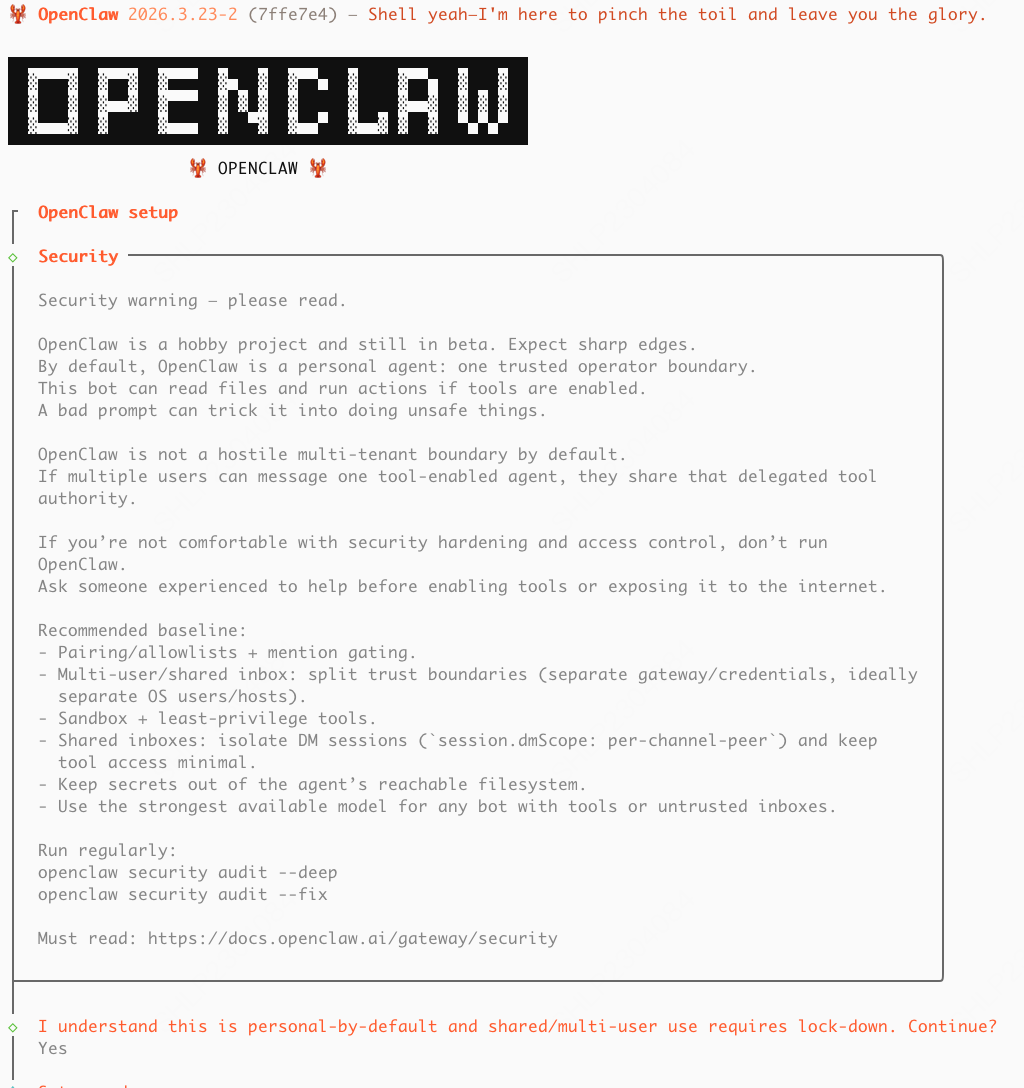
2
Start Setup
Select “Yes” .
3
Select QuickStart Mode
Select “QuickStart” to use the guided setup.
4
Select Model Provider
Select “MiniMax” as the model provider.
5
Select Auth Method
Select “MiniMax Global — OAuth (minimax.io)” as the authentication method.
6
Sign In to MiniMax
You’ll be sent to a browser window to sign in to or sign up for your MiniMax API Platform account.
7
Authorize OpenClaw
Select “Authorize”, after which you can return to the terminal.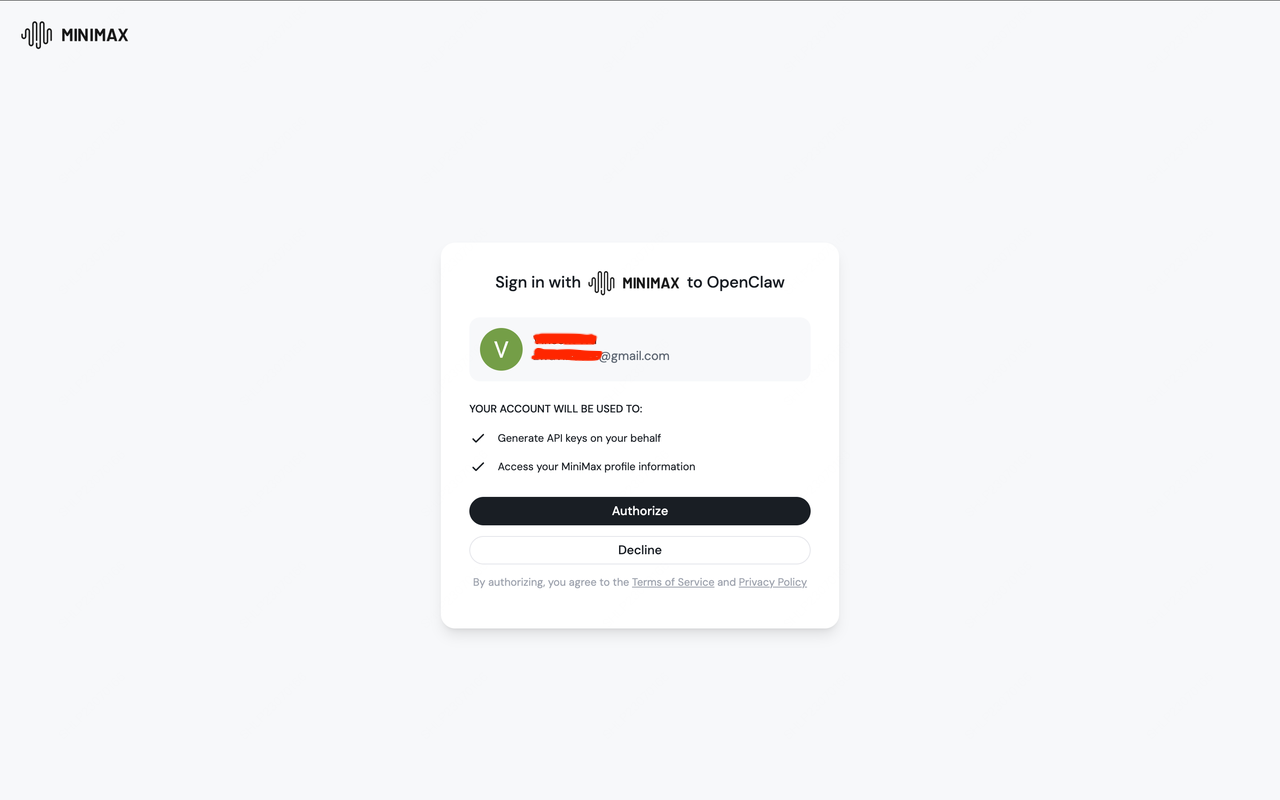
8
Confirm Model Selection
A model picker will appear with the available models already selected. Press Enter to continue.
9
Select Telegram Channel
Back in the terminal, select “Telegram (Bot API)” as your messaging channel.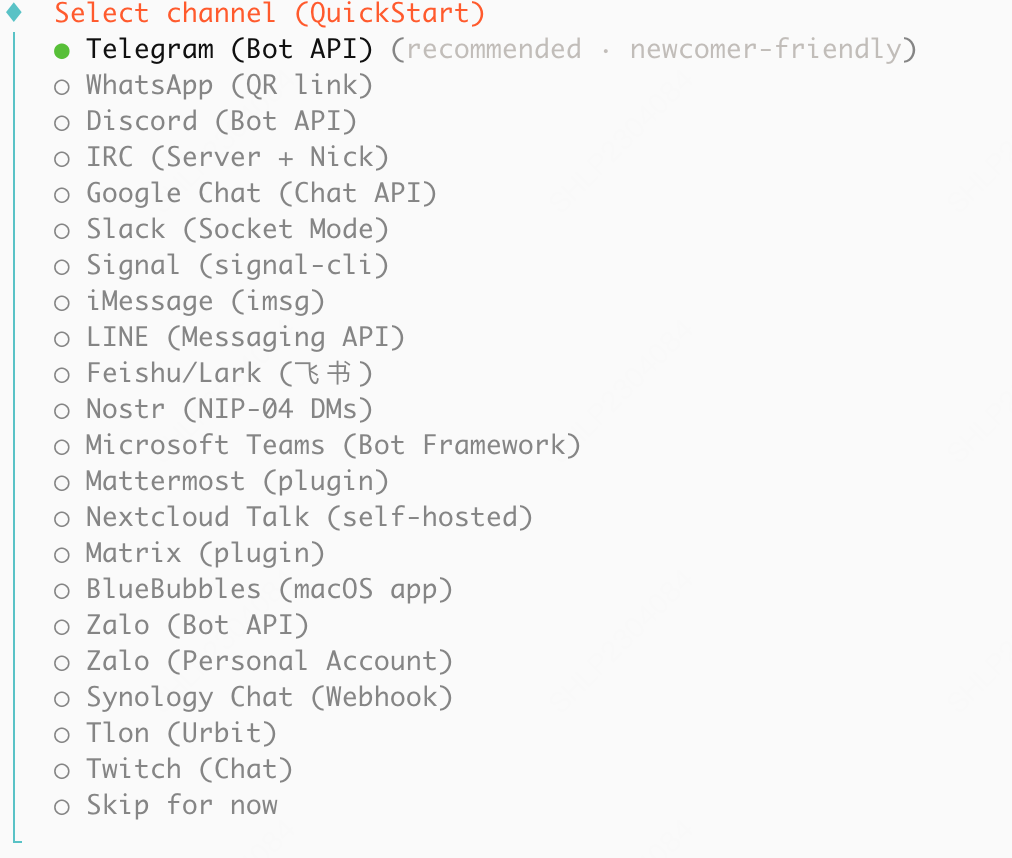
10
Enter Bot Token
Enter the Telegram Bot token you saved from BotFather in Part 1.
11
Confirm Installation
Select “Yes” when asked to confirm.
12
Select Package Manager
Select “npm” as the package manager.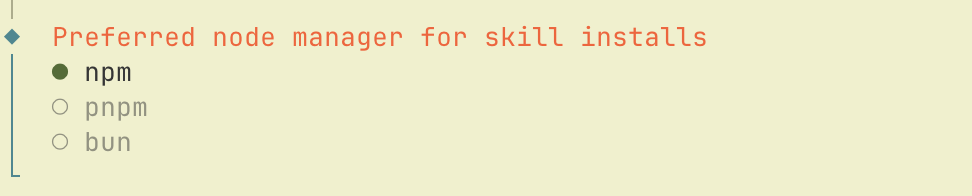
13
Select Skills
Select any additional skills you wish to install (press space to select, up and down arrows to navigate).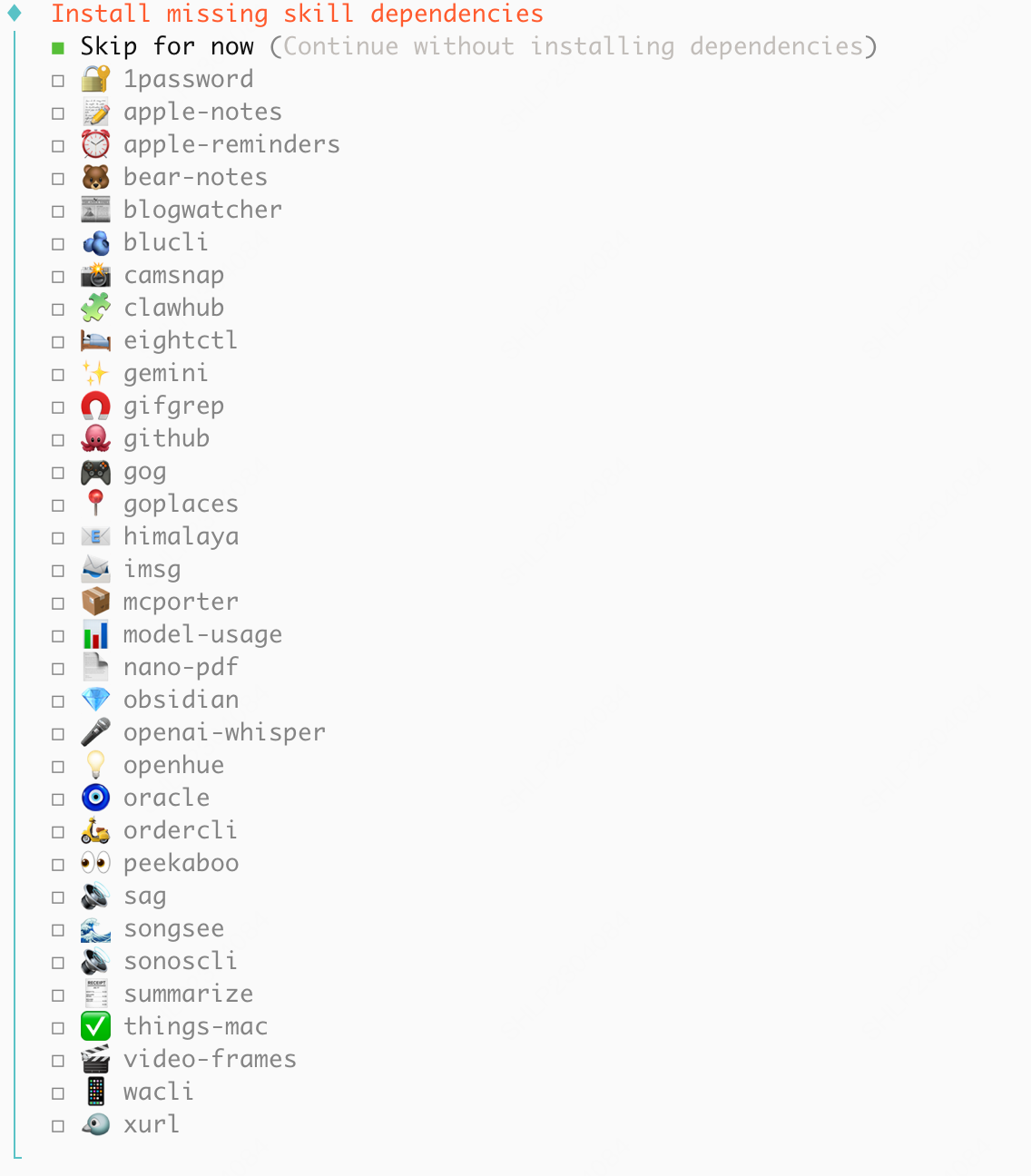
14
Configure API Keys
Configure additional API Keys for tools that OpenClaw can use (optional).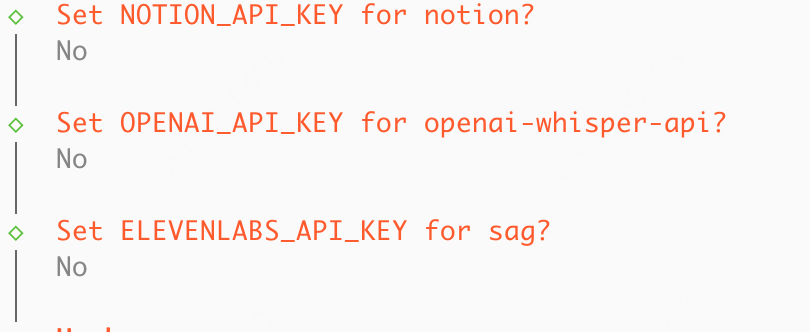
15
Skip Additional Config
Select “Skip for now” if you don’t want to configure additional tools (press space to select, up and down arrows to navigate).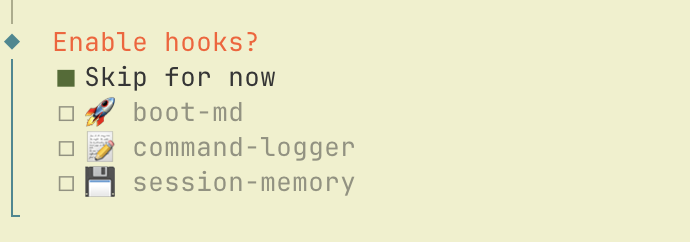
16
Open Web UI
Select “Open the Web UI” to access the OpenClaw dashboard.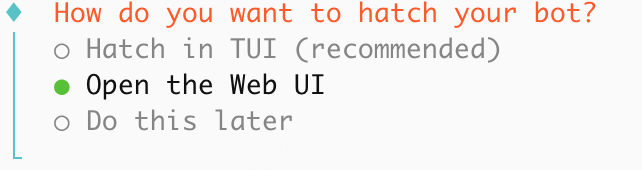
Part 3: Connect to Your Bot
1
Find Your Bot
In Telegram, search and select the bot you created in Part 1.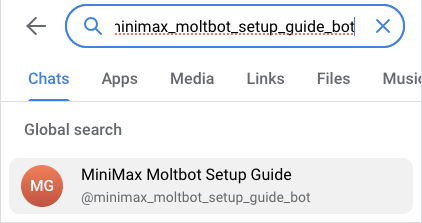
2
Start the Bot
Send something to your bot. You should receive a message containing a pairing code.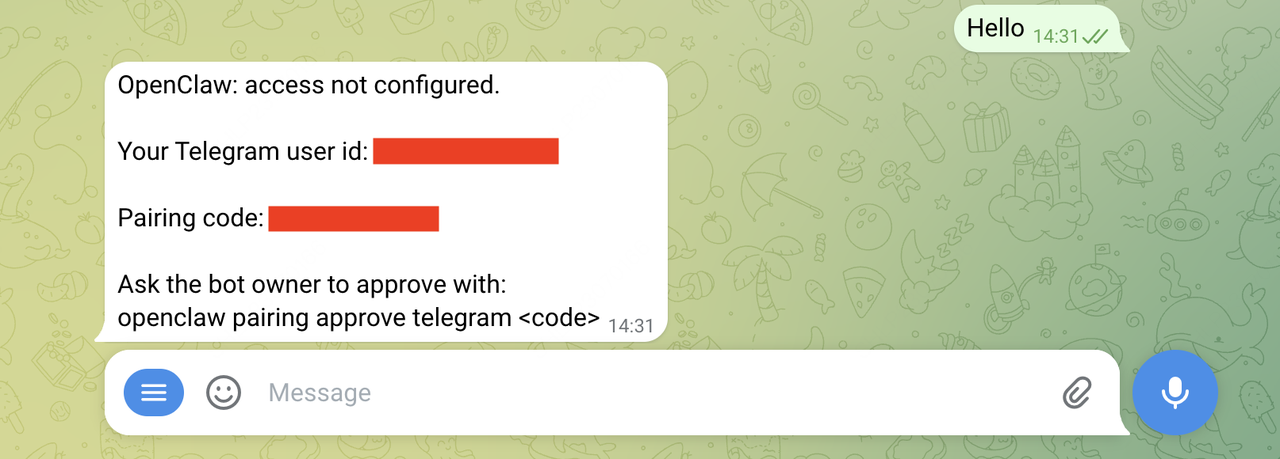
3
Approve Pairing
In your terminal, run the following command (replace 
<code> with the pairing code from the message):4
Verify Connection
You should see a success message in both the terminal and Telegram.
Start Chatting!
Congratulations! You’re all set! You can start chatting with your OpenClaw in Telegram now.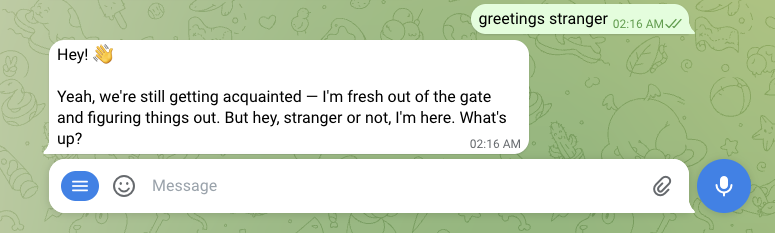
Your OpenClaw-powered assistant can help you with:
- Answering questions and providing information
- Writing and editing text
- Coding assistance and debugging
- Creative tasks and brainstorming
- And much more!
Summary
In this tutorial, you learned how to:- Create a Telegram Bot
- Install and configure OpenClaw with MiniMax OAuth authentication
- Connect your bot to enable AI-powered conversations