Coding Plan MCP Introduction

Coding Plan is MiniMax’s subscription plan designed specifically for AI coding scenarios. Coding Plan MCP provides two exclusive tools: web search (web_search) and image understanding (understand_image), helping developers quickly access information and understand image content during the coding process.

Coding Plan MCP Tools List

web_search

Performs web searches based on search queries

understand_image

Performs image understanding and analysis

Tools and Parameters Details

Performs web searches and returns search results along with related search queries.
ParameterDescriptionFormat and NotesDefault
queryRequired. The search queryStringNone

2. understand_image

Performs image understanding and analysis, supporting multiple image input methods.
ParameterDescriptionFormat and NotesDefault
promptRequired. Question or analysis taskStringNone
image_urlRequired. Image sourceString, supports two formats:
1. HTTP/HTTPS URL: Web image address
2. Local file path: Absolute or relative path to local image
None
Supported Image Formats:
  • JPEG/JPG
  • PNG
  • GIF
  • WebP
Image Size Limit: Maximum 20MB

Use Coding Plan MCP Service in Clients

Get an API Key

UVX Installation and Configuration

MiniMax‑Coding-Plan-MCP is a Python-implemented MCP service. To allow MCP clients to call it, the service must be started and executed via uvx. uvx is a command-line tool provided by uv, similar to npm exec. It is used to run executables defined within a package, ensuring environment isolation and dependency control.
  1. Install uv (to get uvx)
  • macOS / Linux users:
curl -LsSf https://astral.sh/uv/install.sh | sh
  • Windows users:

powershell -ExecutionPolicy ByPass -c "irm https://astral.sh/uv/install.ps1 | iex"
Other installation methods can be found in the uv repository. After installation, uv and uvx executables will be created under the Python environment’s Scripts or bin directory.
  1. Verify uvx is available Run the following command:
  • macOS / Linux users:
which uvx
  • Windows users:
(Get-Command uvx).source
  • If installed correctly, a path will be shown (e.g., /usr/local/bin/uvx).
  • If you encounter the error spawn uvx ENOENT, it means that uvx is either not installed or not in your system PATH. You need to provide its absolute path.

Use in Claude Code

  1. Download Claude Code.
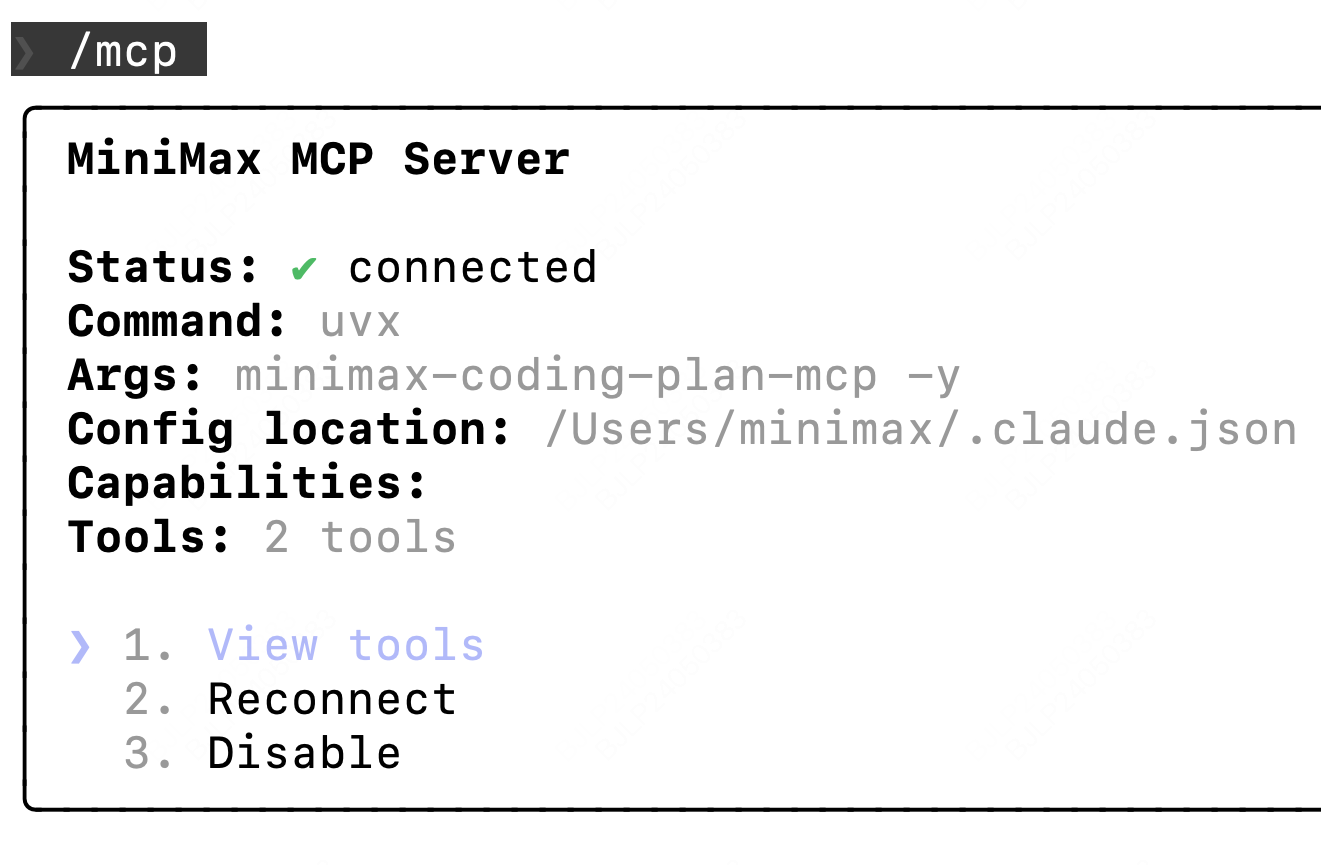
  2. Add the following json configuration to the global configuration file ~/.claude.json. After entering Claude Code, type /mcp, if you can see web_search and understand_image, the configuration is successful.
{
  "mcpServers": {
    "MiniMax": {
      "command": "uvx",
      "args": [
        "minimax-coding-plan-mcp",
        "-y"
      ],
      "env": {
        "MINIMAX_API_KEY": "Enter your API key",
        "MINIMAX_API_HOST": "https://api.minimax.io",
      }
    }
  }
}

Use in Cursor

  1. Download and install Cursor.
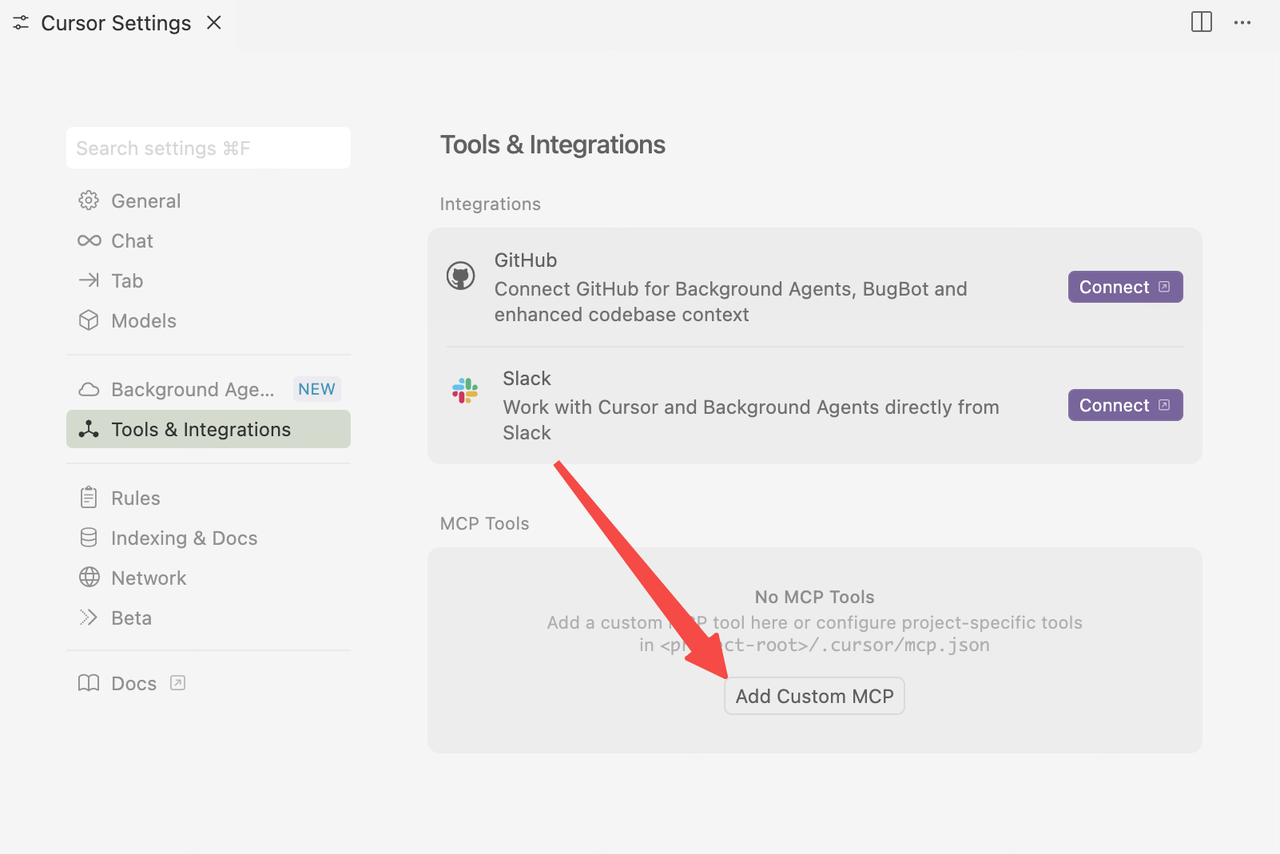
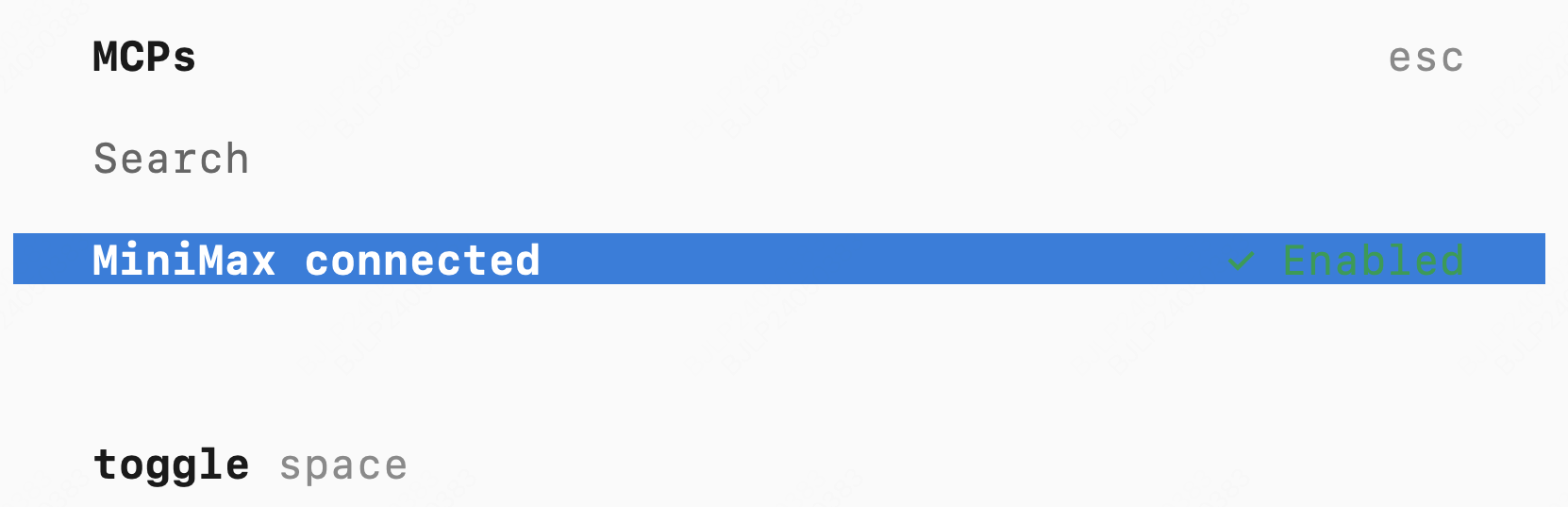
  2. Go to Cursor -> Preferences -> Cursor Settings -> Tools & Integrations -> MCP -> Add Custom MCP to open the MCP tool config file.
Cursor MCP Configuration
  1. Add MiniMax account configuration in mcp.json file.
{
  "mcpServers": {
    "MiniMax": {
      "command": "uvx",
      "args": ["minimax-coding-plan-mcp"],
      "env": {
        "MINIMAX_API_KEY": "Enter your API key",
        "MINIMAX_MCP_BASE_PATH": "Local output directory path, e.g., /User/xxx/Desktop; ensure the path exists and is writable",
        "MINIMAX_API_HOST": "https://api.minimax.io",
        "MINIMAX_API_RESOURCE_MODE": "Optional. Specifies how generated resources are exposed. Options: [url | local]. Default: url"
      },
      "transport": "Optional: transport mode. Options: [stdio|SSE], default: stdio"
    }
  }
}