

Documentation Index
Fetch the complete documentation index at: https://platform.minimax.io/docs/llms.txt
Use this file to discover all available pages before exploring further.
Cline is an open-source autonomous AI coding agent with approval workflows for IDE and terminal.
Install Cline
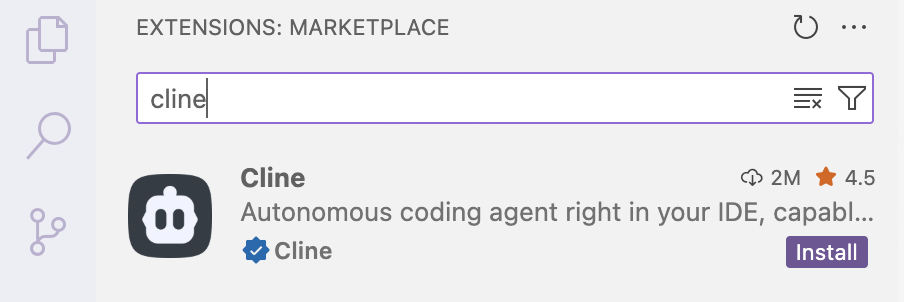
- Open VS Code, click the Extensions icon in the left activity bar, and search for “Cline”.
- Click the “Install” button to add the extension. After installation, you may need to restart VS Code.
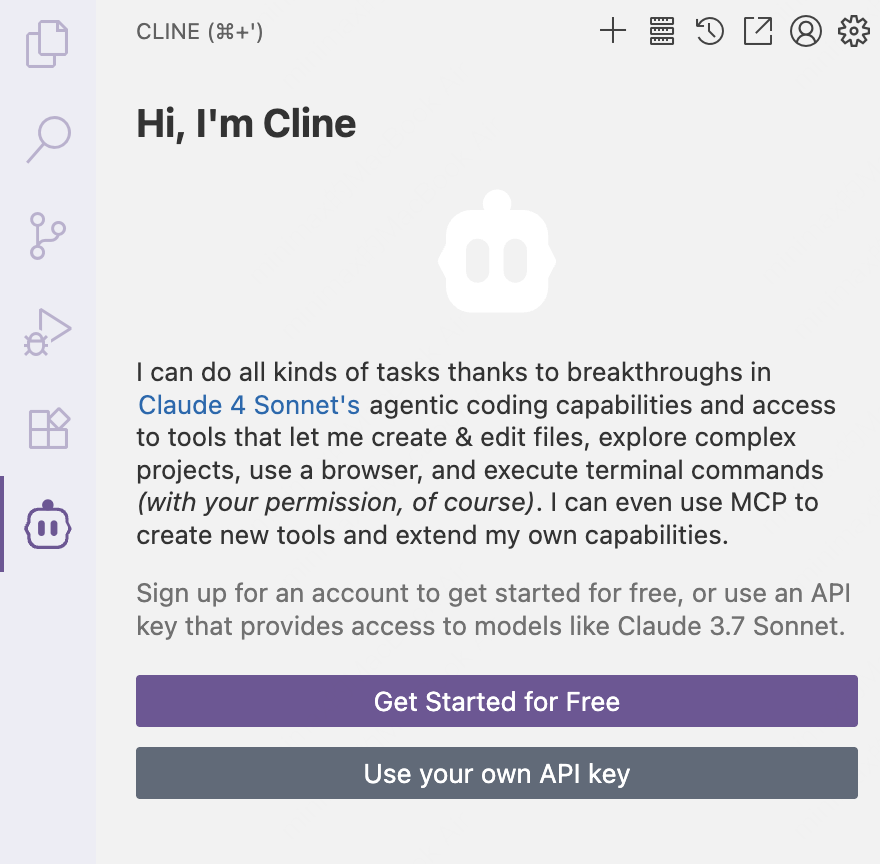
- Once installed, the Cline icon will appear in the left activity bar.
Configure MiniMax API
- Click Use your own API key to open Cline’s configuration page.
- Under API Provider, select MiniMax.
-
In MiniMax Entrypoint, select the appropriate endpoint based on your location (for international users, select
api.minimax.io; for users in China, selectapi.minimaxi.com) - In MiniMax API Key, enter your API key.
- Click Done in the top-right corner to save the configuration.
- Enable the “Edit” option box in “Auto-approve” section and start using “MiniMax-M2.7” for development.