

Cursor is Anysphere’s AI-first IDE forked from VS Code, with built-in agents and codebase understanding.
Install Cursor
- Download and install Cursor from the Cursor website.
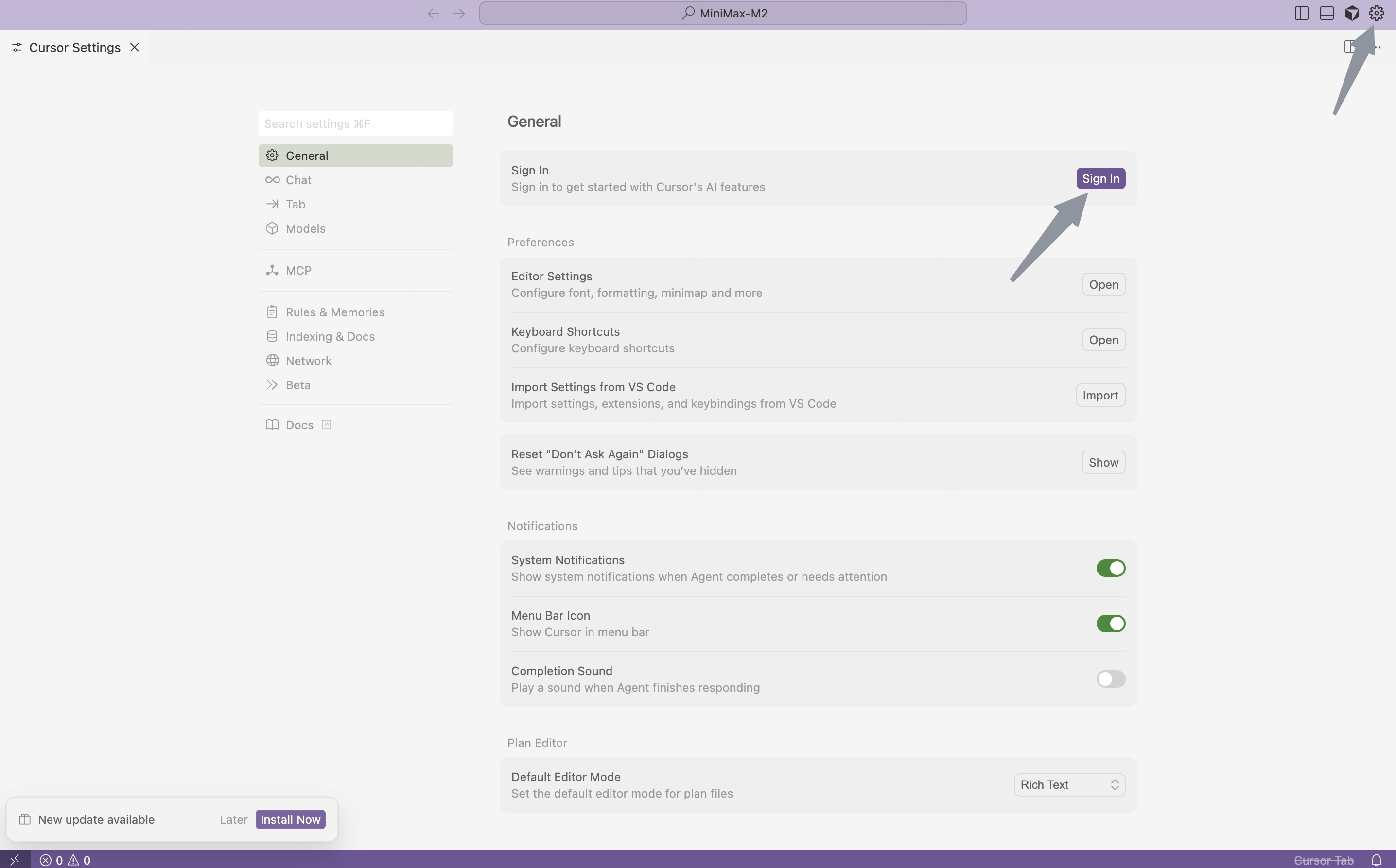
- Open Cursor, click the “Settings” button in the top-right corner to enter the settings page.
- Click the “Sign in” button to log in to your Cursor account.
Configure MiniMax API
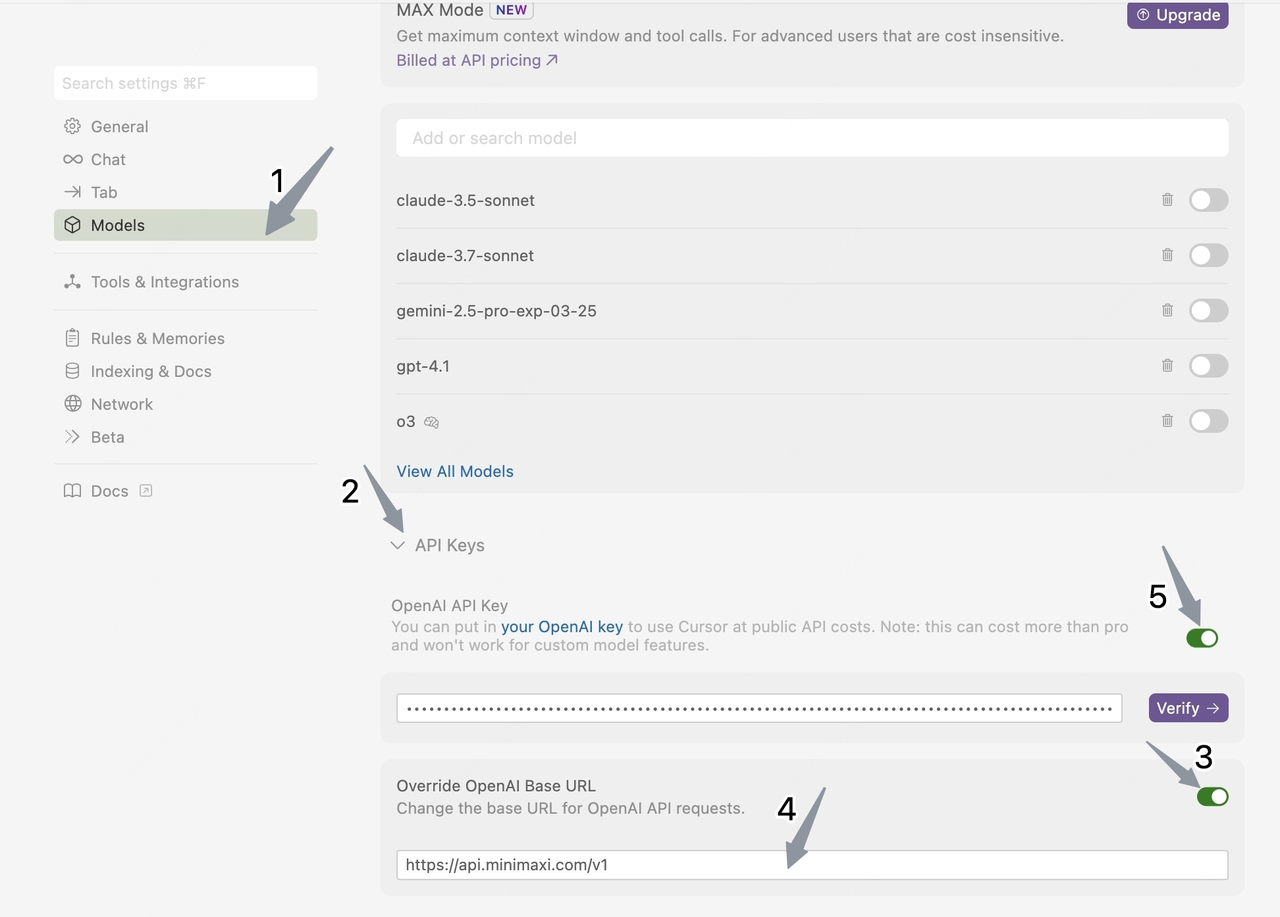
- Click “Models” in the left sidebar to open the model configuration page.
- Expand the “API Keys” section and configure the API information:
- Enable “Override OpenAI Base URL”;
- Enter the MiniMax base URL (for international users, use
https://api.minimax.io/v1; for users in China, usehttps://api.minimax.cn/v1)
- Paste the API Key obtained from the MiniMax Developer Platform (For users in China, visit MiniMax Developer Platform) into the OpenAI API Key field.
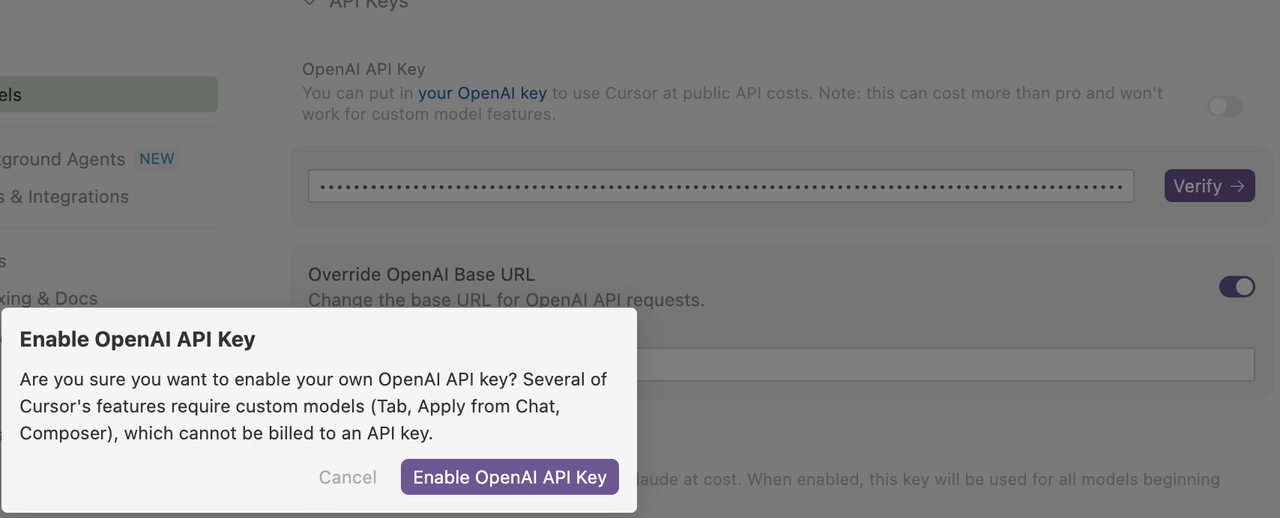
- Click the button on the right side of the “OpenAI API Key” field.
- Click the “Enable OpenAI API Key” button in the pop-up window to complete verification.
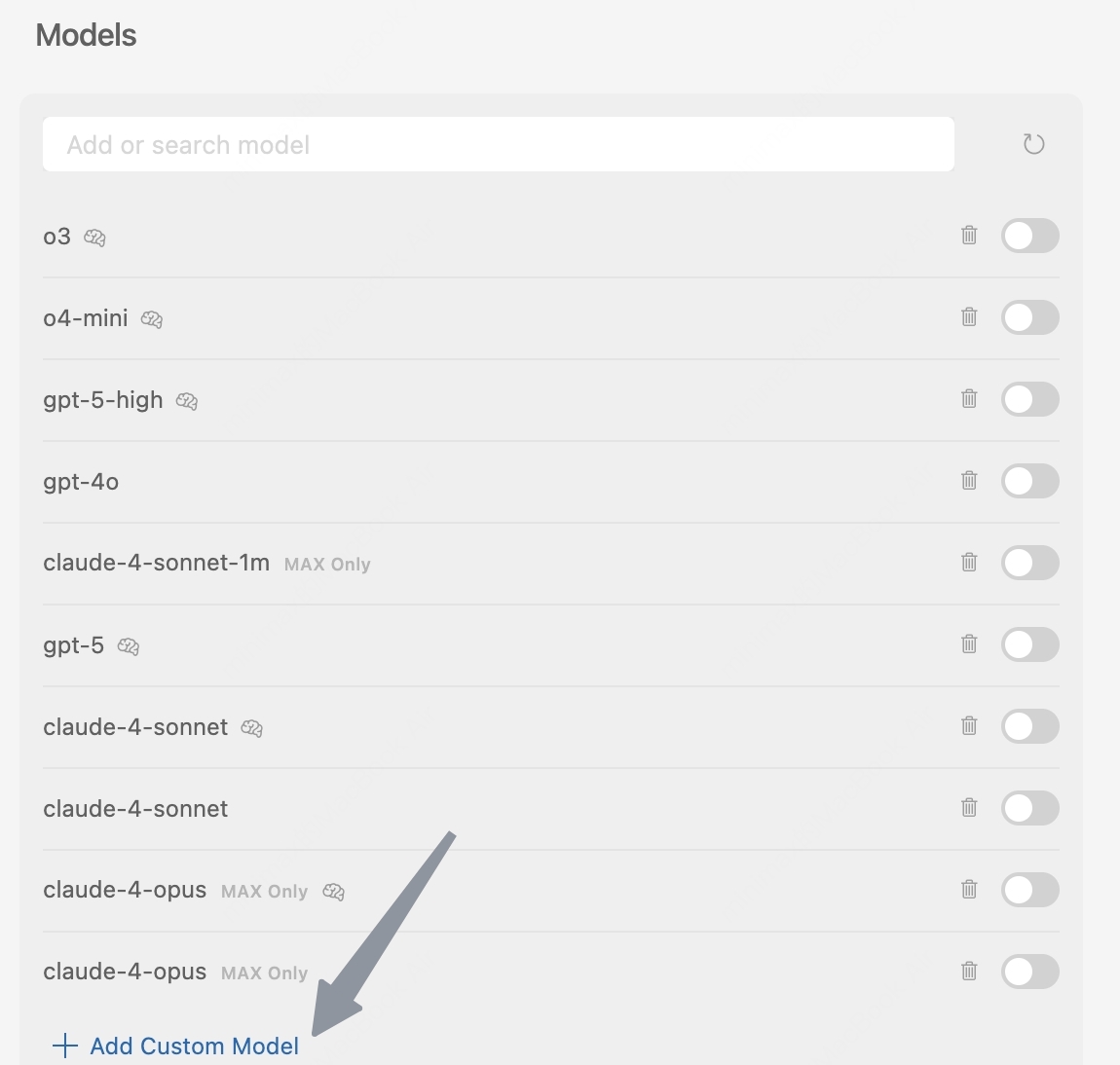
- In the Models section, click the “View All Models” button, and then click the “Add Custom Model” button.
- Enter the model name “MiniMax-M3”, then click the “Add” button.
Use the exact model name
MiniMax-M3 (capital M’s, lowercase i, hyphen) — match the spelling shown in MiniMax docs.
- Enable the newly added “MiniMax-M3” model.
- Select the “MiniMax-M3” model in the chat panel and start using “MiniMax-M3” for development.
Cursor Tab autocomplete is not powered by your custom MiniMax key. Tab is a Cursor Pro feature that always uses Cursor’s own model. Custom models only work in Chat / Composer / Edit modes.