You can skip this section when using the one-click setup wizard below. If it cannot find the claude command, it offers to run the official Claude Code installer.Refer to the Claude Code documentation for installation.
Important: Clear Anthropic Environment Variables Before ConfigurationBefore configuring, ensure you clear the following Anthropic-related environment variables to avoid conflicts with MiniMax API:
If you previously exported these in ~/.bashrc or ~/.zshrc, also remove the export lines there to prevent re-export in new shells.
Option 1: One-click setup wizard
Option 2: Manual setup
Run:
npx -y mmx-cli@latest agent setup
Select Claude Code. If it is missing, keep Claude Code selected in the second multi-select. The wizard runs the official installer, checks claude --version, updates ~/.claude/settings.json, and adds the MiniMax model list.See One-click setup wizard for command options and backup behavior.
Edit or create the Claude Code configuration file located at ~/.claude/settings.json. In this file, add or update the env field as shown below.
The ANTHROPIC_BASE_URL should be set based on your location: for international users, use https://api.minimax.io/anthropic; for users in China, use https://api.minimax.cn/anthropic.
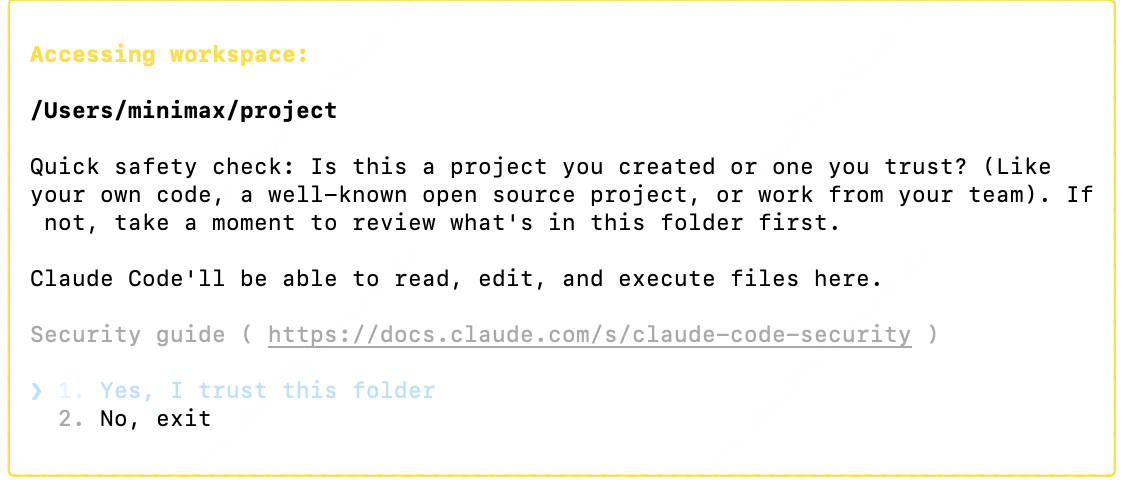
After completing the configuration, navigate to your working directory and run the claude command in the terminal to start using Claude Code. After startup, select Trust This Folder to allow it to access the files in your folder as shown below:
You can now start using Claude Code for development.
Important Note:After completing the configuration, if you also want to enable Web Search capability, you will need to follow this tutorial to configure the Web Search MCP.
After starting claude, run the following slash commands inside the TUI to confirm Claude Code is using MiniMax instead of the default Claude provider:
/status/model
/status should show the ANTHROPIC_BASE_URL pointing to api.minimax.io/anthropic (or api.minimax.cn/anthropic for users in China).
/model should show the active model as MiniMax-M3.
MiniMax-M3 supports Claude Code’s extended thinking, which is on by default. To turn it on or off, run /config and set Thinking mode to true or false. You can also toggle it anytime with Option+T (macOS) or Alt+T (Windows/Linux).