

Configuration Reference
MiniMax exposes two protocols. Pick whichever your tool supports — most modern tools support at least one.OpenAI-Compatible Protocol
Anthropic-Compatible Protocol
Which Protocol Should I Pick?
Cherry Studio
Cherry Studio is an open-source desktop client supporting 50+ LLM providers, with built-in MCP servers and 300+ assistants.
1
Install
Install Cherry Studio per the official docs.
2
Add MiniMax provider
Open Cherry Studio → click Choose other Providers → search
MiniMax, then pick MiniMax.3
Enter API Key
Enter your Subscription Key (the API Host is prefilled), then click Check to verify.
4
Pick the model
Select
MiniMax-M3 from the model list.Chatbox
Chatbox is a free, open-source, cross-platform AI client supporting advanced LLMs, custom API keys (BYOK), and AI agents across desktop, mobile, and web.
1
Install Chatbox
Install Chatbox per the official docs.
2
Add MiniMax provider
Open Chatbox → click Settings → click Model Provider → click Add → search
MiniMax, then pick MiniMax CN or MiniMax Global.3
Enter API Key
Enter your Subscription Key (the API Host is prefilled), then click Check next to API Key to verify the connection.
4
Pick the model
Select
MiniMax-M3 from the model list.Xcode
Xcode is Apple’s official IDE for macOS, iOS, iPadOS, watchOS, and visionOS, now with built-in Coding Intelligence.
1
Install Xcode
Install Xcode 26 or later from the Mac App Store.
2
Add a Model Provider
Open Xcode → top menu Xcode → Settings → Intelligence → Add a Model Provider, choose the Internet Hosted tab, and fill in: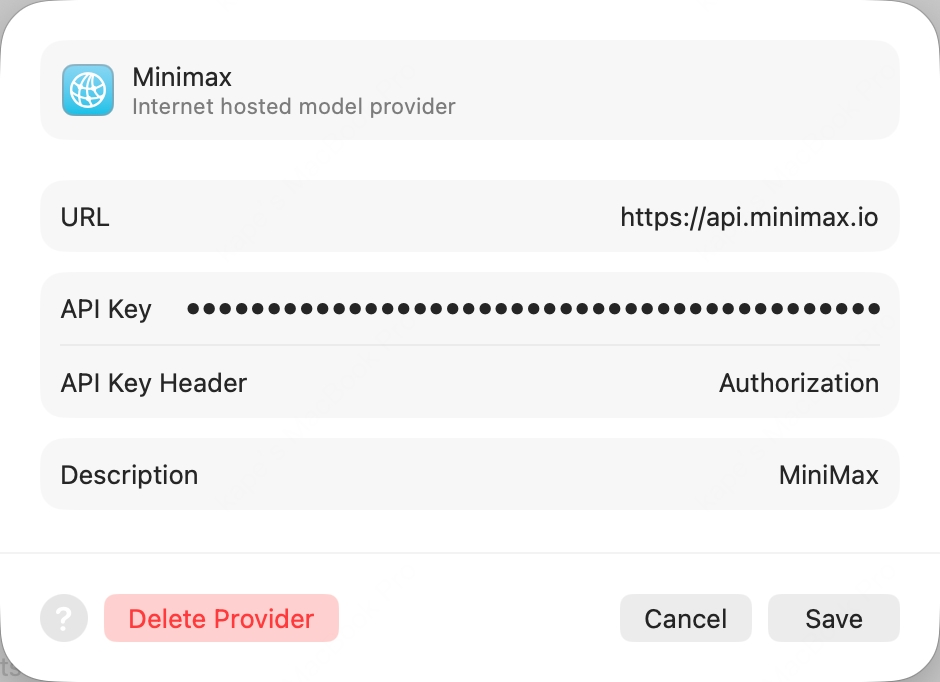
- URL:
https://api.minimax.io(bare host, no path) - API Key Header:
Authorization(override the defaultx-api-key) - API Key:
Bearer <your Subscription Key>(the wordBearer, a single space, then yoursk-cp-…key — get one here) - Description:
MiniMax(any value)
3
Enable the model
Click Add. Back in the Intelligence pane, open the new MiniMax provider and enable
MiniMax-M3.4
Start chatting
Open any project, press ⌘+0 to bring up the Coding Assistant, click the edit icon at the top-left to pick
MiniMax-M3.Kilo Code
Kilo Code is an open-source AI coding agent for VS Code, supporting multiple LLM providers and MCP servers.
1
Install the extension
Search
Kilo Code in the VS Code Extensions panel and install.2
Configure MiniMax provider
Open Kilo Code → Settings:
- API Provider =
MiniMax - MiniMax Entrypoint =
api.minimax.io - MiniMax API Key = your Subscription Key
- Model =
MiniMax-M3
Zed
Zed is an open-source, high-performance multiplayer code editor written in Rust by the Atom creators.
1
Install Zed
Install Zed per the official docs.
2
Add LLM Provider
Settings → LLM Provider → +Add Provider → choose OpenAI, fill:
- API URL =
https://api.minimax.io/v1 - API Key = from Token Plan
- Model Name =
MiniMax-M3
3
Re-confirm API Key
Click Save Provider. Then back in the LLM Provider list, click the new MiniMax entry, re-enter the API Key and press Enter to confirm.
4
Pick the model
Return to the agent panel, click Select a Model at the bottom-right and pick
MiniMax-M3.OpenCode
OpenCode is an open-source terminal AI coding agent by SST, with multi-provider support and LSP integration.
- Option 1: One-click setup wizard
- Option 2: Manual setup
Run:Select OpenCode. If it is missing, keep OpenCode selected in the second multi-select. The wizard installs the official npm package, verifies its version, and makes MiniMax M3 the default model.Run
opencode when setup finishes. See One-click setup wizard for command options and backup behavior.Grok CLI
Grok CLI is an open-source terminal coding agent that connects to xAI’s Grok and OpenAI-compatible providers.
Not recommended for Agent workflows — use Claude Code or Cursor for best results.
- Option 1: One-click setup wizard
- Option 2: Manual setup
Run:Select Grok CLI. If it is missing, keep Grok CLI selected in the second multi-select. The wizard runs the official Grok Build installer, checks
grok --version, preserves unrelated settings, and adds MiniMax M3 to ~/.grok/config.toml.Run grok when setup finishes. See One-click setup wizard for details.Droid
Droid is Factory’s official terminal coding agent that integrates with IDEs and developer collaboration tools.
1
Install Droid
2
Edit config file
Edit
~/.factory/config.json:3
Launch and pick model
Launch
droid, then /model and pick MiniMax-M3.Qwen Code
Qwen Code is Alibaba’s open-source terminal coding agent optimized for the Qwen model family.
1
Install Qwen Code
Linux / macOS:Windows (works in both Command Prompt and PowerShell):
2
Launch and pick provider
Run
qwen in your terminal. Pick Third-party Providers → MiniMax API Key → region International.3
Enter API Key
Enter your API Key from Token Plan (prefix
sk-cp-…) and press Enter.4
Confirm model IDs
The default model ID should be
MiniMax-M3 — press Enter to submit and start chatting.Open WebUI
Open WebUI is a self-hosted, open-source AI chat platform with offline support, RAG, and multi-model runners.
1
Install Open WebUI
Install via Python pip (requires Python 3.11 to avoid compatibility issues):
2
Create admin account
Open http://localhost:8080 in your browser and follow the prompt to create a local admin account.
3
Add OpenAI Connection
Click the avatar (top-right) → Admin Panel → top Settings tab → left Connections. In the OpenAI row, click ➕ Add Connection, fill:
- URL:
https://api.minimax.io/v1 - Auth (Bearer mode): your API Key from Token Plan (prefix
sk-cp-…)
4
Pick the model
Click Save and back in the chat view, pick
MiniMax-M3 from the top model selector to start chatting.nanobot
nanobot is an ultra-lightweight open-source personal AI agent CLI from HKUDS, with chat channels, memory, and MCP support.
1
Install nanobot
2
Initialize
3
Configure MiniMax in one shot
Replace
sk-cp-... with your Token Plan API Key:4
Launch
OpenHands
OpenHands (formerly OpenDevin) is an open-source AI software-development agent by All-Hands-AI, with TUI, web GUI, and IDE integrations.
1
Install OpenHands
2
Configure MiniMax in one shot
Replace
sk-cp-... with your Token Plan API Key:3
Launch
LangChain
LangChain is the open-source framework by LangChain Inc. for building LLM-powered applications, with model adapters, retrieval, agents, and tracing.
1
Install
2
Use MiniMax via the OpenAI-compatible adapter
Replace
sk-cp-... with your Token Plan API Key: